
Discord microphone not working on Windows 11
When Discord cannot hear a microphone, the most common first checks are the selected input device, mute/input mode, Windows microphone permissions, and Discord’s own Voice & Video settings.
Select the correct input device and run Mic Test
In Discord, open User Settings > Voice & Video, select the correct Input Device and run Mic Test. Then confirm Windows 11 microphone access and desktop-app microphone access are enabled. If needed, reset Discord Voice & Video settings.
- Open Discord User Settings > Voice & Video.
- Under Voice, select the microphone you actually want under Input Device.
- Confirm the intended Input Mode.
- Run Mic Test to verify Discord is receiving audio.
Why this branch first: Discord’s current voice troubleshooting guide puts input-device selection and Mic Test among the first microphone checks.
Copy a browser/system diagnostic report
Useful context when a Discord problem also appears in browser-based voice or support workflows.
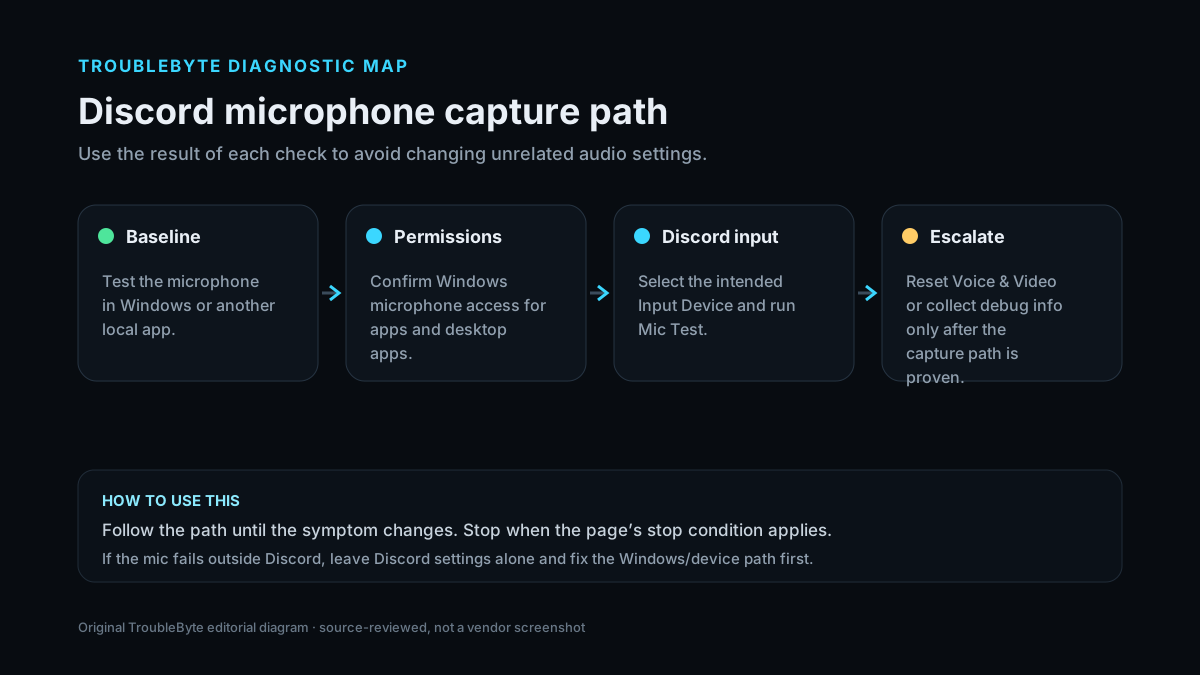
TroubleByte diagnostic path
Test the microphone in Windows or another app.
Select the intended Input Device and run Mic Test.
Verify Windows microphone access for apps and desktop apps.
Reset Voice & Video settings or collect Discord debug info.
Original TroubleByte diagnostic map. It summarizes the cited troubleshooting order; it is not a vendor screenshot.
Use the symptom to choose the next branch
Does the microphone work in another Windows app?
Keep Windows input hardware/settings stable and focus on Discord Input Device, permissions and Voice & Video settings.
Troubleshoot Windows input, device permissions, cable/interface or driver state before changing Discord.
Does Discord Mic Test show input when the correct device is selected?
The capture path is working; check channel permissions, push-to-talk/keybinds and server-specific voice behavior.
Re-check Input Device, input volume, Windows microphone permission and then reset Discord Voice & Video settings.
Original TroubleByte decision aid derived from the cited troubleshooting scope. It does not replace vendor documentation.
What this usually means
If the microphone works in another application but fails in Discord, device selection, Discord settings or permissions are the strongest first suspects. If it fails everywhere, troubleshoot the microphone or Windows audio path before Discord.
What we verified from the source material
Discord’s current voice troubleshooting documentation explicitly directs users to verify the selected input device, input mode, Mic Test, app permissions and Voice & Video settings. Microsoft separately confirms that Windows 11 desktop applications require microphone access to be enabled. These sources support the order of checks on this page; they do not prove that every microphone failure has the same cause.
Prerequisites and checks
Prepare first
- Confirm the microphone works outside Discord before changing Discord settings.
- Know which physical or virtual input device you intend Discord to use.
- If Windows privacy controls are managed by an organization, note that local permission changes may be unavailable.
Checks that prevent the wrong fix
- Test the microphone in another application or Windows input settings first.
- Check that Discord is not muted and that the input mode is not unexpectedly set to Push to Talk.
- For the browser version, the browser also needs site-level microphone permission.
Applies to
Solutions, in order
Select the correct input device and run Mic Test
- Open Discord User Settings > Voice & Video.
- Under Voice, select the microphone you actually want under Input Device.
- Confirm the intended Input Mode.
- Run Mic Test to verify Discord is receiving audio.
Why this can work: Discord’s current voice troubleshooting guide puts input-device selection and Mic Test among the first microphone checks.
Allow microphone access in Windows 11
- Open Settings > Privacy & security > Microphone.
- Turn on Microphone access.
- Turn on Let apps access your microphone.
- For the desktop Discord client, make sure Let desktop apps access your microphone is enabled.
Why this can work: Microsoft requires the relevant microphone privacy permissions for applications to use the device in Windows 11.
Reset Discord Voice & Video settings
- Open User Settings > Voice & Video.
- Open the Debugging section.
- Use Reset Voice and Video Settings.
- Re-select the microphone and run Mic Test again.
Why this can work: Discord recommends resetting Voice & Video settings when basic input checks do not resolve the issue.
How to know the fix actually worked
- Run Discord Mic Test and confirm the input meter reacts to your voice.
- Join a private or low-risk voice channel and confirm another participant can hear you.
- Restart Discord once after changing Windows microphone permissions or the selected input device.
Do not count a temporary disappearance of the symptom as a confirmed fix if the problem normally returns after a restart, reconnect or several minutes of use.
When not to keep changing things
- Stop changing Discord settings if the microphone also fails in Windows Sound Recorder or another local app; diagnose the device, driver, cable or interface first.
- If the microphone is managed by enterprise privacy policy, escalate to the administrator instead of repeatedly resetting Discord.
Escalation: If Discord still detects no input after the microphone works elsewhere, Windows permissions are enabled and Voice & Video settings are reset, collect Discord debug information and contact Discord support rather than changing unrelated audio drivers repeatedly.
Sources used for this record
Primary · checked Sep 6, 2026Discord — Discord Voice and Video Troubleshooting GuideOfficial documentation used to verify the troubleshooting steps.Corroborating · checked Sep 6, 2026Microsoft — Turn on app permissions for your microphone in WindowsOfficial Windows 11 microphone permission requirements.Need private help with this guide?
If the guide did not resolve the problem, send a private case to TroubleByte. It is separate from the public discussion below.
Discuss this exact problem
Share what happened on your system, ask a focused follow-up question, or add evidence that may help someone with the same symptom. Community posts are separate from TroubleByte editorial verification.
Start a discussion
Revision history
Show 7 recorded revisions
2026-09-26 — Source review refreshed against cited current first-party documentation; diagnostic scope confirmed. No hands-on test claimed.
2026-09-06 — v0.6 media/performance pass: added a dedicated social preview card and an original diagnostic diagram; indexing remains disabled.
2026-09-06 — v0.5 UX/discovery pass: added decision-oriented diagnostic guidance and kept indexing disabled.
2026-09-06 — v0.4 depth pass: added symptom framing, prerequisites, verification checks and explicit stop conditions; indexing remains disabled.
2026-09-06 — v0.3 trust pass: assigned a named human author/source reviewer, added section taxonomy and an original diagnostic flow; indexing remains disabled.
2026-09-06 — Clarified source-review semantics and evidence scope; no hands-on hardware test is claimed.
2026-09-06 — Created from current Discord and Microsoft microphone guidance; held noindex for review.