
Discord stuck on RTC Connecting or No Route
Discord groups RTC Connecting, No Route, ICE Checking and Connecting as voice connection failures that can be caused by local network, firewall or VPN interference, or by service-side availability problems.
Test the network path first
Restart the modem/router/computer once, check for ISP or Discord outages, then disable problematic VPN/proxy paths and verify the firewall is not blocking Discord voice traffic. Do not keep resetting microphone settings when the failure is at connection setup.
- Restart the modem/router and computer once.
- Check the ISP connection and Discord status for active incidents.
- Temporarily disconnect a VPN or proxy and retry the same voice channel.
- Try a different trusted network to see whether the symptom follows the device.
Why this branch first: Discord’s current voice connection guide explicitly associates these states with network, firewall and VPN interference and recommends basic network/outage checks.
Capture system context before escalating voice connectivity
Generate a local browser/system report that can be copied into a later support or community thread without automatic upload.
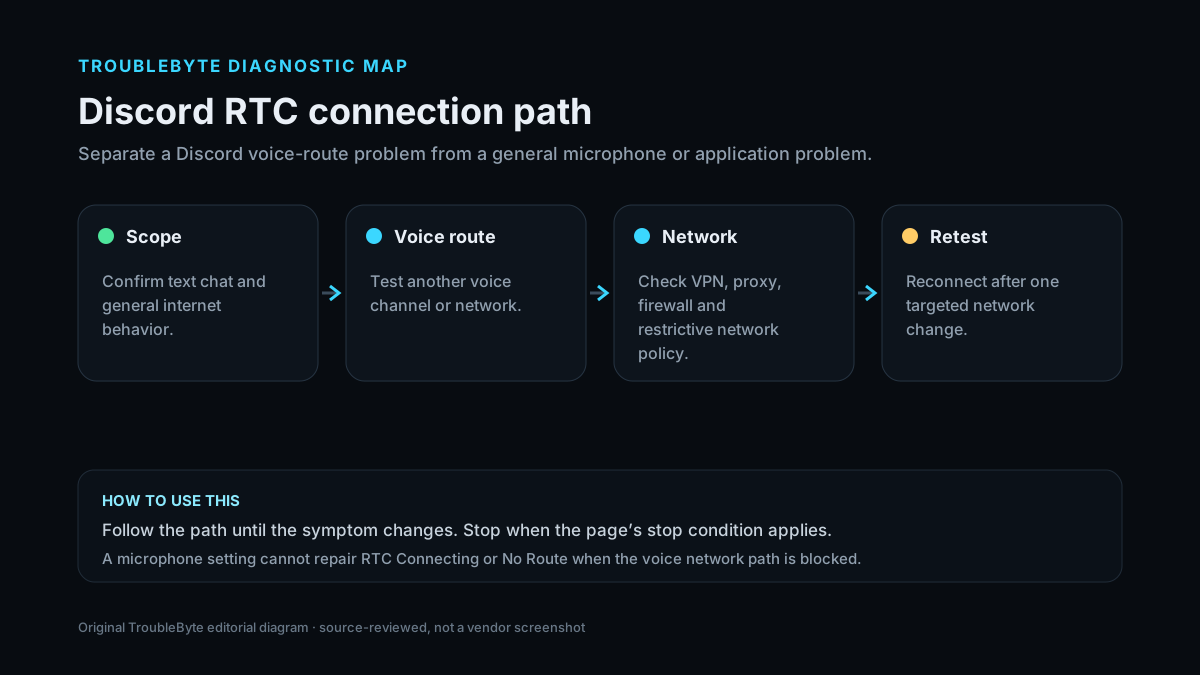
TroubleByte diagnostic path
Rule out Discord/ISP outage.
Restart once and compare another network.
Remove interference in a controlled test.
Reconnect and confirm stable voice.
Original TroubleByte diagnostic map. It summarizes the cited troubleshooting order; it is not a vendor screenshot.
What this usually means
RTC Connecting and No Route happen before normal voice media can flow, so microphone selection is usually not the first branch. The useful distinction is whether Discord alone fails, one network fails, or Discord service status indicates a broader incident.
What we verified from the source material
Discord’s official voice-connection guidance groups RTC Connecting, No Route, ICE Checking and Connecting as connection-stage errors and recommends network restart, outage checks and investigation of firewall/VPN interference before deeper voice configuration.
Prerequisites and checks
Prepare first
- Check whether text chat and other internet services work normally.
- Check Discord status and your ISP status before editing firewall rules.
- Note whether a VPN, corporate network or school network is involved.
Checks that prevent the wrong fix
- Check Discord service status before changing local settings.
- Test whether the problem follows the device or only one network.
- If a VPN is active, note whether disabling it changes the connection state.
Applies to
Solutions, in order
Test the network path first
- Restart the modem/router and computer once.
- Check the ISP connection and Discord status for active incidents.
- Temporarily disconnect a VPN or proxy and retry the same voice channel.
- Try a different trusted network to see whether the symptom follows the device.
Why this can work: Discord’s current voice connection guide explicitly associates these states with network, firewall and VPN interference and recommends basic network/outage checks.
Check firewall and DNS only after the path test
- Ensure local firewall/security software is not blocking Discord voice traffic.
- If a managed network restricts UDP or voice services, test on an unrestricted network rather than weakening policy blindly.
- If Discord’s guide suggests DNS changes for your platform, make one controlled change and retest.
- Restore previous network/security settings if the test does not change the symptom.
Why this can work: Firewall or resolver interference can affect voice connection establishment, but should be tested after service status and simple network isolation.
How to know the fix actually worked
- Discord reaches Connected and voice audio can be sent/received.
- The same voice channel works consistently after the identified network change.
Do not count a temporary disappearance of the symptom as a confirmed fix if the problem normally returns after a restart, reconnect or several minutes of use.
When not to keep changing things
- If Discord status shows a service incident or multiple unrelated networks fail identically, stop local troubleshooting until the service state changes.
Escalation: If multiple devices and networks cannot reach Discord voice while Discord status reports an incident, stop local configuration changes and wait for service recovery. In managed networks, escalate firewall/UDP restrictions to the network administrator.
Sources used for this record
Primary · checked Sep 7, 2026Discord — Voice Connection ErrorsFirst-party documentation used to verify the troubleshooting scope and steps.Corroborating · checked Sep 7, 2026Discord — Discord Voice and Video Troubleshooting GuideFirst-party documentation used to verify the troubleshooting scope and steps.Need private help with this guide?
If the guide did not resolve the problem, send a private case to TroubleByte. It is separate from the public discussion below.
Discuss this exact problem
Share what happened on your system, ask a focused follow-up question, or add evidence that may help someone with the same symptom. Community posts are separate from TroubleByte editorial verification.
Start a discussion
Revision history
Show 2 recorded revisions
2026-09-26 — Source review refreshed against cited current first-party documentation; diagnostic scope confirmed. No hands-on test claimed.
2026-09-07 — Created for the v0.8 content-scale pass from current first-party documentation; held noindex for editorial review.