
Discord screen share has no audio
When Discord screen sharing shows video but viewers hear no shared audio, separate capture permission/source problems from general voice or network trouble. Confirm the correct app/window is being shared, update Discord/OS, check permissions and test Discord capture settings.
Rebuild the screen-share capture path
Restart Discord, update the app and OS, re-share the intended application, and confirm Discord has the required capture/screen permissions. If capture still fails, test Discord Voice & Video settings rather than changing DNS or router settings first.
- Restart Discord and the device, then update Discord and the operating system.
- Start a new share and select the intended application/window.
- Confirm Discord has the required screen/capture permissions in the OS.
- Retest shared application audio with one viewer.
Why this branch first: Discord recommends permissions, updates and correct share configuration for screen-share problems.
Choose a local-first diagnostic tool
Use a TroubleByte tool to inspect an error, DNS record or local system context before changing settings.
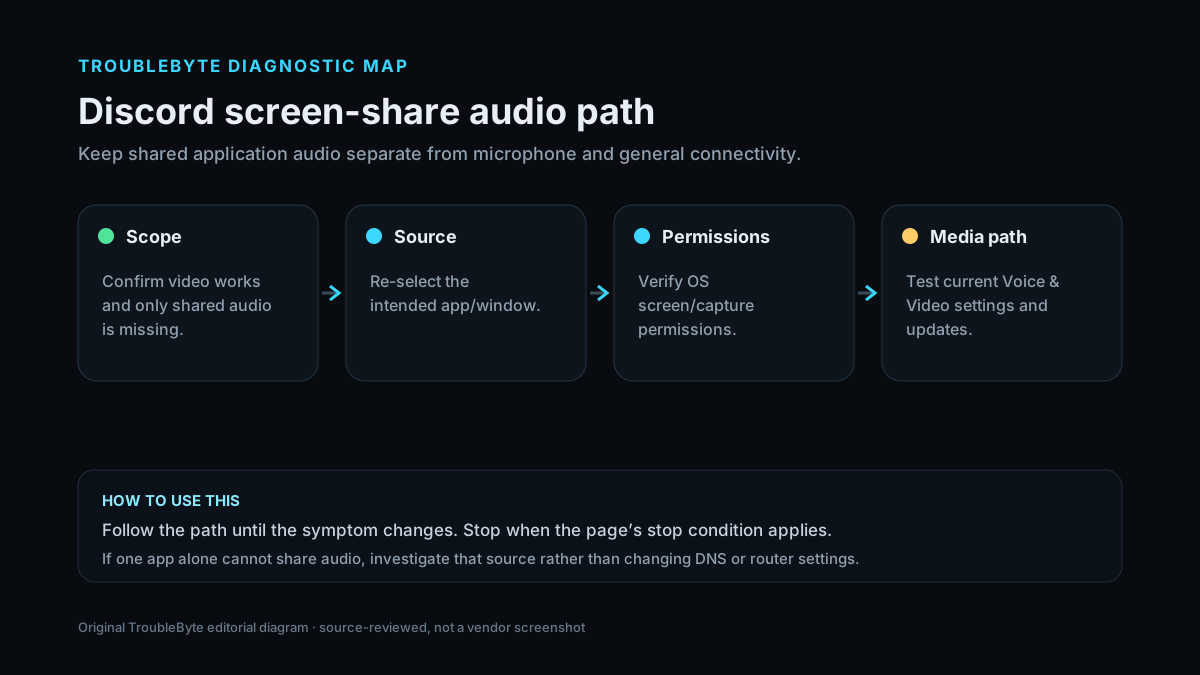
TroubleByte diagnostic path
Confirm video works and only shared audio is missing.
Re-select the intended app/window.
Verify OS screen/capture permissions.
Test current Voice & Video settings and updates.
Original TroubleByte diagnostic map. It summarizes the cited troubleshooting order; it is not a vendor screenshot.
Use the symptom to choose the next branch
Can viewers see the screen-share video while only shared audio is missing?
Focus on audio capture source, permissions and Discord media settings rather than general connectivity.
Treat this as a broader screen-share/streaming failure and follow Discord’s screen-share troubleshooting path.
Does shared audio fail for every application you test?
The Discord/OS capture path is more likely than one app-specific limitation.
Focus on the single source application, its audio output and whether that content supports capture.
Original TroubleByte decision aid derived from the cited troubleshooting scope. It does not replace vendor documentation.
What this usually means
Video working while shared audio is missing narrows the problem toward capture source, permission or Discord’s media path rather than a total connection failure. Discord’s current troubleshooting guidance emphasizes permissions, OS/driver updates and Voice & Video settings; its error guidance also distinguishes sound-sharing capture errors from ordinary voice connection problems.
What we verified from the source material
Discord’s current screen-share guidance covers capture permissions, operating-system and driver updates, Hardware Acceleration, quality settings and bandwidth. This supports treating missing shared audio as a capture/media-path issue before unrelated DNS or router changes.
Prerequisites and checks
Prepare first
- Update Discord to the current build before comparing settings.
- Close and reopen the app being shared after permission changes.
- Know whether the missing audio is application audio or your microphone; they are separate paths.
Checks that prevent the wrong fix
- Confirm viewers can see the shared video while only audio is missing.
- Re-select the intended app/window instead of assuming the same share source is active.
- Check Discord and operating-system capture/screen permissions.
Applies to
Solutions, in order
How to know the fix actually worked
- A viewer can hear the intended application audio while the screen share remains visible.
- Normal Discord microphone/voice audio still works after the capture changes.
Do not count a temporary disappearance of the symptom as a confirmed fix if the problem normally returns after a restart, reconnect or several minutes of use.
When not to keep changing things
- If the source application intentionally blocks audio capture or protected media, stop bypass attempts and use the application/platform-supported sharing method.
Escalation: If current Discord and OS builds still fail with the same source across clean permissions/settings, collect the exact error code and Discord debug/support information.
Sources used for this record
Primary · checked Sep 7, 2026Discord — Discord Voice and Video Troubleshooting GuideFirst-party documentation used as the primary evidence source for this troubleshooting record.Corroborating · checked Sep 7, 2026Discord — Discord Voice, Video, & Streaming GuideFirst-party documentation used as the corroborating evidence source for this troubleshooting record.Need private help with this guide?
If the guide did not resolve the problem, send a private case to TroubleByte. It is separate from the public discussion below.
Discuss this exact problem
Share what happened on your system, ask a focused follow-up question, or add evidence that may help someone with the same symptom. Community posts are separate from TroubleByte editorial verification.
Start a discussion
Revision history
Show 2 recorded revisions
2026-09-26 — Source review refreshed against cited current first-party documentation; diagnostic scope confirmed. No hands-on test claimed.
2026-09-07 — Created for the v0.9 launch-acceleration content pass from current first-party documentation; indexing remains disabled pending final launch review.