
Discord update failed or update loop on Windows
Discord update loops can result from a stuck process, damaged local installation files, connectivity or proxy/VPN interference, or an unsupported Windows environment. Discord’s own troubleshooting places full process shutdown and clean installation state ahead of random updater renames or registry edits.
Clear the stuck updater state
Fully quit Discord and its background processes, restart once, and retry on a normal connection. If the installation is corrupt, use Discord’s documented AppData/LocalAppData clean reinstall procedure.
- Quit Discord from the system tray and end remaining Discord processes in Task Manager.
- Restart Windows and retry Discord without a VPN/proxy if one is active.
- Confirm current Windows architecture/system support.
- If the update still loops, proceed to the clean install path.
Why this branch first: Discord’s troubleshooting guidance calls out forced quit/restart, VPN/proxy interference and update/install state before deeper changes.
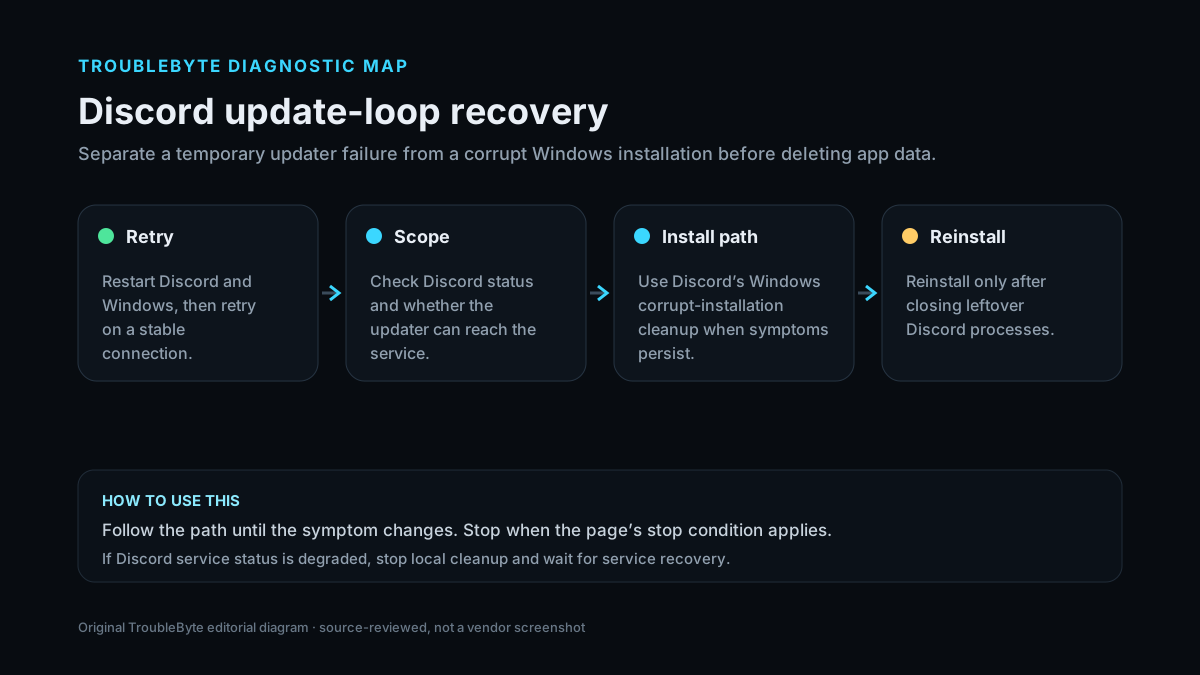
Choose a local-first diagnostic tool
Use a TroubleByte tool to inspect an error, DNS record or local system context before changing settings.
TroubleByte diagnostic path
Check status and basic connectivity.
Fully terminate Discord.
Restart and retry without interfering proxy/VPN.
Use Discord’s documented local-folder cleanup.
Original TroubleByte diagnostic map. It summarizes the cited troubleshooting order; it is not a vendor screenshot.
Use the symptom to choose the next branch
Does Discord work in the browser on the same connection?
Focus on the Windows desktop updater/install state.
Check service status, network, DNS/VPN/proxy before reinstalling.
Does the update still fail after all Discord processes are ended and Windows restarted?
Use the documented clean reinstall.
Do not delete AppData if a simple restart resolved it.
Original TroubleByte decision aid derived from the cited troubleshooting scope. It does not replace vendor documentation.
What this usually means
The important branch is whether Discord can run in the browser while the Windows desktop client cannot update. If web Discord works, broad network failure is less likely and local installer/updater state becomes more plausible. Discord documents process cleanup, local installation-folder removal and a fresh installer for corrupt Windows installs.
What we verified from the source material
Discord’s current troubleshooting guide lists force-quit/restart, cache/install cleanup, VPN/proxy checks and fresh installation for update problems. Its Windows corrupt-install article provides the supported AppData and LocalAppData cleanup sequence.
Prerequisites and checks
Prepare first
- Know the Discord account credentials before reinstalling.
- Close voice calls or unsaved draft content before ending processes.
- Use only the official Discord installer.
Checks that prevent the wrong fix
- Check Discord Status and confirm general internet access.
- Fully quit Discord from the tray and Task Manager.
- Determine whether the browser client works while the desktop app is stuck updating.
Applies to
Solutions, in order
Clear the stuck updater state
- Quit Discord from the system tray and end remaining Discord processes in Task Manager.
- Restart Windows and retry Discord without a VPN/proxy if one is active.
- Confirm current Windows architecture/system support.
- If the update still loops, proceed to the clean install path.
Why this can work: Discord’s troubleshooting guidance calls out forced quit/restart, VPN/proxy interference and update/install state before deeper changes.
Perform Discord’s clean Windows reinstall
- Close all Discord processes.
- Remove the Discord folders under %AppData% and %LocalAppData% as documented by Discord.
- Restart Windows.
- Download a fresh Windows installer from Discord and reinstall.
Why this can work: Discord’s corrupt-install and installer-error documentation explicitly uses AppData/LocalAppData cleanup followed by a fresh official installer.
How to know the fix actually worked
- Discord reaches the normal login/app interface without an update loop.
- Closing and reopening Discord does not immediately return to Update Failed.
Do not count a temporary disappearance of the symptom as a confirmed fix if the problem normally returns after a restart, reconnect or several minutes of use.
When not to keep changing things
- If the official installer produces a repeatable error after a documented clean install, stop deleting folders and capture the exact error for Discord Support.
Escalation: If a fresh official installer still fails after process cleanup and Windows compatibility checks, capture the installer error and contact Discord Support instead of downloading unofficial updater binaries.
Sources used for this record
Primary · checked Sep 8, 2026Discord — Discord Troubleshooting GuideFirst-party documentation used as the primary evidence source for this troubleshooting record.Corroborating · checked Sep 8, 2026Discord — [Windows] Corrupt InstallationFirst-party documentation used as corroborating evidence for this troubleshooting record.Need private help with this guide?
If the guide did not resolve the problem, send a private case to TroubleByte. It is separate from the public discussion below.
Discuss this exact problem
Share what happened on your system, ask a focused follow-up question, or add evidence that may help someone with the same symptom. Community posts are separate from TroubleByte editorial verification.
Start a discussion
Revision history
Show 2 recorded revisions
2026-09-26 — Source review refreshed against cited current first-party documentation; diagnostic scope confirmed. No hands-on test claimed.
2026-09-08 — Created for the v1.1 content-scale pass from current first-party documentation; public indexing is controlled by the launch allowlist.