
Docker container exited with code 137
Treat exit code 137 as evidence that the process received SIGKILL, not as proof that one specific component failed. Preserve state and logs, then determine whether an OOM event, a manual kill, a daemon restart or another external action occurred. This source-reviewed guide keeps the next step tied to the evidence you can collect safely.
Capture the exact symptom and scope first
Treat exit code 137 as evidence that the process received SIGKILL, not as proof that one specific component failed. Preserve state and logs, then determine whether an OOM event, a manual kill, a daemon restart or another external action occurred.
- Record the exact visible message and timestamp.
- Check whether the symptom affects one target or several.
- Preserve the relevant log, response or configuration state.
- Choose the next step only after identifying the affected layer.
Why this branch first: The exact error, timestamp and scope determine the next branch more safely than broad resets or deletes.
Choose a local-first diagnostic tool
Use a TroubleByte tool to inspect an error, DNS record or local system context before changing settings.
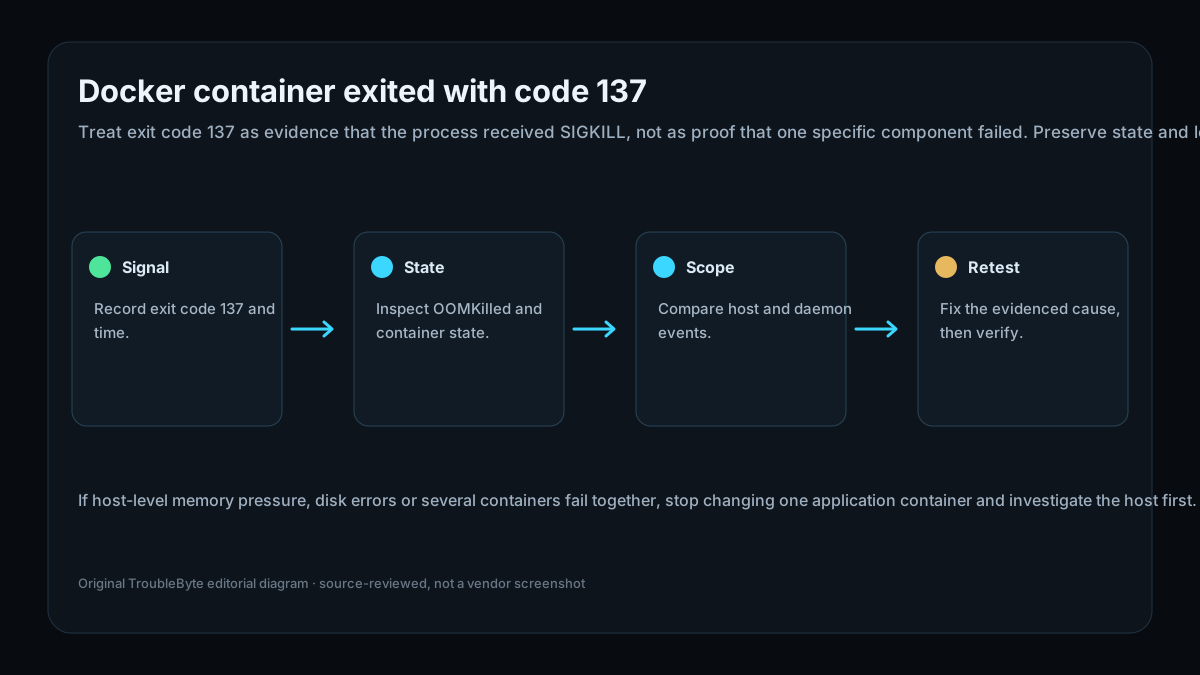
TroubleByte diagnostic path
Record exit code 137 and time.
Inspect OOMKilled and container state.
Compare host and daemon events.
Fix the evidenced cause, then verify.
Original TroubleByte diagnostic map. It summarizes the cited troubleshooting order; it is not a vendor screenshot.
Use the symptom to choose the next branch
Does the evidence point to one affected target rather than a wider platform or network failure?
Keep the investigation narrow and correct the affected target or configuration only.
Stop making isolated changes and investigate the shared host, network, storage or platform layer.
Do you have the exact message, timestamp and relevant log or response evidence?
Use that evidence to follow the scoped diagnostic flow and verify one targeted change.
Capture it first; broad resets, deletes and policy changes are premature.
Original TroubleByte decision aid derived from the cited troubleshooting scope. It does not replace vendor documentation.
What this usually means
Docker reports a 137 status when a container process ends after SIGKILL. Docker documentation describes out-of-memory handling as one possible path, but an exit code by itself does not establish why SIGKILL was sent. The useful first split is whether the container was terminated because of a resource event, an operator or orchestrator action, or a broader host/daemon event.
What we verified from the source material
Docker reports a 137 status when a container process ends after SIGKILL. Docker documentation describes out-of-memory handling as one possible path, but an exit code by itself does not establish why SIGKILL was sent. The useful first split is whether the container was terminated because of a resource event, an operator or orchestrator action, or a broader host/daemon event.
Prerequisites and checks
Prepare first
- Know the affected container name or ID.
- Keep current logs and inspect output before deleting or recreating the container.
- Do not assume memory is the cause from code 137 alone.
Checks that prevent the wrong fix
- Record the container name, image and exact exit timestamp.
- Use docker inspect to preserve State, ExitCode and OOMKilled fields before recreating anything.
- Check whether other containers or the host show trouble at the same time.
Applies to
Solutions, in order
Capture the exact symptom and scope first
- Record the exact visible message and timestamp.
- Check whether the symptom affects one target or several.
- Preserve the relevant log, response or configuration state.
- Choose the next step only after identifying the affected layer.
Why this can work: The exact error, timestamp and scope determine the next branch more safely than broad resets or deletes.
Correlate the exit with container and host evidence
- Inspect container state, including ExitCode and OOMKilled.
- Read logs immediately before the exit timestamp.
- Compare the timestamp with host, daemon or orchestrator events.
- Correct the evidenced cause and retest.
Why this can work: Apply a narrow correction that follows the observed evidence, then verify the original symptom is gone.
How to know the fix actually worked
- Confirm the container stays running through the previous failure interval.
- Recheck inspect state and logs after the targeted correction.
Do not count a temporary disappearance of the symptom as a confirmed fix if the problem normally returns after a restart, reconnect or several minutes of use.
When not to keep changing things
- If host-level memory pressure, disk errors or several containers fail together, stop changing one application container and investigate the host first.
Escalation: If evidence points to recurring host resource pressure or daemon instability, preserve logs and investigate the host or orchestration layer rather than masking the exit with a restart policy.
Sources used for this record
Primary · checked Sep 25, 2026Docker — docker inspectOfficial documentation used to verify the scoped troubleshooting guidance.Corroborating · checked Sep 25, 2026Docker — Resource constraintsOfficial documentation used to verify the scoped troubleshooting guidance.Discuss this exact problem
Share what happened on your system, ask a focused follow-up question, or add evidence that may help someone with the same symptom. Community posts are separate from TroubleByte editorial verification.
Start a discussion
Revision history
Show 1 recorded revision
2026-09-25 — Created from current official documentation with scoped decisions, explicit stop conditions and an original TroubleByte diagnostic diagram.