
Docker: no space left on device
Docker can consume substantial storage through images, stopped containers, build cache and volumes. A no-space error may also come from the host filesystem or inode exhaustion. Docker provides docker system df to measure daemon usage and conservative prune commands that only remove categories you explicitly choose.
Measure before deleting
Run host disk/inode checks plus docker system df before deleting anything. Prune only unused Docker objects you understand; volumes are intentionally not removed by default because they may contain important data.
- Check df -h and df -i for the Docker data filesystem.
- Run docker system df and optionally docker system df -v.
- Identify reclaimable images, stopped containers, networks and build cache.
- Confirm which volumes contain application data before any volume cleanup.
Why this branch first: Docker provides docker system df specifically to report daemon disk use; host free-space/inode checks prevent misdiagnosing a non-Docker filesystem issue.
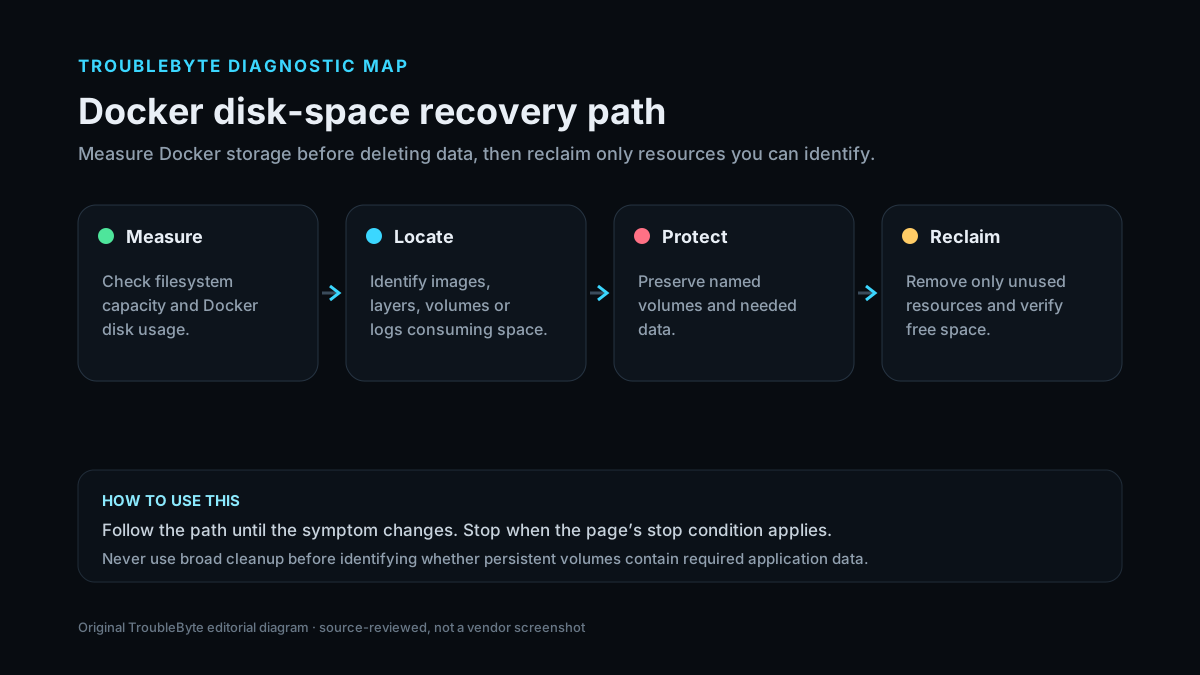
Choose a local-first diagnostic tool
Use a TroubleByte tool to inspect an error, DNS record or local system context before changing settings.
TroubleByte diagnostic path
Check filesystem bytes and inodes.
Run docker system df.
Find reclaimable versus active data.
Remove only verified unused objects.
Original TroubleByte diagnostic map. It summarizes the cited troubleshooting order; it is not a vendor screenshot.
Use the symptom to choose the next branch
Does docker system df show substantial reclaimable unused data?
Prune the specific unused category carefully.
Investigate host filesystem, inodes, active logs/volumes or non-Docker usage.
Would the proposed cleanup include volumes?
Verify each volume’s data ownership/backups before proceeding.
Proceed with the narrower non-volume cleanup and remeasure.
Original TroubleByte decision aid derived from the cited troubleshooting scope. It does not replace vendor documentation.
What this usually means
The error string does not prove Docker images are the only problem. First determine whether the host filesystem is full, inodes are exhausted, or Docker objects are the major consumer. Docker’s own df/prune tooling shows reclaimable data and avoids the unsafe pattern of manually deleting files under Docker’s data root.
What we verified from the source material
Docker documents docker system df for measuring daemon disk usage and says unused objects are not removed automatically. Its pruning guidance explains exactly which object types are removed and that volumes are not pruned by default to protect data.
Prerequisites and checks
Prepare first
- Know whether the host runs production containers or important named volumes.
- Have a current backup for data that cannot be recreated.
- Do not manually delete files inside /var/lib/docker or the configured Docker data root.
Checks that prevent the wrong fix
- Check host free space and inode availability on the filesystem containing Docker data.
- Run docker system df (and -v if needed) to identify images, containers, volumes and cache usage.
- Identify what is truly unused before any prune command.
Applies to
Solutions, in order
Measure before deleting
- Check df -h and df -i for the Docker data filesystem.
- Run docker system df and optionally docker system df -v.
- Identify reclaimable images, stopped containers, networks and build cache.
- Confirm which volumes contain application data before any volume cleanup.
Why this can work: Docker provides docker system df specifically to report daemon disk use; host free-space/inode checks prevent misdiagnosing a non-Docker filesystem issue.
Prune only unused Docker objects
- Start with the narrowest prune command appropriate to the reclaimable category.
- Use docker system prune only after reading the confirmation list of objects it will remove.
- Do not add --volumes unless you have verified the affected unused volumes are safe to remove.
- Recheck docker system df and host free space after cleanup.
Why this can work: Docker intentionally uses conservative garbage collection and warns that system prune removes stopped containers, unused networks, dangling/unused images depending options, and build cache; volumes require explicit opt-in.
How to know the fix actually worked
- The host filesystem has adequate free bytes/inodes after cleanup.
- The failed Docker pull/build/container operation completes without the no-space error.
Do not count a temporary disappearance of the symptom as a confirmed fix if the problem normally returns after a restart, reconnect or several minutes of use.
When not to keep changing things
- If a volume or active writable layer contains important application data, stop broad prune/delete actions and investigate application retention/logging instead.
Escalation: If disk use is dominated by active container writable layers, logs or named volumes, stop broad pruning and investigate the specific application/data retention policy before deleting production data.
Sources used for this record
Primary · checked Sep 8, 2026Docker — docker system dfFirst-party documentation used as the primary evidence source for this troubleshooting record.Corroborating · checked Sep 8, 2026Docker — Prune unused Docker objectsFirst-party documentation used as corroborating evidence for this troubleshooting record.Need private help with this guide?
If the guide did not resolve the problem, send a private case to TroubleByte. It is separate from the public discussion below.
Discuss this exact problem
Share what happened on your system, ask a focused follow-up question, or add evidence that may help someone with the same symptom. Community posts are separate from TroubleByte editorial verification.
Start a discussion
Revision history
Show 2 recorded revisions
2026-09-26 — Source review refreshed against cited current first-party documentation; diagnostic scope confirmed. No hands-on test claimed.
2026-09-08 — Created for the v1.1 content-scale pass from current first-party documentation; public indexing is controlled by the launch allowlist.