
iPhone can’t connect to Wi-Fi
Apple’s current Wi-Fi flow separates a single-network problem from an iPhone-wide problem. Check Wi-Fi and Airplane Mode, test another device and another network, remove problematic VPN/security software, and reserve Reset Network Settings for later because it removes saved network configuration.
Scope the network before resetting the iPhone
Confirm Wi-Fi is on and Airplane Mode is off, test whether another device can use the same network, then try another Wi-Fi network. Use Reset Network Settings only after simpler checks because it removes saved Wi-Fi/VPN/APN settings.
- Confirm Wi-Fi is on and Airplane Mode is off.
- Restart the iPhone and the router if you administer it.
- Check whether another device can use the same Wi-Fi.
- Try the iPhone on another trusted Wi-Fi network to determine scope.
Why this branch first: Apple recommends checking local Wi-Fi settings and comparing other devices/networks before destructive reset steps.
Choose a local-first diagnostic tool
Use a TroubleByte tool to inspect an error, DNS record or local system context before changing settings.
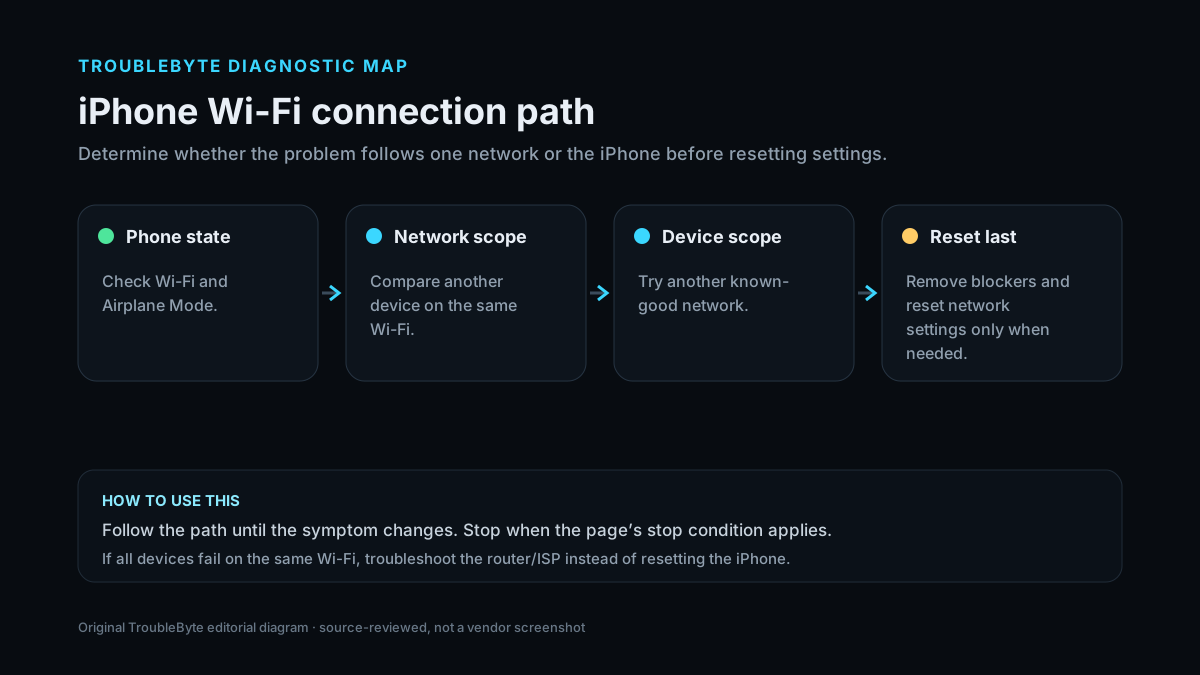
TroubleByte diagnostic path
Check Wi-Fi/Airplane Mode.
Compare another device on the same Wi-Fi.
Try another known-good network.
Remove blockers and reset network settings only when needed.
Original TroubleByte diagnostic map. It summarizes the cited troubleshooting order; it is not a vendor screenshot.
Use the symptom to choose the next branch
Can another device connect to and use the same Wi-Fi?
The network is probably usable; focus on the iPhone, saved network, VPN/security software and iOS state.
Stop resetting the iPhone and troubleshoot the router, ISP or managed network.
Can the iPhone connect to a different known-good Wi-Fi network?
Treat the original network/router configuration as the narrower problem.
The failure follows the iPhone; use local iOS/VPN/reset troubleshooting before router changes.
Original TroubleByte decision aid derived from the cited troubleshooting scope. It does not replace vendor documentation.
What this usually means
The decisive scope question is whether one network or the iPhone itself is failing. If other devices also cannot use the same network, router/ISP troubleshooting has priority. If the iPhone fails on multiple known-good networks, local iOS, VPN/security software or device networking becomes more likely. Apple explicitly places network reset late because it erases stored network settings.
What we verified from the source material
Apple’s 2026 Wi-Fi guidance verifies Wi-Fi/Airplane Mode checks, comparing other devices and networks, VPN/security software removal, router checks and Reset Network Settings as a later step that removes saved network configuration.
Prerequisites and checks
Prepare first
- Know the Wi-Fi password before forgetting/resetting networks.
- Record necessary VPN/APN configuration before Network Reset.
- Do not change router security settings if you do not administer the network.
Checks that prevent the wrong fix
- Confirm Wi-Fi is enabled and Airplane Mode is off.
- Test another device on the same Wi-Fi.
- Test the iPhone on another known-good Wi-Fi network.
Applies to
Solutions, in order
Scope the network before resetting the iPhone
- Confirm Wi-Fi is on and Airplane Mode is off.
- Restart the iPhone and the router if you administer it.
- Check whether another device can use the same Wi-Fi.
- Try the iPhone on another trusted Wi-Fi network to determine scope.
Why this can work: Apple recommends checking local Wi-Fi settings and comparing other devices/networks before destructive reset steps.
Remove local blockers, then reset network settings last
- If VPN/security software is installed, uninstall/disable it using the vendor-supported method and restart for a controlled test.
- Forget and rejoin the affected network when credentials are known.
- If the iPhone still fails across known-good networks, use Reset Network Settings only after preserving configuration.
- Retest before changing router security.
Why this can work: Apple documents VPN/security software and Reset Network Settings as later troubleshooting branches.
How to know the fix actually worked
- The iPhone joins the intended Wi-Fi and can reach the internet.
- The connection remains stable after screen lock/reconnect and does not require repeated manual joining.
Do not count a temporary disappearance of the symptom as a confirmed fix if the problem normally returns after a restart, reconnect or several minutes of use.
When not to keep changing things
- If all devices on the same Wi-Fi are offline, stop resetting the iPhone and troubleshoot the router/ISP or contact the network administrator.
Escalation: If the iPhone cannot connect to any known-good Wi-Fi network after supported reset/update steps, contact Apple; if only one managed network fails, involve that network administrator.
Sources used for this record
Primary · checked Sep 7, 2026Apple — If you can’t connect to Wi-Fi on your iPhone or iPadFirst-party documentation used as the primary evidence source for this troubleshooting record.Corroborating · checked Sep 7, 2026Apple — Recommended settings for Wi-Fi routers and access pointsFirst-party documentation used as the corroborating evidence source for this troubleshooting record.Need private help with this guide?
If the guide did not resolve the problem, send a private case to TroubleByte. It is separate from the public discussion below.
Discuss this exact problem
Share what happened on your system, ask a focused follow-up question, or add evidence that may help someone with the same symptom. Community posts are separate from TroubleByte editorial verification.
Start a discussion
Revision history
Show 1 recorded revision
2026-09-07 — Created for the v0.9 launch-acceleration content pass from current first-party documentation; indexing remains disabled pending final launch review.