
Face ID not working on iPhone
Face ID depends on the TrueDepth camera seeing the user correctly and on the requested Face ID feature being enabled. Apple recommends checking software, settings, camera obstruction and device position before resetting Face ID; inability to set it up with a nonworking camera can require service.
Check settings, camera visibility and restart
Update iOS, verify Face ID & Passcode settings, clean and uncover the TrueDepth camera, then restart. Reset and re-enroll Face ID only after those checks fail.
- Update to the current supported iOS version.
- Open Settings > Face ID & Passcode and verify the features you need are enabled.
- Clean the TrueDepth camera area and remove blocking cases or protectors.
- Restart and test at a normal arm’s-length distance.
Why this branch first: Apple puts update, Face ID settings, TrueDepth camera visibility and restart ahead of resetting Face ID.
Choose a local-first diagnostic tool
Use a TroubleByte tool to inspect an error, DNS record or local system context before changing settings.
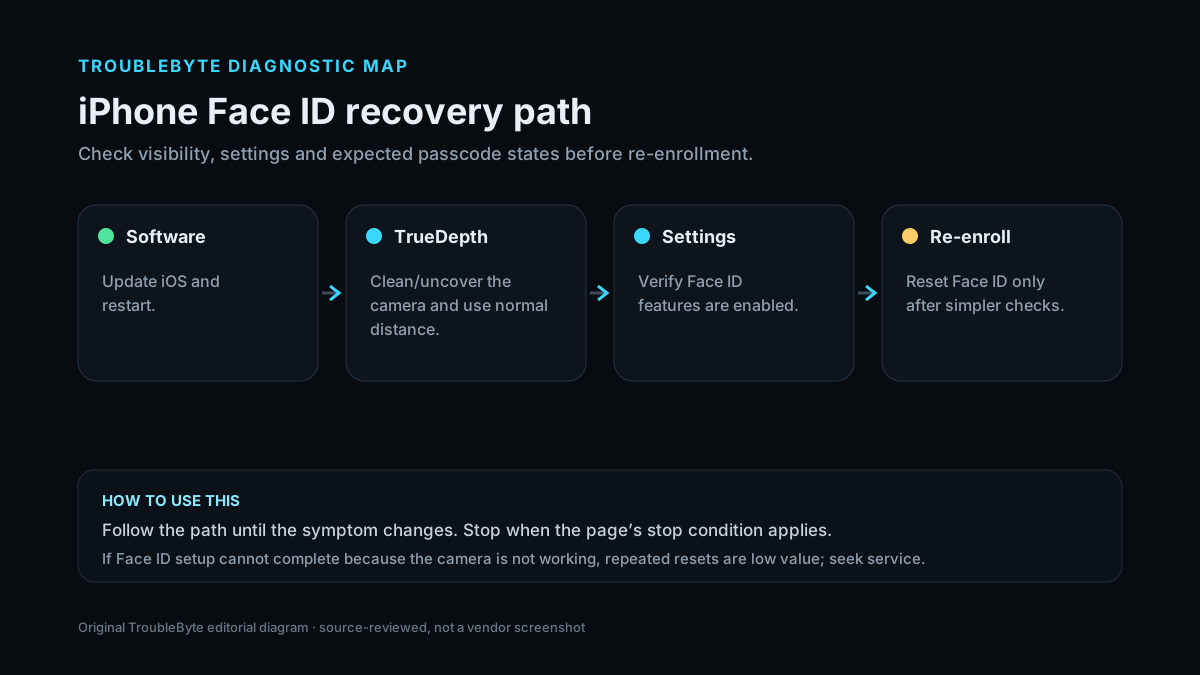
TroubleByte diagnostic path
Update iOS and restart.
Check TrueDepth camera and device position.
Verify Face ID features are enabled.
Reset Face ID only after simpler checks.
Original TroubleByte diagnostic map. It summarizes the cited troubleshooting order; it is not a vendor screenshot.
Use the symptom to choose the next branch
Can you complete Face ID enrollment after cleaning/uncovering the TrueDepth camera?
Keep testing configuration and use conditions rather than assuming hardware failure.
A TrueDepth/service path becomes more likely; repeated software resets are low value.
Is the phone merely asking for the passcode after restart or a security event?
That can be expected Face ID behavior rather than a fault.
Continue with the actual recognition/setup troubleshooting path.
Original TroubleByte decision aid derived from the cited troubleshooting scope. It does not replace vendor documentation.
What this usually means
Face ID failures should first be separated between normal passcode-required states, configuration/visibility problems, and TrueDepth hardware failure. Apple notes that Face ID can intentionally require the passcode after certain security events, so a passcode prompt alone is not proof of a broken sensor.
What we verified from the source material
Apple’s Face ID troubleshooting sequence covers updates, settings, TrueDepth camera visibility, restart and reset/re-enrollment. Its Face ID technology documentation explains why camera visibility and certain passcode-required states matter and when a camera failure may require service.
Prerequisites and checks
Prepare first
- Know whether Face ID ever worked on this device.
- Check for physical damage around the TrueDepth camera area.
- Be prepared to use the device passcode during testing.
Checks that prevent the wrong fix
- Check for an iOS update and restart the iPhone.
- Verify the intended Face ID features are enabled in Face ID & Passcode.
- Remove anything blocking or obscuring the TrueDepth camera.
Applies to
Solutions, in order
Check settings, camera visibility and restart
- Update to the current supported iOS version.
- Open Settings > Face ID & Passcode and verify the features you need are enabled.
- Clean the TrueDepth camera area and remove blocking cases or protectors.
- Restart and test at a normal arm’s-length distance.
Why this can work: Apple puts update, Face ID settings, TrueDepth camera visibility and restart ahead of resetting Face ID.
Reset and re-enroll Face ID
- Open Settings > Face ID & Passcode.
- Tap Reset Face ID.
- Set up Face ID again in normal lighting and device position.
- If setup cannot complete because the camera is not working, stop and seek service.
Why this can work: Apple recommends resetting Face ID only after the simpler checks fail.
How to know the fix actually worked
- Face ID unlocks the device repeatedly after restart and enrollment.
- The intended app/purchase authentication works without unexpected failure.
Do not count a temporary disappearance of the symptom as a confirmed fix if the problem normally returns after a restart, reconnect or several minutes of use.
When not to keep changing things
- If Face ID is disabled after device damage or you cannot complete setup because the TrueDepth camera is not working, stop repeated resets and seek qualified service.
Escalation: If Face ID still cannot be configured after update, camera visibility and reset/re-enrollment, use Apple service because TrueDepth hardware may need diagnosis.
Sources used for this record
Primary · checked Sep 8, 2026Apple — If Face ID isn’t working on your iPhone or iPad ProFirst-party documentation used as evidence for this troubleshooting record.Corroborating · checked Sep 8, 2026Apple — About Face ID advanced technologyFirst-party documentation used as evidence for this troubleshooting record.Need private help with this guide?
If the guide did not resolve the problem, send a private case to TroubleByte. It is separate from the public discussion below.
Discuss this exact problem
Share what happened on your system, ask a focused follow-up question, or add evidence that may help someone with the same symptom. Community posts are separate from TroubleByte editorial verification.
Start a discussion
Revision history
Show 1 recorded revision
2026-09-08 — Created for the v1.2 search-quality and content-scale pass from current first-party documentation; public indexing is controlled by the launch allowlist.