
iPhone not charging or charging slowly
An iPhone that will not charge can be caused by a damaged cable or adapter, a poor power connection, debris in the charging port, temperature limits, or a fault that requires service.
Check the complete charging path
Check the cable, adapter, outlet and charging port for damage or debris, restart the iPhone, then leave it connected to power for 30 minutes. If it still will not charge, follow Apple’s force-restart sequence and charge for another 30 minutes.
- Connect the iPhone to a known working wall power outlet.
- Inspect the cable and USB adapter for visible damage and do not use damaged accessories.
- Check that each connection is firm.
- Inspect the iPhone charging port and remove visible debris carefully, then reconnect the cable.
Why this branch first: Apple places the power source, cable, adapter, connections and charging port at the start of its official no-charge troubleshooting sequence.
Choose a local-first diagnostic tool
Use a TroubleByte tool to inspect an error, DNS record or local system context before changing settings.
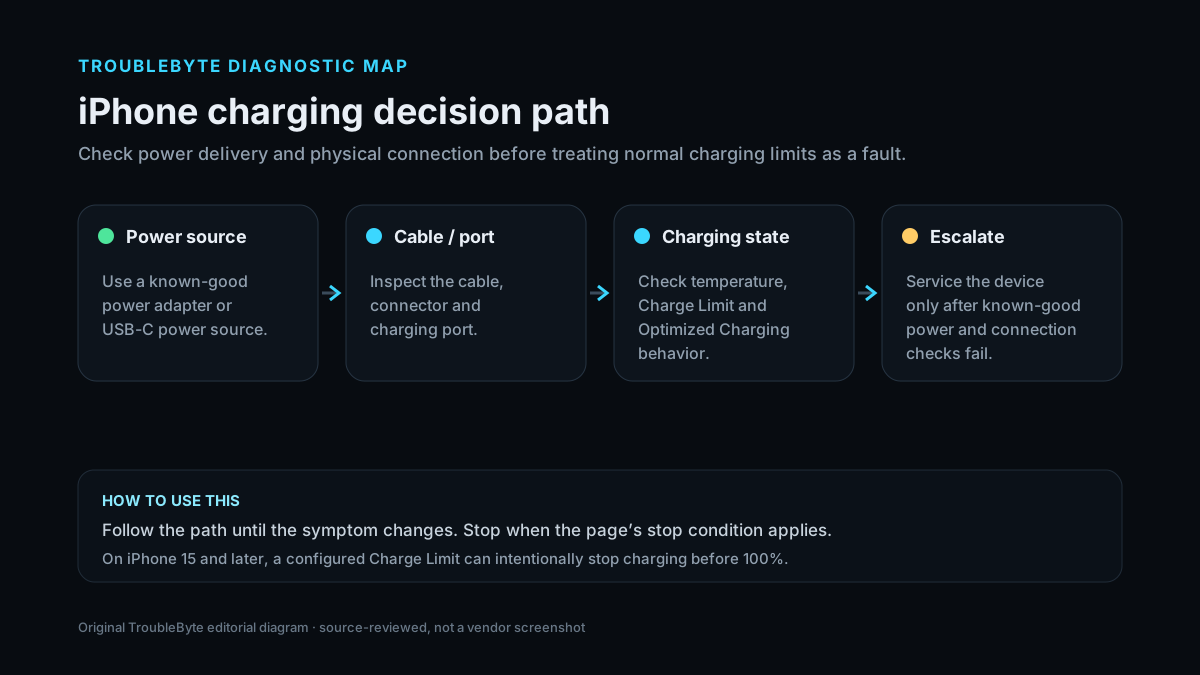
TroubleByte diagnostic path
Test cable, adapter and outlet before changing settings.
Inspect the charging port and allow the phone to cool if needed.
Check Optimized Charging or Charge Limit behavior where applicable.
If known-good power still fails, restart and consider service.
Original TroubleByte diagnostic map. It summarizes the cited troubleshooting order; it is not a vendor screenshot.
Use the symptom to choose the next branch
Does the iPhone show that it is charging at all?
If charging is slow or pauses, check temperature, Charge Limit/Optimized Charging and power-source capability.
Start with the cable, adapter, power source and connector/port condition before changing software settings.
Does charging repeatedly stop around 80%?
Check temperature and the charging optimization/Charge Limit behavior before treating it as a hardware fault.
Continue with cable, adapter, port and power-source checks; escalate if the phone never recognizes power.
Original TroubleByte decision aid derived from the cited troubleshooting scope. It does not replace vendor documentation.
What this usually means
First separate a complete charging failure from an intentional charging limit. Apple notes that optimized charging, temperature protection, and Charge Limit on newer iPhones can stop charging around 80%, while a device that does not charge at all needs cable, adapter, port and power-source checks.
What we verified from the source material
Apple’s current charging guidance starts with the power source, cable, adapter, physical connection and charging port, then uses a timed charging and restart sequence before recommending service. Apple also distinguishes a total charging failure from intentional limits around 80 percent caused by optimized charging, temperature protection or Charge Limit on supported newer iPhones. Apple separately documents Charge Limit and Optimised Battery Charging behavior, which helps distinguish an intentional charging pause from a failed charging path.
Prerequisites and checks
Prepare first
- Use a known-good power source and inspect the cable/adapter for visible damage.
- Check the charging port for debris without inserting conductive or sharp objects.
- Distinguish “will not charge” from “stops near 80%” because iPhone charge-management features can intentionally limit charging.
Checks that prevent the wrong fix
- Do not use visibly damaged charging cables or adapters.
- Remove debris carefully; do not insert metal tools into the charging port.
- If charging stops around 80%, check temperature and Charge Limit before assuming hardware failure.
Applies to
Solutions, in order
Check the complete charging path
- Connect the iPhone to a known working wall power outlet.
- Inspect the cable and USB adapter for visible damage and do not use damaged accessories.
- Check that each connection is firm.
- Inspect the iPhone charging port and remove visible debris carefully, then reconnect the cable.
Why this can work: Apple places the power source, cable, adapter, connections and charging port at the start of its official no-charge troubleshooting sequence.
Restart, then charge for 30 minutes
- Restart the iPhone.
- Connect it to a working charger.
- Leave it charging for 30 minutes.
- Check whether the battery indicator or normal boot returns.
Why this can work: Apple recommends restarting and allowing a 30-minute charge window before escalating to a force restart.
Force restart, then charge again
- Use Apple’s force-restart sequence for the specific iPhone model.
- Reconnect the charger.
- Leave the device charging for another 30 minutes.
- If it still will not power on or charge, arrange service.
Why this can work: Apple documents a force restart followed by another charging period when the device remains unresponsive after the initial checks.
How to know the fix actually worked
- Confirm the battery percentage increases over several minutes with a known-good charger.
- Gently reconnect the cable once and verify charging remains stable without needing pressure or a specific angle.
- If charging previously stopped near 80%, check whether temperature, Optimized Battery Charging or Charge Limit explains the behavior.
Do not count a temporary disappearance of the symptom as a confirmed fix if the problem normally returns after a restart, reconnect or several minutes of use.
When not to keep changing things
- Stop using a cable, adapter or device that is excessively hot, visibly damaged, swollen, wet or producing an odor.
- If multiple known-good chargers fail and the port is clean/dry, move to Apple service diagnostics instead of repeatedly scraping or probing the connector.
Escalation: If the iPhone still will not power on or charge after Apple’s documented charge/restart sequence, Apple recommends service rather than progressively more invasive home repair.
Sources used for this record
Primary · checked Sep 6, 2026Apple — If your iPhone or iPod touch won’t chargeOfficial documentation used to verify the troubleshooting steps.Corroborating · checked Sep 6, 2026Apple — About Charge Limit and Optimised Battery Charging on iPhoneOfficial Apple documentation for charge limits and optimized charging behavior that can intentionally pause charging near 80%.Need private help with this guide?
If the guide did not resolve the problem, send a private case to TroubleByte. It is separate from the public discussion below.
Discuss this exact problem
Share what happened on your system, ask a focused follow-up question, or add evidence that may help someone with the same symptom. Community posts are separate from TroubleByte editorial verification.
Start a discussion
Revision history
Show 6 recorded revisions
2026-09-06 — v0.6 media/performance pass: added a dedicated social preview card and an original diagnostic diagram; indexing remains disabled.
2026-09-06 — v0.5 UX/discovery pass: added decision-oriented diagnostic guidance and kept indexing disabled.
2026-09-06 — v0.4 depth pass: added symptom framing, prerequisites, verification checks and explicit stop conditions; indexing remains disabled.
2026-09-06 — v0.3 trust pass: assigned a named human author/source reviewer, added section taxonomy and an original diagnostic flow; indexing remains disabled.
2026-09-06 — Clarified source-review semantics and evidence scope; no hands-on hardware test is claimed.
2026-09-06 — Created from Apple’s current charging support sequence; held noindex for editorial review.