
iPhone Personal Hotspot not working
Personal Hotspot depends on cellular service, carrier/plan support, the hotspot toggle, Wi-Fi/Bluetooth state and compatibility with the client device. Apple recommends reconnecting after each simple step and leaves Reset Network Settings as a later action because it also clears saved network and VPN/APN settings.
Restore the hotspot session
Make sure Personal Hotspot and cellular data are available, restart both devices, and retry while the Hotspot settings screen is open. On supported iPhones, test Maximize Compatibility before resetting network settings.
- Open Settings > Personal Hotspot and enable Allow Others to Join.
- Confirm cellular data works on the iPhone itself.
- Restart the iPhone and the device trying to connect.
- Keep the Personal Hotspot screen open while reconnecting and verify the correct password.
Why this branch first: Apple lists the Hotspot toggle, restart, current software and connection details as first-line checks.
Choose a local-first diagnostic tool
Use a TroubleByte tool to inspect an error, DNS record or local system context before changing settings.
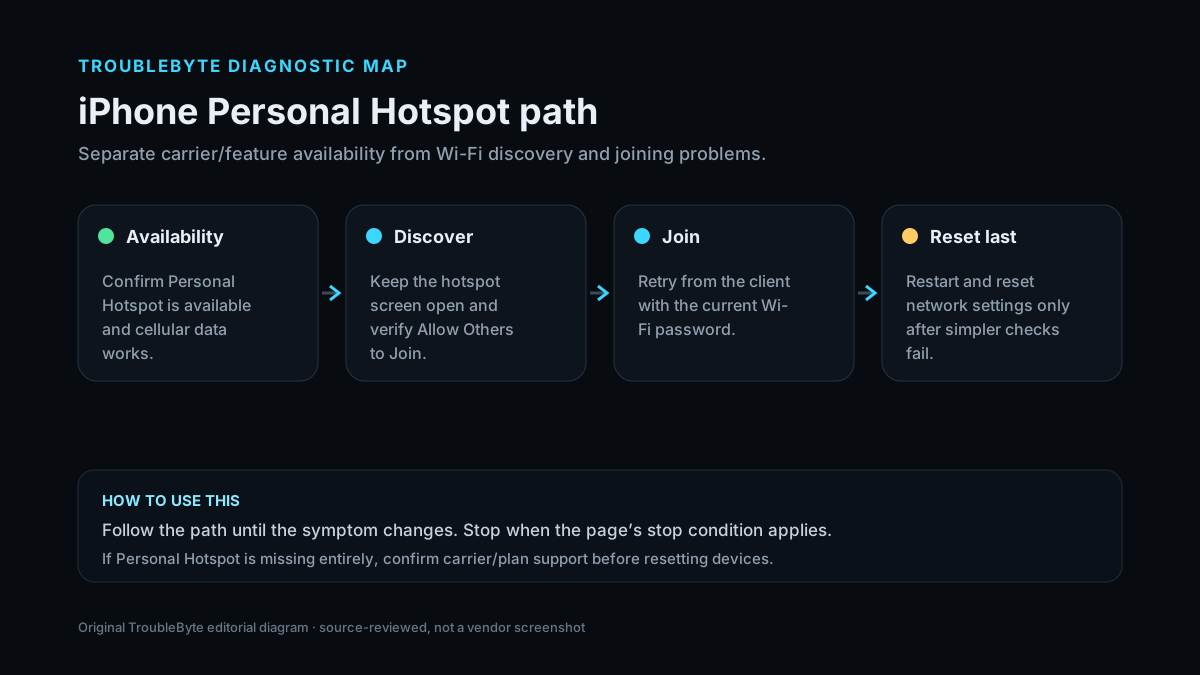
TroubleByte diagnostic path
Check carrier support, cellular data and hotspot toggle.
Restart both devices and verify password.
Test Maximize Compatibility.
Reset network settings only after preserving configuration.
Original TroubleByte diagnostic map. It summarizes the cited troubleshooting order; it is not a vendor screenshot.
Use the symptom to choose the next branch
Is Personal Hotspot available and can it be turned on?
Troubleshoot client join/password/compatibility.
Check cellular data, carrier plan/provisioning and iOS state.
Can one client connect while another cannot?
Focus on the failing client/compatibility.
Treat the iPhone hotspot session or carrier path as the shared fault domain.
Original TroubleByte decision aid derived from the cited troubleshooting scope. It does not replace vendor documentation.
What this usually means
The first split is whether Personal Hotspot is unavailable on the iPhone itself or visible but a client cannot join. An unavailable toggle can be carrier/plan related; a join failure can be password, Wi-Fi/Bluetooth or compatibility related. Apple documents network reset only after simpler reconnect, restart and software checks.
What we verified from the source material
Apple’s hotspot troubleshooting starts with availability, restart and software checks, then separates Wi-Fi/USB behavior and recommends Maximize Compatibility on supported devices. Network reset is later because it clears saved connectivity settings.
Prerequisites and checks
Prepare first
- Confirm the iPhone itself has working cellular data.
- Know the carrier plan includes Personal Hotspot.
- Record VPN/APN or important Wi-Fi details before network reset.
Checks that prevent the wrong fix
- Confirm the carrier/plan supports Personal Hotspot and cellular data works on the iPhone.
- Turn on Allow Others to Join and verify the displayed Wi-Fi password.
- Restart both the iPhone and client device, then test Maximize Compatibility if available.
Applies to
Solutions, in order
Restore the hotspot session
- Open Settings > Personal Hotspot and enable Allow Others to Join.
- Confirm cellular data works on the iPhone itself.
- Restart the iPhone and the device trying to connect.
- Keep the Personal Hotspot screen open while reconnecting and verify the correct password.
Why this can work: Apple lists the Hotspot toggle, restart, current software and connection details as first-line checks.
Test compatibility before network reset
- On supported models, enable Maximize Compatibility and retry the Wi-Fi client.
- Forget/rejoin the hotspot network on the client device if necessary.
- If the issue persists across clients, use Reset Network Settings only after noting saved Wi-Fi/VPN/APN information.
- Retest cellular data and hotspot after the reset.
Why this can work: Apple documents Maximize Compatibility and network reset as later steps and warns that the reset removes saved Wi-Fi, cellular, VPN and APN settings.
How to know the fix actually worked
- A second device joins the iPhone hotspot and reaches the internet.
- The connection remains usable after disconnecting and reconnecting once.
Do not count a temporary disappearance of the symptom as a confirmed fix if the problem normally returns after a restart, reconnect or several minutes of use.
When not to keep changing things
- If the Personal Hotspot option is unavailable because the carrier has not provisioned the feature, stop device resets and contact the carrier.
Escalation: If Personal Hotspot is missing or cannot be enabled after carrier and iOS checks, contact the carrier first because plan/provisioning can control availability.
Sources used for this record
Primary · checked Sep 8, 2026Apple — If Personal Hotspot is not working on your iPhone or iPadFirst-party documentation used as the primary evidence source for this troubleshooting record.Corroborating · checked Sep 8, 2026Apple — Share your internet connection from your iPhoneFirst-party documentation used as corroborating evidence for this troubleshooting record.Need private help with this guide?
If the guide did not resolve the problem, send a private case to TroubleByte. It is separate from the public discussion below.
Discuss this exact problem
Share what happened on your system, ask a focused follow-up question, or add evidence that may help someone with the same symptom. Community posts are separate from TroubleByte editorial verification.
Start a discussion
Revision history
Show 1 recorded revision
2026-09-08 — Created for the v1.1 content-scale pass from current first-party documentation; public indexing is controlled by the launch allowlist.