
iPhone screen not responding to touch
Intermittent or missing touch response can come from debris or water on the display, a case or screen protector, a connected accessory or charger, or an underlying display/touch fault. Apple recommends removing these variables before service.
Remove external causes and restart
Restart the iPhone, clean and dry the screen, disconnect USB-C/Lightning accessories and remove the case or screen protector. If touch remains unreliable, arrange Apple support/service.
- Restart the iPhone.
- Clean and dry the screen.
- Disconnect accessories and test.
- Remove case or screen protector and retest.
Why this branch first: Apple recommends restart, a clean/dry screen, disconnecting accessories and removing cases/protectors.
Choose a local-first diagnostic tool
Use a TroubleByte tool to inspect an error, DNS record or local system context before changing settings.
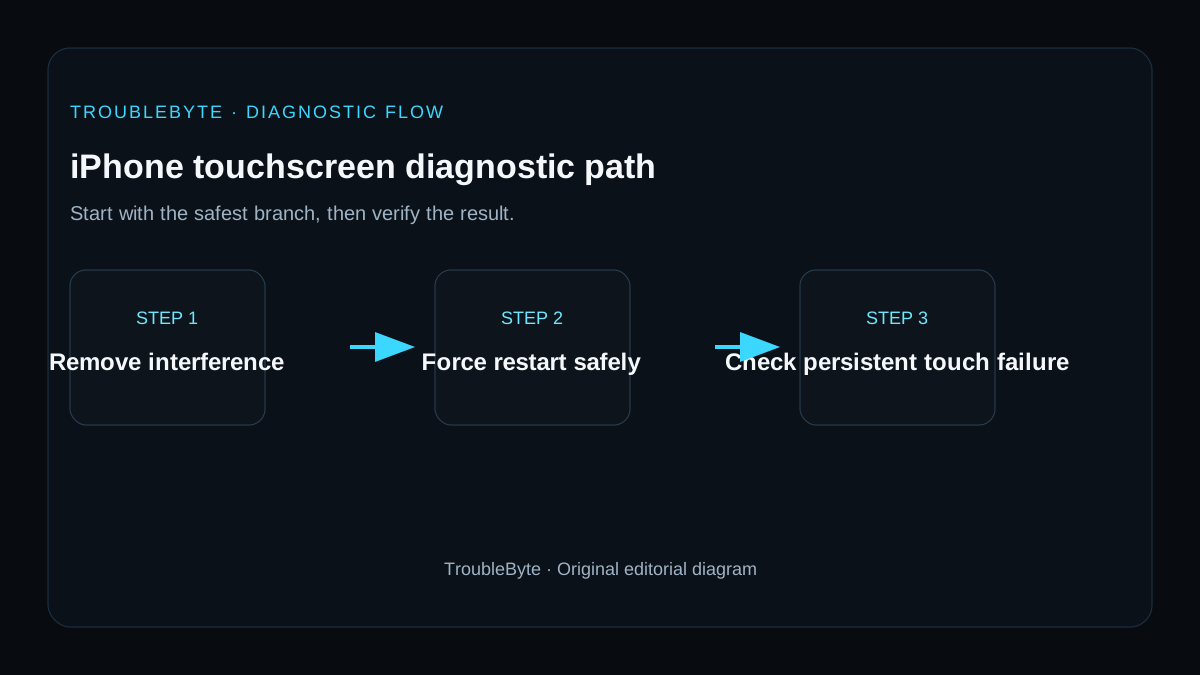
TroubleByte diagnostic path
Restart or force restart if fully frozen.
Clean/dry screen and remove protector.
Disconnect charger and cables.
Escalate persistent touch failure.
Original TroubleByte diagnostic map. It summarizes the cited troubleshooting order; it is not a vendor screenshot.
Use the symptom to choose the next branch
Does the screen respond after disconnecting accessories, removing a damaged protector and cleaning moisture from the display?
Retest normal gestures before replacing accessories or changing iOS settings.
Perform the model-appropriate force restart without repeatedly entering passcodes or making unsupported repairs.
Does touch remain unresponsive after restart, including on the lock screen, or is there visible display damage?
Arrange Apple-authorized service and avoid pressing or heating a swollen or damaged device.
Update iOS and check whether a specific app or accessibility overlay is causing the behavior.
Original TroubleByte decision aid derived from the cited troubleshooting scope. It does not replace vendor documentation.
What this usually means
A touch problem should first be separated from a complete device freeze. If buttons still respond but touch improves after removing an accessory, charger or protector, the accessory path is evidence. If the entire phone is frozen, a force restart is more relevant than display settings.
What we verified from the source material
Apple recommends restart, cleaning, disconnecting accessories and removing cases/protectors for intermittent touch problems, while its force-restart guidance covers a fully unresponsive device. Persistent failure after those checks warrants service.
Prerequisites and checks
Prepare first
- Know whether hardware buttons still respond.
- Stop if the display is cracked, lifting or the battery appears swollen.
- Have a backup before service if possible.
Checks that prevent the wrong fix
- Restart the iPhone.
- Clean and dry the display.
- Disconnect charging/data accessories and remove the case/screen protector.
Applies to
Solutions, in order
Remove external causes and restart
- Restart the iPhone.
- Clean and dry the screen.
- Disconnect accessories and test.
- Remove case or screen protector and retest.
Why this can work: Apple recommends restart, a clean/dry screen, disconnecting accessories and removing cases/protectors.
Force restart if the phone itself is frozen
- Use the correct Apple force-restart sequence for the iPhone model.
- Allow the device to boot fully.
- Retest touch before reconnecting accessories.
Why this can work: When the whole device is unresponsive, Apple provides a hardware-button force-restart sequence.
How to know the fix actually worked
- Touch responds consistently across the display after restart.
- The problem does not return when the normal charger/accessories are reconnected one at a time.
Do not count a temporary disappearance of the symptom as a confirmed fix if the problem normally returns after a restart, reconnect or several minutes of use.
When not to keep changing things
- If the screen is lifting, cracked with exposed components, or the battery is swollen, stop using the device and seek service.
Escalation: If touch remains unresponsive after the Apple-recommended accessory and restart checks, use Apple service because the display/touch assembly may need diagnosis.
Sources used for this record
Primary · checked Sep 8, 2026Apple — If the screen isn’t working on your iPhone or iPadFirst-party documentation used as evidence for this troubleshooting record.Corroborating · checked Sep 8, 2026Apple — Force restart iPhoneFirst-party documentation used as evidence for this troubleshooting record.Need private help with this guide?
If the guide did not resolve the problem, send a private case to TroubleByte. It is separate from the public discussion below.
Discuss this exact problem
Share what happened on your system, ask a focused follow-up question, or add evidence that may help someone with the same symptom. Community posts are separate from TroubleByte editorial verification.
Start a discussion
Revision history
Show 1 recorded revision
2026-09-08 — Created for the v1.2 search-quality and content-scale pass from current first-party documentation; public indexing is controlled by the launch allowlist.