
No sound from iPhone speaker
Apple’s speaker troubleshooting starts with Silent mode and Focus, then checks cases, blocked or dirty speaker/receiver openings and the Ringtone and Alerts slider. If there is still no sound or the speaker control is dimmed, hardware service may be required.
Test built-in speaker output
Turn off Silent mode and Do Not Disturb, remove any case blocking the speaker, inspect/clean the opening with a clean dry soft brush, then move the Ringtone and Alerts slider to test output.
- Turn off Silent mode and Do Not Disturb/Focus.
- Remove the case/screen protector if it could block the speaker or receiver.
- Inspect and gently clean the opening with a clean dry soft-bristled brush if needed.
- Open Sounds & Haptics and move the Ringtone and Alerts slider to test sound.
Why this branch first: Apple recommends checking Silent mode, Focus, obstruction and the system alert slider.
Choose a local-first diagnostic tool
Use a TroubleByte tool to inspect an error, DNS record or local system context before changing settings.
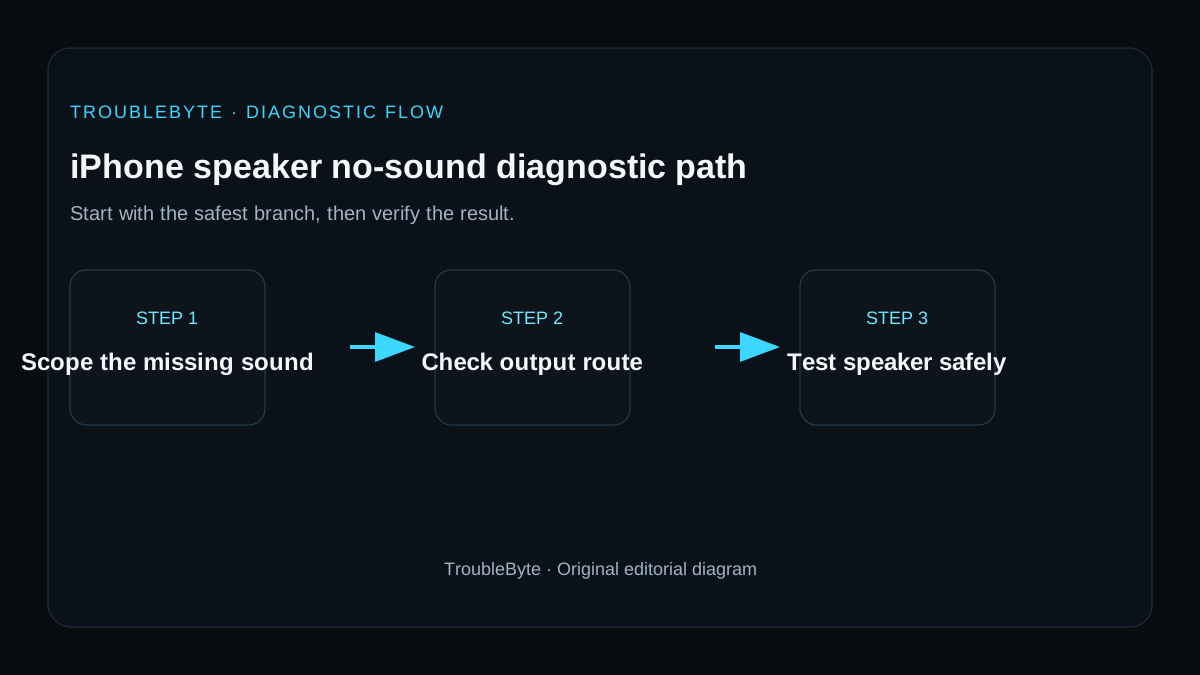
TroubleByte diagnostic path
Turn off Silent/Focus.
Remove obstruction and inspect speaker.
Use Ringtone and Alerts slider.
Compare system audio, apps and calls before service.
Original TroubleByte diagnostic map. It summarizes the cited troubleshooting order; it is not a vendor screenshot.
Use the symptom to choose the next branch
Is sound missing in every app, ringtone preview and media test, rather than only one app?
Treat it as a system-wide output issue and continue with output-route and speaker checks.
Check that application's volume, mute state and its notification or media settings first.
Does the iPhone show a Bluetooth, AirPlay or headphone output route while the speaker should be active?
Disconnect the unintended route and retest with a local sound or ringtone preview.
Remove any case or debris blocking the speaker grille and seek service if distortion or silence continues.
Original TroubleByte decision aid derived from the cited troubleshooting scope. It does not replace vendor documentation.
What this usually means
No speaker sound can be caused by an intentional silent/Focus state, a blocked acoustic opening, application/output routing or speaker hardware. Apple’s current flow uses simple physical and system-sound checks to determine whether the speaker can produce any output before recommending service.
What we verified from the source material
Apple’s current speaker guidance verifies Silent mode, Focus, physical obstruction/cleaning and the Ringtone and Alerts slider as primary checks. It states that no sound or a dimmed speaker control can indicate that service is needed.
Prerequisites and checks
Prepare first
- Disconnect Bluetooth/USB audio devices while testing the built-in speaker.
- Use a clean, dry soft-bristled brush only if the opening needs cleaning.
- Do not insert sharp objects into speaker openings.
Checks that prevent the wrong fix
- Confirm Silent mode and Do Not Disturb/Focus state.
- Remove cases/films that could block speaker or receiver openings.
- Move the Ringtone and Alerts slider and listen for output.
Applies to
Solutions, in order
Test built-in speaker output
- Turn off Silent mode and Do Not Disturb/Focus.
- Remove the case/screen protector if it could block the speaker or receiver.
- Inspect and gently clean the opening with a clean dry soft-bristled brush if needed.
- Open Sounds & Haptics and move the Ringtone and Alerts slider to test sound.
Why this can work: Apple recommends checking Silent mode, Focus, obstruction and the system alert slider.
Separate speaker hardware from call/network issues
- Play a local alert/media sound and compare with speakerphone during a call.
- Restart the iPhone and install current iOS updates.
- If only one app has no sound, check that app/output route.
- If no system sound is possible or the speaker control is dimmed, arrange service.
Why this can work: If system sound works but calls are poor, the remaining problem may be receiver/call/network specific rather than total speaker failure.
How to know the fix actually worked
- The built-in speaker plays system alerts/media at expected volume.
- Calls or speakerphone work without persistent distortion after the same output path is tested.
Do not count a temporary disappearance of the symptom as a confirmed fix if the problem normally returns after a restart, reconnect or several minutes of use.
When not to keep changing things
- If the device has liquid/impact damage or cleaning would require inserting tools into the opening, stop and seek appropriate service.
Escalation: If the speaker produces no system sound after Apple’s basic checks, or the speaker control is dimmed, arrange Apple/authorized service.
Sources used for this record
Primary · checked Sep 7, 2026Apple — If you hear no sound or distorted sound from your iPhone, iPad, or iPod touch speakerFirst-party documentation used as the primary evidence source for this troubleshooting record.Corroborating · checked Sep 7, 2026Apple — Restart your iPhoneFirst-party documentation used as the corroborating evidence source for this troubleshooting record.Need private help with this guide?
If the guide did not resolve the problem, send a private case to TroubleByte. It is separate from the public discussion below.
Discuss this exact problem
Share what happened on your system, ask a focused follow-up question, or add evidence that may help someone with the same symptom. Community posts are separate from TroubleByte editorial verification.
Start a discussion
Revision history
Show 1 recorded revision
2026-09-07 — Created for the v0.9 launch-acceleration content pass from current first-party documentation; indexing remains disabled pending final launch review.