
iPhone storage almost full
When iPhone storage is almost full, iOS shows storage use by category and can recommend safe ways to reclaim space. Offloading unused apps preserves their documents and data, while deleting an app removes its related data; large local photos, downloads and messages can also dominate device storage.
Use the iPhone Storage breakdown and recommendations
Open Settings > General > iPhone Storage and use the recommendations and per-app breakdown. Offload unused apps when appropriate, and review large photos, videos and downloads before deleting anything important.
- Open Settings > General > iPhone Storage.
- Review recommendations and the largest storage users.
- Offload unused apps when you want to preserve their documents and data.
- Remove downloaded media or files you no longer need.
Why this branch first: Apple provides per-category/app usage and built-in recommendations as the safest starting point.
Choose a local-first diagnostic tool
Use a TroubleByte tool to inspect an error, DNS record or local system context before changing settings.
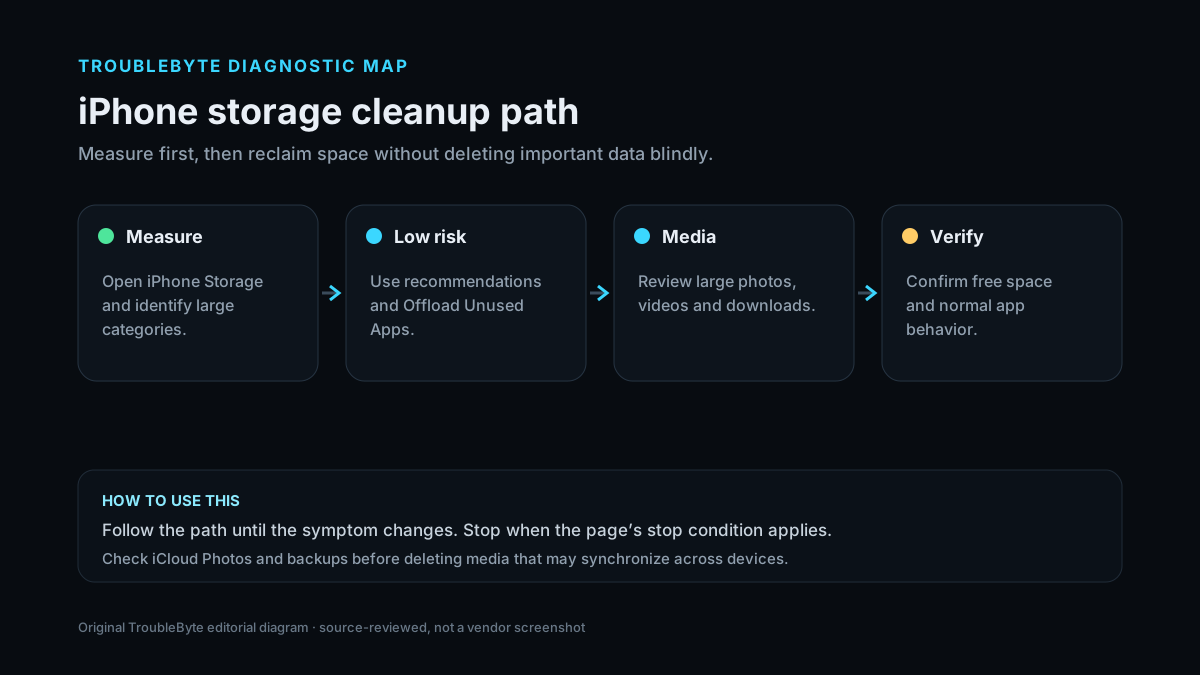
TroubleByte diagnostic path
Open iPhone Storage and identify the largest categories.
Use recommendations and Offload Unused Apps.
Review large photos, videos and downloads.
Confirm free space and normal app behavior.
Original TroubleByte diagnostic map. It summarizes the cited troubleshooting order; it is not a vendor screenshot.
Use the symptom to choose the next branch
Are photos/videos the dominant storage category?
Confirm iCloud/backup state before deleting or optimizing media.
Focus on the actual largest app/download categories instead of photo cleanup.
Do you want to preserve an app’s documents and data?
Use Offload App rather than Delete App where appropriate.
Delete only after confirming the app data is no longer needed or is backed up.
Original TroubleByte decision aid derived from the cited troubleshooting scope. It does not replace vendor documentation.
What this usually means
Storage pressure should be handled from the iPhone Storage breakdown rather than guessing which cache or system file to remove. Apple distinguishes offloading from deleting: offloading removes the app binary but keeps its documents/data, which makes it a lower-risk first option for apps you may need later.
What we verified from the source material
Apple documents the iPhone Storage breakdown, built-in optimization recommendations and the distinction between offloading and deleting apps. Its photo-storage guidance supports careful media cleanup while preserving the user’s backup and iCloud synchronization model.
Prerequisites and checks
Prepare first
- Know whether iCloud Photos is enabled before deleting photos across devices.
- Have a recent backup for irreplaceable data.
- Distinguish device storage from iCloud storage.
Checks that prevent the wrong fix
- Open Settings > General > iPhone Storage.
- Review Apple recommendations and the largest apps/categories.
- Back up important photos/files before bulk deletion.
Applies to
Solutions, in order
Use the iPhone Storage breakdown and recommendations
- Open Settings > General > iPhone Storage.
- Review recommendations and the largest storage users.
- Offload unused apps when you want to preserve their documents and data.
- Remove downloaded media or files you no longer need.
Why this can work: Apple provides per-category/app usage and built-in recommendations as the safest starting point.
Reduce photo/video storage carefully
- Confirm your backup and iCloud Photos state.
- Use Optimize iPhone Storage when appropriate.
- Delete only media you no longer need and empty Recently Deleted when you are sure.
Why this can work: Photos and videos can be the largest category, but deletion can sync across devices when iCloud Photos is enabled.
How to know the fix actually worked
- Several GB of free device storage is available after cleanup.
- The low-storage alert no longer appears during normal use.
Do not count a temporary disappearance of the symptom as a confirmed fix if the problem normally returns after a restart, reconnect or several minutes of use.
When not to keep changing things
- Stop deleting photos or files if you are unsure whether iCloud synchronization will remove them from other devices; verify backup/sync behavior first.
Escalation: If System Data or unexplained storage remains abnormally large after normal cleanup and restart, use Apple support rather than third-party “cleaner” apps that request broad data access.
Sources used for this record
Primary · checked Sep 8, 2026Apple — How to check the storage on your iPhone and iPadFirst-party documentation used as evidence for this troubleshooting record.Corroborating · checked Sep 8, 2026Apple — Manage your photo and video storageFirst-party documentation used as evidence for this troubleshooting record.Need private help with this guide?
If the guide did not resolve the problem, send a private case to TroubleByte. It is separate from the public discussion below.
Discuss this exact problem
Share what happened on your system, ask a focused follow-up question, or add evidence that may help someone with the same symptom. Community posts are separate from TroubleByte editorial verification.
Start a discussion
Revision history
Show 1 recorded revision
2026-09-08 — Created for the v1.2 search-quality and content-scale pass from current first-party documentation; public indexing is controlled by the launch allowlist.