
iPhone won’t turn on or shows a black screen
Apple’s current recovery path for an iPhone that will not turn on begins with the model-appropriate force restart. If the screen remains black, charge the phone and try again; a device that still does not start after the supported steps may require service.
Force restart the iPhone
Perform Apple’s force-restart sequence for your iPhone model. If it still stays black, connect it to known-good power, let it charge for up to an hour, then retry before assuming the phone is dead.
- For iPhone 8 or later, press and quickly release Volume Up, press and quickly release Volume Down, then hold the Side button until the Apple logo appears.
- Keep holding long enough for the Apple logo; do not stop after only a few seconds.
- If the phone starts, let iOS finish booting and verify battery status.
Why this branch first: Apple’s first supported step is a model-appropriate force restart for an unresponsive black screen.
Choose a local-first diagnostic tool
Use a TroubleByte tool to inspect an error, DNS record or local system context before changing settings.
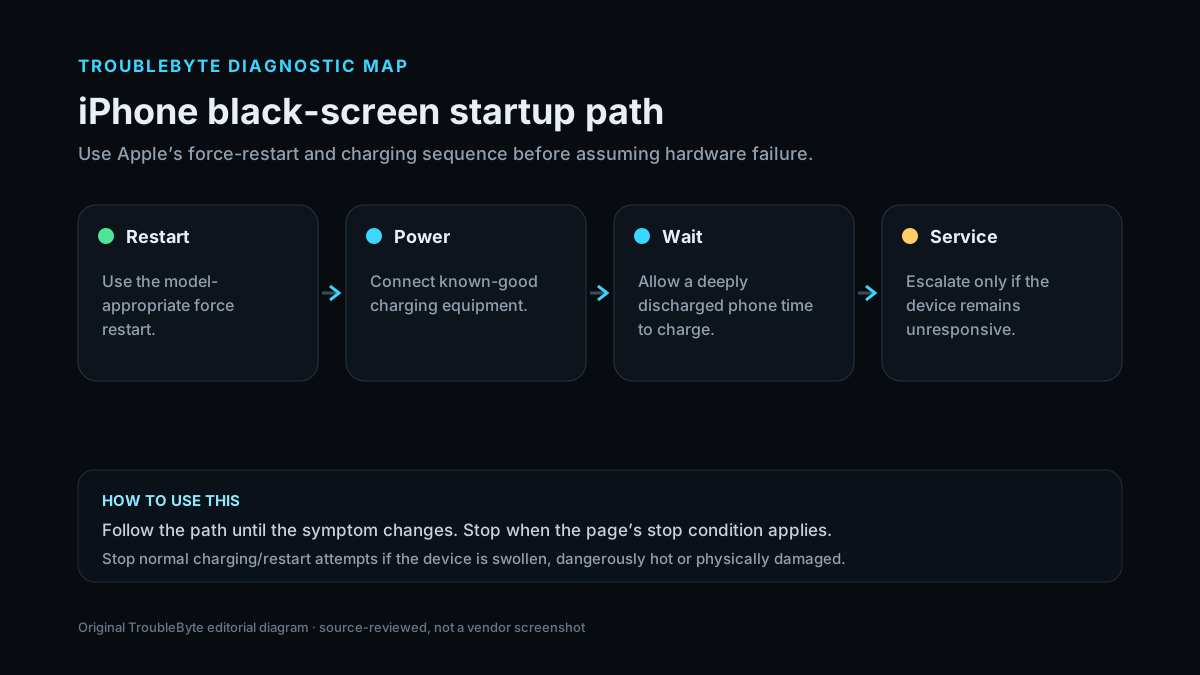
TroubleByte diagnostic path
Use the correct force-restart sequence.
Connect known-good charging equipment.
Allow a deeply discharged device time to charge.
Escalate only if it remains unresponsive.
Original TroubleByte diagnostic map. It summarizes the cited troubleshooting order; it is not a vendor screenshot.
Use the symptom to choose the next branch
Does the Apple logo appear during the force-restart sequence?
Let the device complete startup; the issue was at least partly an unresponsive/frozen state.
Move to known-good charging power and allow time for a deeply discharged battery.
After charging, does the iPhone show any icon, vibration, sound or computer detection?
There is evidence of power/response; continue supported startup/recovery diagnostics.
Stop repeated cycles and escalate to service, especially if hardware damage is possible.
Original TroubleByte decision aid derived from the cited troubleshooting scope. It does not replace vendor documentation.
What this usually means
A black screen does not by itself prove battery, display or logic-board failure. Apple’s supported flow deliberately starts with a force restart because a frozen device can look powered off, then moves to charging because a deeply discharged battery may need time before startup. Service is the next step only when the device still does not respond after those controlled checks.
What we verified from the source material
Apple’s current support flow verifies a force restart first, followed by charging for up to an hour and another startup attempt. If the iPhone still does not turn on after those supported checks, Apple directs the user toward service.
Prerequisites and checks
Prepare first
- Remove accessories that could interfere with buttons or the charging connector.
- Use known-good charging equipment.
- Do not repeatedly force restart while the phone is actively installing an update/progress bar.
Checks that prevent the wrong fix
- Use the correct force-restart sequence for the exact iPhone generation.
- Use a known-good cable/power adapter before judging charging failure.
- Look for any charge icon, vibration, sound or computer detection.
Applies to
Solutions, in order
Force restart the iPhone
- For iPhone 8 or later, press and quickly release Volume Up, press and quickly release Volume Down, then hold the Side button until the Apple logo appears.
- Keep holding long enough for the Apple logo; do not stop after only a few seconds.
- If the phone starts, let iOS finish booting and verify battery status.
Why this can work: Apple’s first supported step is a model-appropriate force restart for an unresponsive black screen.
Charge, retry, then service if still unresponsive
- Connect the iPhone to known-good power.
- Allow it to charge for up to an hour if the screen remains black.
- Repeat the supported force restart once after charging.
- If the device still does not respond, use Apple service/support rather than opening the phone or unsafe charging workarounds.
Why this can work: Apple advises charging an iPhone that still will not turn on and trying again before service.
How to know the fix actually worked
- The Apple logo appears and iOS reaches the lock screen.
- The device charges normally and remains responsive after restart.
Do not count a temporary disappearance of the symptom as a confirmed fix if the problem normally returns after a restart, reconnect or several minutes of use.
When not to keep changing things
- If the phone is swollen, excessively hot, physically damaged or exposed to liquid, stop charging/forcing restarts and follow Apple safety/service guidance.
Escalation: If a known-good charger and supported force restart do not produce any response after charging, arrange Apple/authorized service rather than repeatedly cycling buttons or opening the device.
Sources used for this record
Primary · checked Sep 7, 2026Apple — If your iPhone won’t turn on or is frozenFirst-party documentation used as the primary evidence source for this troubleshooting record.Corroborating · checked Sep 7, 2026Apple — Force restart iPhoneFirst-party documentation used as the corroborating evidence source for this troubleshooting record.Need private help with this guide?
If the guide did not resolve the problem, send a private case to TroubleByte. It is separate from the public discussion below.
Discuss this exact problem
Share what happened on your system, ask a focused follow-up question, or add evidence that may help someone with the same symptom. Community posts are separate from TroubleByte editorial verification.
Start a discussion
Revision history
Show 1 recorded revision
2026-09-07 — Created for the v0.9 launch-acceleration content pass from current first-party documentation; indexing remains disabled pending final launch review.