
NVIDIA driver installation failed on Windows 11
NVIDIA driver or NVIDIA App installation can fail because Windows is in an inconsistent state, a previous NVIDIA package is still present, or NVIDIA processes and services are holding files the installer needs.
Reboot and retry the official NVIDIA package
Reboot Windows and retry first. If the installer still fails, uninstall the previous NVIDIA software, reboot again, and reinstall the correct package. If the failure persists, stop NVIDIA services and close NVIDIA applications before another attempt.
- Restart Windows normally.
- After signing in, wait for startup activity to settle and make sure Windows Update is not waiting for a restart.
- Download or re-open the correct NVIDIA driver package for your GPU and Windows version.
- Run the installer again.
Why this branch first: NVIDIA lists a reboot and retry as the best first step because generic installer failures can be caused by an incorrect system state.
Choose a local-first diagnostic tool
Use a TroubleByte tool to inspect an error, DNS record or local system context before changing settings.
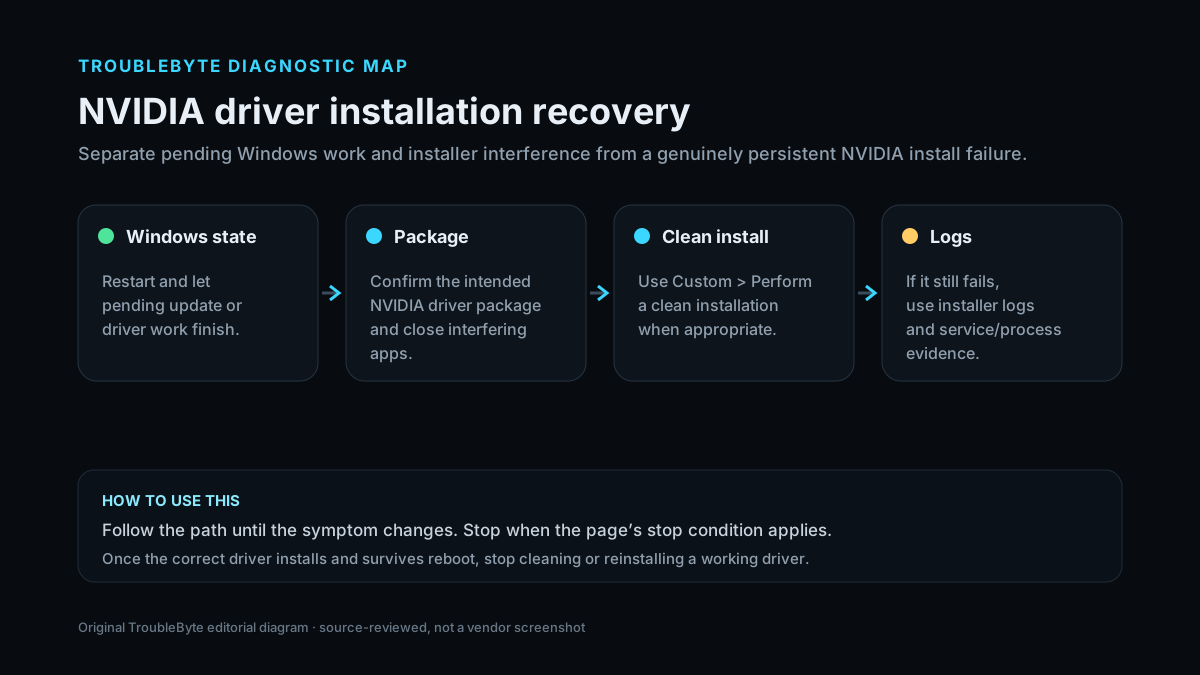
TroubleByte diagnostic path
Reboot first and let Windows finish any background driver work.
Use the correct NVIDIA driver package and close interfering apps.
Use Custom installation and Perform a clean installation if needed.
If failures persist, review NVIDIA services/processes and installer logs.
Original TroubleByte diagnostic map. It summarizes the cited troubleshooting order; it is not a vendor screenshot.
Use the symptom to choose the next branch
Did Windows Update or another installer run recently?
Restart Windows, let pending driver work finish, then retry with the correct NVIDIA package before using cleanup options.
Move to package correctness, background-process interference and the installer log path.
Does a Custom installation with Perform a clean installation complete successfully?
Reboot and verify the driver version plus GPU detection; do not keep cleaning a working install.
Collect the NVIDIA installer log and investigate services/processes or a mismatched package instead of repeating the same installer.
Original TroubleByte decision aid derived from the cited troubleshooting scope. It does not replace vendor documentation.
What this usually means
A generic NVIDIA installer failure does not identify one single cause. NVIDIA specifically points to an incorrect system state and recommends progressing from a reboot to removal of the previous package, then to stopping NVIDIA services and applications if needed.
What we verified from the source material
NVIDIA’s installer-issues guidance establishes reboot/uninstall/service/process checks for generic failures. A second current NVIDIA support article corroborates that background applications or Windows Update can interfere and documents the manual Custom > Perform a clean installation path.
Prerequisites and checks
Prepare first
- Record the GPU model and current Windows version before changing drivers.
- Save work and close GPU-accelerated applications before reinstalling.
- Prefer the correct NVIDIA package for the installed GPU and Windows architecture.
Checks that prevent the wrong fix
- Confirm the package matches the installed GPU and Windows version.
- Finish pending Windows restarts before troubleshooting the installer.
- Do not use third-party driver removal tools as a first step unless you have a separate reason to do so.
Applies to
Solutions, in order
Reboot and retry the official NVIDIA package
- Restart Windows normally.
- After signing in, wait for startup activity to settle and make sure Windows Update is not waiting for a restart.
- Download or re-open the correct NVIDIA driver package for your GPU and Windows version.
- Run the installer again.
Why this can work: NVIDIA lists a reboot and retry as the best first step because generic installer failures can be caused by an incorrect system state.
Remove the previous NVIDIA package, then reinstall
- Uninstall the previous NVIDIA Graphics Driver or NVIDIA App package from Windows if it is present.
- Restart Windows after the uninstall completes.
- Download the current official package from NVIDIA.
- Run the installer again and complete the installation.
Why this can work: NVIDIA recommends explicitly uninstalling the previous version, rebooting and reinstalling if a simple reboot does not resolve the failure.
Stop NVIDIA services and applications before retrying
- Open Services with services.msc.
- Stop NVIDIA services listed by NVIDIA support for the troubleshooting procedure.
- Close NVIDIA applications that are still running.
- Retry the official installer.
Why this can work: NVIDIA documents stopping NVIDIA Windows services and applications as a deeper system-state reset when installation continues to fail.
How to know the fix actually worked
- Open Device Manager or NVIDIA App and confirm the expected driver version is installed.
- Reboot once and confirm the NVIDIA display adapter loads without a warning icon.
- Launch one normal GPU workload and confirm there is no immediate driver crash or installer retry loop.
Do not count a temporary disappearance of the symptom as a confirmed fix if the problem normally returns after a restart, reconnect or several minutes of use.
When not to keep changing things
- If Windows reports hardware/device errors that persist across a clean supported driver install, stop repeated reinstall attempts and investigate hardware, power or OS corruption.
- Do not use third-party driver-cleaning utilities as a first step unless the official recovery path has failed and you understand the rollback implications.
Escalation: If the official package still fails after the documented reset steps, capture the exact installer error and NVIDIA installer logs before making deeper changes. A specific error is more useful than repeatedly reinstalling the same package.
Sources used for this record
Primary · checked Sep 6, 2026NVIDIA — Solving NVIDIA Installer IssuesOfficial documentation used to verify the troubleshooting steps.Corroborating · checked Sep 6, 2026NVIDIA — NVIDIA App driver installation failed: manual clean installationOfficial NVIDIA support article confirming background-app/Windows Update interference and the Custom > Perform a clean installation path.Need private help with this guide?
If the guide did not resolve the problem, send a private case to TroubleByte. It is separate from the public discussion below.
Discuss this exact problem
Share what happened on your system, ask a focused follow-up question, or add evidence that may help someone with the same symptom. Community posts are separate from TroubleByte editorial verification.
Start a discussion
Revision history
Show 8 recorded revisions
2026-09-07 — Promoted to launch candidate with a two-branch diagnostic decision aid and original TroubleByte diagnostic media.
2026-09-06 — v0.6 media/performance pass: added a dedicated social preview card; indexing remains disabled.
2026-09-06 — v0.5 UX/discovery pass: added decision-oriented diagnostic guidance and kept indexing disabled.
2026-09-06 — v0.4 evidence pass: added a second first-party corroborating source and tightened the evidence summary; indexing remains disabled.
2026-09-06 — v0.4 depth pass: added symptom framing, prerequisites, verification checks and explicit stop conditions; indexing remains disabled.
2026-09-06 — v0.3 trust pass: assigned a named human author/source reviewer, added section taxonomy and an original diagnostic flow; indexing remains disabled.
2026-09-06 — Clarified source-review semantics and evidence scope; no hands-on hardware test is claimed.
2026-09-06 — Rebuilt as a v0.2 canonical problem record using current NVIDIA support guidance; kept noindex for editorial review.