
App keeps crashing or won’t open on Pixel
Google’s Pixel app troubleshooting uses a staged flow: restart and update first, then force stop and app storage steps, with Safe Mode useful when a downloaded app may be interfering. Keeping the scope to one app versus many apps avoids unnecessary phone-wide resets.
Restart, update and force stop the app
Restart the Pixel, update Android and the affected app, then force stop it. If only one app is affected, stay app-specific; if many apps fail, use Safe Mode and broader system diagnostics before factory reset.
- Restart the Pixel.
- Install available Android system updates.
- Update the affected app in Google Play.
- Open App info and Force stop the app, then launch it once.
Why this branch first: Google places restart and updates first, then force stop for an installed app that crashes or will not open.
Choose a local-first diagnostic tool
Use a TroubleByte tool to inspect an error, DNS record or local system context before changing settings.
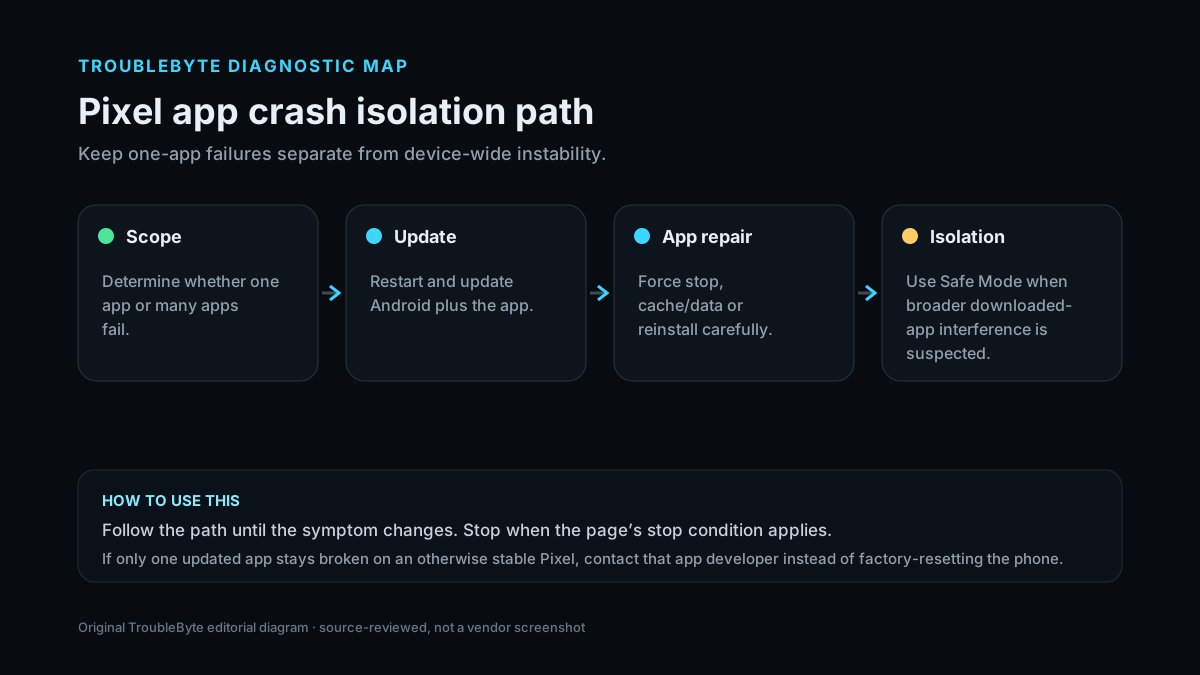
TroubleByte diagnostic path
One app or many?
Restart and update Android/app.
Force stop, cache/data or reinstall carefully.
Use Safe Mode for broader downloaded-app interference.
Original TroubleByte diagnostic map. It summarizes the cited troubleshooting order; it is not a vendor screenshot.
Use the symptom to choose the next branch
Is only one app crashing while other apps work normally?
Keep the fix app-specific: update, force stop, cache/data/reinstall and developer support.
Broaden to system storage/update state and Safe Mode to isolate downloaded-app interference.
Does the problem disappear in Safe Mode?
A downloaded app or service is likely involved; remove recent/problem apps methodically.
Do not blame a random third-party app; continue system/app-specific diagnostics with current updates.
Original TroubleByte decision aid derived from the cited troubleshooting scope. It does not replace vendor documentation.
What this usually means
The first branch is one-app failure versus device-wide instability. Google recommends restart and updates after each stage, then force stop/cache or reinstall for the affected app. Safe Mode is more useful when multiple symptoms suggest another downloaded app is interfering. Factory reset is not an appropriate early response to a single crashing app.
What we verified from the source material
Google’s current Pixel app guide verifies restart, Android/app updates, force stop, app-storage/reinstall and developer escalation. Google’s Safe Mode guidance provides the device-wide branch when a downloaded app may be causing broader instability.
Prerequisites and checks
Prepare first
- Know whether app data is cloud-synced before clearing storage or uninstalling.
- Restart after each major troubleshooting step to isolate what changed.
- Do not factory reset the phone for a single-app problem before app-specific steps.
Checks that prevent the wrong fix
- Check whether only one app fails or multiple unrelated apps fail.
- Install pending Android and app updates.
- Confirm enough free storage exists for the app and updates.
Applies to
Solutions, in order
Restart, update and force stop the app
- Restart the Pixel.
- Install available Android system updates.
- Update the affected app in Google Play.
- Open App info and Force stop the app, then launch it once.
Why this can work: Google places restart and updates first, then force stop for an installed app that crashes or will not open.
Isolate app data or third-party interference
- Clear the app cache where appropriate; preserve account/data before clearing storage.
- If safe to do so, uninstall/reinstall the app and retest.
- If multiple apps or the system are unstable, boot Safe Mode to see whether a downloaded app is contributing.
- Contact the app developer when one app alone remains broken on an otherwise stable, updated Pixel.
Why this can work: If the problem persists, app-specific storage/reinstall steps or Safe Mode can separate corrupt app data from broader interference.
How to know the fix actually worked
- The affected app opens repeatedly and remains responsive through the previous failure point.
- Other apps/system behavior remain stable after the fix.
Do not count a temporary disappearance of the symptom as a confirmed fix if the problem normally returns after a restart, reconnect or several minutes of use.
When not to keep changing things
- If clearing app storage would destroy important unsynced data, stop and back up/export it before continuing.
Escalation: If one updated app alone remains broken after reinstall, contact its developer; if many apps crash even in Safe Mode, escalate to Pixel/system diagnostics.
Sources used for this record
Primary · checked Sep 7, 2026Google — Fix an installed app that isn’t working on a Pixel phoneFirst-party documentation used as the primary evidence source for this troubleshooting record.Corroborating · checked Sep 7, 2026Google — Find problem apps by rebooting to safe modeFirst-party documentation used as the corroborating evidence source for this troubleshooting record.Need private help with this guide?
If the guide did not resolve the problem, send a private case to TroubleByte. It is separate from the public discussion below.
Discuss this exact problem
Share what happened on your system, ask a focused follow-up question, or add evidence that may help someone with the same symptom. Community posts are separate from TroubleByte editorial verification.
Start a discussion
Revision history
Show 1 recorded revision
2026-09-07 — Created for the v0.9 launch-acceleration content pass from current first-party documentation; indexing remains disabled pending final launch review.