
Pixel fingerprint sensor not working
Fingerprint Unlock behavior varies by Pixel model and sensor type, but Google recommends current Android software, a clean sensor/display, correct finger placement and re-enrollment before hardware conclusions. Some security states also intentionally require the backup PIN instead of fingerprint.
Update, clean and test correct placement
Install the latest Android update, clean the display or power-button sensor, use the same enrolled finger with firm contact, then delete and re-enroll the fingerprint if recognition remains poor.
- Install Android updates.
- Clean the display or power-button sensor and dry your finger.
- Press/hold the enrolled finger as Google describes for the model.
- Test several unlocks.
Why this branch first: Google lists current Android software, sensor/display cleanliness and correct finger placement as primary fingerprint fixes.
Choose a local-first diagnostic tool
Use a TroubleByte tool to inspect an error, DNS record or local system context before changing settings.
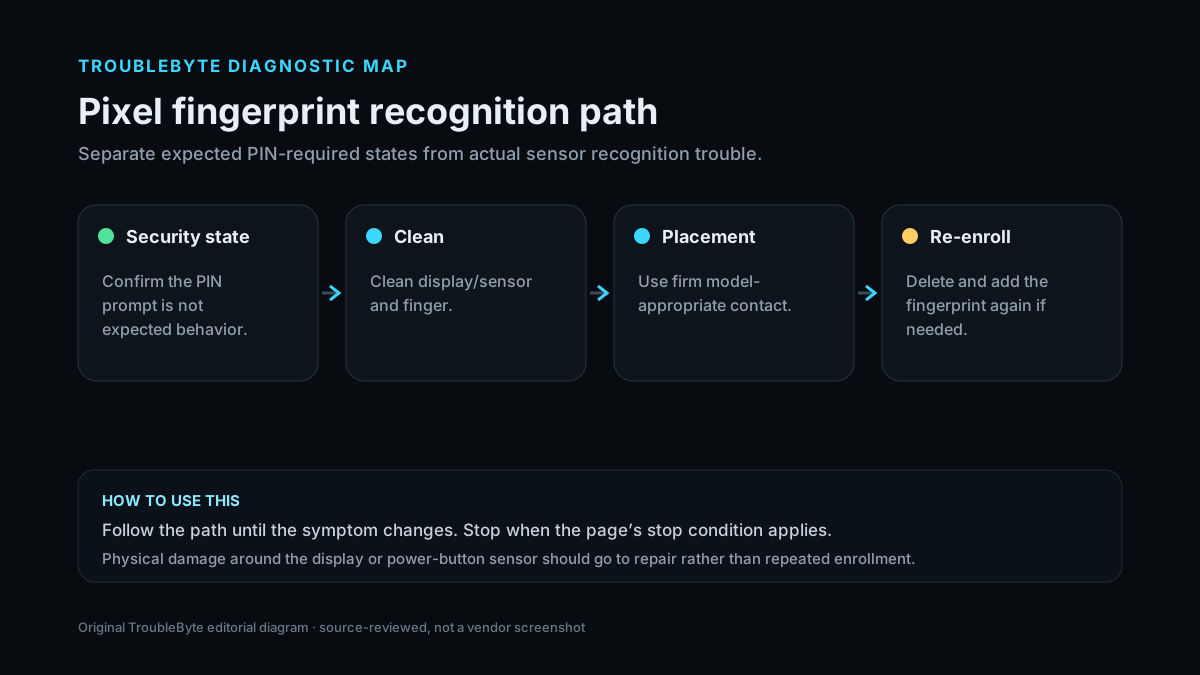
TroubleByte diagnostic path
Confirm the PIN prompt is not expected behavior.
Clean sensor/display and finger.
Use firm model-appropriate contact.
Delete and add the fingerprint again if needed.
Original TroubleByte diagnostic map. It summarizes the cited troubleshooting order; it is not a vendor screenshot.
Use the symptom to choose the next branch
Does the phone accept the fingerprint sometimes but not consistently?
Focus on cleanliness, placement, protector and re-enrollment quality.
Confirm Fingerprint Unlock is configured and the sensor is physically available before repair conclusions.
Did the phone just restart or enter another security-required state?
A backup PIN request can be expected and is not proof of sensor failure.
Continue with recognition troubleshooting.
Original TroubleByte decision aid derived from the cited troubleshooting scope. It does not replace vendor documentation.
What this usually means
The first task is to distinguish a recognition-quality problem from expected security behavior. Pixel can require the backup PIN after restart or other security conditions. When fingerprint recognition itself is poor, Google recommends cleanliness, placement and re-enrollment before service.
What we verified from the source material
Google’s Pixel guidance covers Android updates, sensor/display cleanliness, placement, re-enrollment and model-specific sensor behavior. Its unlock documentation also explains normal states where a backup PIN is required, preventing expected security behavior from being misdiagnosed as sensor failure.
Prerequisites and checks
Prepare first
- Know which Pixel model/sensor type you have.
- Keep the backup PIN/pattern/password available.
- If using a screen protector, note whether the issue began after installation.
Checks that prevent the wrong fix
- Install current Android updates.
- Clean the fingerprint sensor area and your finger.
- Confirm the same finger is enrolled and test firm, consistent placement.
Applies to
Solutions, in order
Update, clean and test correct placement
- Install Android updates.
- Clean the display or power-button sensor and dry your finger.
- Press/hold the enrolled finger as Google describes for the model.
- Test several unlocks.
Why this can work: Google lists current Android software, sensor/display cleanliness and correct finger placement as primary fingerprint fixes.
Delete and re-enroll the fingerprint
- Open Security & privacy > Device unlock > Fingerprint.
- Remove the problematic enrollment.
- Enroll the finger again, capturing the requested angles.
- Retest before adding more fingerprints.
Why this can work: Google recommends re-enrollment when basic recognition checks do not resolve the issue.
How to know the fix actually worked
- Fingerprint Unlock succeeds repeatedly after re-enrollment.
- The backup PIN is no longer requested except in normal security-required situations.
Do not count a temporary disappearance of the symptom as a confirmed fix if the problem normally returns after a restart, reconnect or several minutes of use.
When not to keep changing things
- If the device has physical display/power-button damage around the sensor, stop repeated enrollment and seek qualified repair.
Escalation: If recognition remains unreliable after current software, cleaning and re-enrollment, use Pixel support or repair diagnostics rather than third-party calibration tools.
Sources used for this record
Primary · checked Sep 8, 2026Google — Fix issues with your fingerprint sensor on your Pixel phoneFirst-party documentation used as evidence for this troubleshooting record.Corroborating · checked Sep 8, 2026Google — How to unlock your Pixel phone with your fingerprintFirst-party documentation used as evidence for this troubleshooting record.Need private help with this guide?
If the guide did not resolve the problem, send a private case to TroubleByte. It is separate from the public discussion below.
Discuss this exact problem
Share what happened on your system, ask a focused follow-up question, or add evidence that may help someone with the same symptom. Community posts are separate from TroubleByte editorial verification.
Start a discussion
Revision history
Show 1 recorded revision
2026-09-08 — Created for the v1.2 search-quality and content-scale pass from current first-party documentation; public indexing is controlled by the launch allowlist.