
Google Pixel phone will not charge
A Pixel charging failure can come from the cable, power adapter, outlet, USB-C port, case/accessory interference, temperature, a deeply discharged battery or the phone itself. Google’s troubleshooting starts by proving the external power path before treating the battery or charging hardware as failed.
Prove the external charging path
Remove the case, use a known-good USB-C cable and compatible wall adapter, verify the outlet, then leave the phone connected long enough for a deeply discharged battery to show a charging state.
- Remove the phone case if it can interfere with the connector or wireless charger.
- Use a known-good USB-C cable and compatible power adapter connected to a wall outlet.
- Verify the outlet with another device.
- Leave the Pixel connected and watch for a charging/battery icon before trying more actions.
Why this branch first: Google’s current Pixel charging flow explicitly checks case, cable, charger and outlet and allows time for a deeply discharged battery to recover.
Choose a local-first diagnostic tool
Use a TroubleByte tool to inspect an error, DNS record or local system context before changing settings.
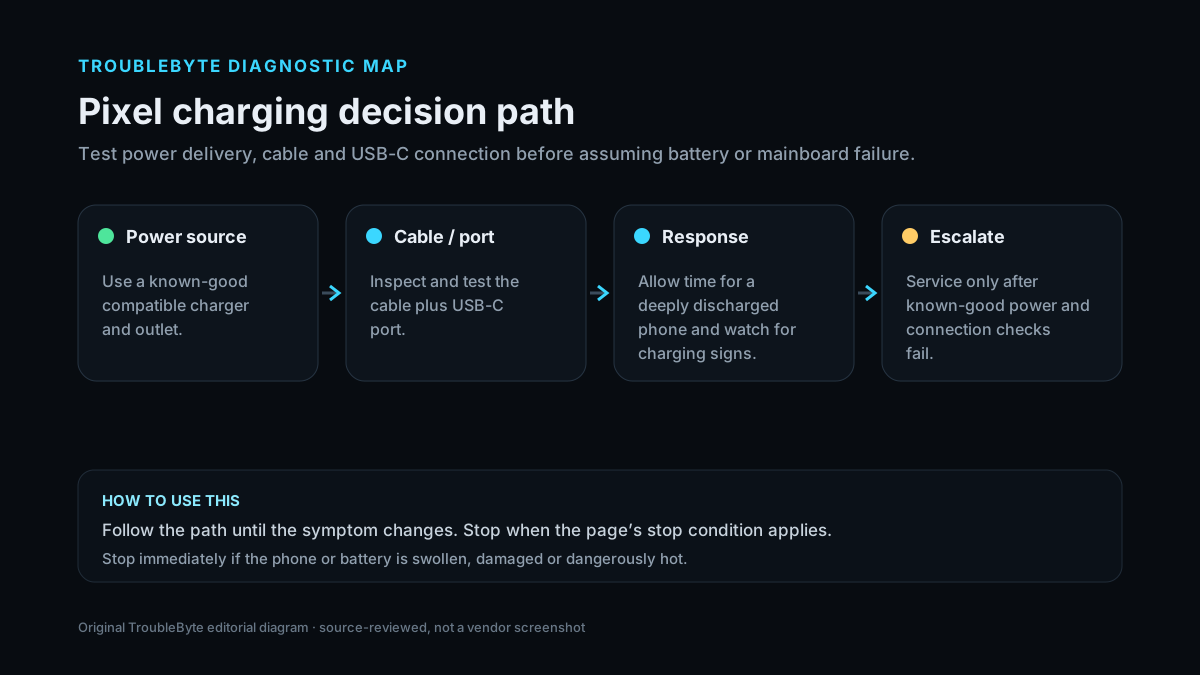
TroubleByte diagnostic path
Known-good wall adapter and cable.
Remove case; inspect USB-C port.
Allow a deeply discharged phone time.
Service after known-good input still fails.
Original TroubleByte diagnostic map. It summarizes the cited troubleshooting order; it is not a vendor screenshot.
Use the symptom to choose the next branch
Does another known-good cable/adapter/outlet charge the Pixel?
Replace the failed accessory/power source and verify stability.
Continue to phone-side port, temperature and battery diagnosis.
Does the phone show a battery icon after several minutes on known-good power?
Continue charging before restart attempts.
Treat the port/device as more likely and escalate if no response persists.
Original TroubleByte decision aid derived from the cited troubleshooting scope. It does not replace vendor documentation.
What this usually means
The first question is whether known-good external power reaches the phone. A bad cable, adapter or outlet can perfectly mimic phone failure. If the phone shows a battery icon after a minute or begins charging after several minutes, continue charging instead of forcing repeated restarts. Persistent failure on known-good equipment shifts attention to the port or device.
What we verified from the source material
Google’s Pixel troubleshooting checks the case, known-good charger/cable/outlet and allows a deeply discharged phone time to show a battery icon. Its charging guide documents compatible USB-C and wireless charging behavior by model.
Prerequisites and checks
Prepare first
- Use a wall outlet rather than a low-power computer port for the main test.
- Have a known-good USB-C cable and compatible adapter available.
- Do not insert metal objects into the charging port.
Checks that prevent the wrong fix
- Test a known-good cable, compatible USB-C power adapter and wall outlet.
- Remove case/accessories and inspect the USB-C port for obstruction or damage.
- Leave a very low battery connected for at least several minutes and watch for the battery icon.
Applies to
Solutions, in order
Prove the external charging path
- Remove the phone case if it can interfere with the connector or wireless charger.
- Use a known-good USB-C cable and compatible power adapter connected to a wall outlet.
- Verify the outlet with another device.
- Leave the Pixel connected and watch for a charging/battery icon before trying more actions.
Why this can work: Google’s current Pixel charging flow explicitly checks case, cable, charger and outlet and allows time for a deeply discharged battery to recover.
Inspect phone-side conditions
- Check the USB-C port for visible lint, moisture alerts or physical damage without using metal tools.
- Let an overheated or very cold phone return to a normal temperature.
- Try supported wireless charging only as a secondary isolation test if the model supports it.
- If known-good power still produces no response, move to Google support/service.
Why this can work: Google documents temperature, compatible power equipment and model-specific charging behavior; persistent no-charge on known-good input warrants device-side escalation.
How to know the fix actually worked
- The Pixel shows a charging state and battery percentage increases over time.
- Charging works again after disconnecting/reconnecting the known-good charger.
Do not count a temporary disappearance of the symptom as a confirmed fix if the problem normally returns after a restart, reconnect or several minutes of use.
When not to keep changing things
- If the phone is swollen, physically damaged, unusually hot, or the port is visibly damaged, stop charging attempts and seek service.
Escalation: If the Pixel does not show any charging response with known-good wired power and a clean undamaged port, use Google support/service instead of inserting tools into the USB-C port or forcing repeated power cycles.
Sources used for this record
Primary · checked Sep 8, 2026Google — Fix a Pixel phone that won’t charge or turn onFirst-party documentation used as the primary evidence source for this troubleshooting record.Corroborating · checked Sep 8, 2026Google — Charge your Pixel phoneFirst-party documentation used as corroborating evidence for this troubleshooting record.Need private help with this guide?
If the guide did not resolve the problem, send a private case to TroubleByte. It is separate from the public discussion below.
Discuss this exact problem
Share what happened on your system, ask a focused follow-up question, or add evidence that may help someone with the same symptom. Community posts are separate from TroubleByte editorial verification.
Start a discussion
Revision history
Show 1 recorded revision
2026-09-08 — Created for the v1.1 content-scale pass from current first-party documentation; public indexing is controlled by the launch allowlist.