
Proxmox VM has no network or internet access
A Proxmox VE guest normally reaches the physical network through a Linux bridge such as vmbr0. If the VM has no network, verify the VM NIC, bridge attachment, host bridge uplink and guest IP configuration in that order.
Verify the VM NIC and bridge attachment
Confirm the VM has a virtual NIC and that it is attached to the correct Linux bridge, usually vmbr0. Then verify that the bridge is connected to the intended physical interface and that the guest has a valid IP address, prefix, gateway and DNS for that network.
- Open the VM Hardware view in Proxmox VE.
- Confirm a Network Device exists for the VM.
- Confirm it is attached to the intended bridge, commonly vmbr0.
- Inside the guest, confirm the expected network interface is present and enabled.
Why this branch first: Proxmox documents bridged mode as the default model where a VM virtual NIC is attached to a host Linux bridge.
Choose a local-first diagnostic tool
Use a TroubleByte tool to inspect an error, DNS record or local system context before changing settings.
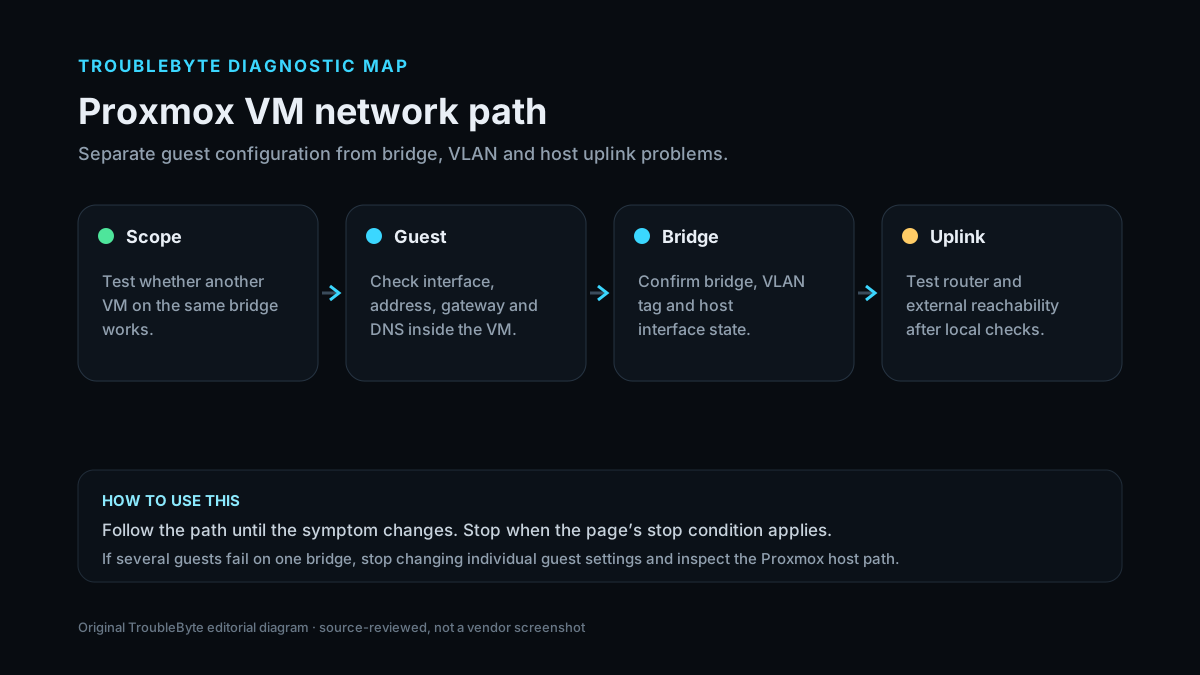
TroubleByte diagnostic path
Confirm the VM has a virtual NIC attached to the intended bridge.
Verify the Proxmox bridge exists and has the expected uplink.
Check guest IP, gateway, DHCP and interface state.
Test guest-to-gateway, host bridge and upstream connectivity separately.
Original TroubleByte diagnostic map. It summarizes the cited troubleshooting order; it is not a vendor screenshot.
What this usually means
Proxmox describes a Linux bridge as a virtual switch connecting guests and physical interfaces. A break at any of three layers — guest NIC, host bridge/uplink, or guest IP routing — can produce the same “no internet” symptom.
What we verified from the source material
Proxmox documents that Linux bridges such as vmbr0 act as virtual switches connecting guests to the physical network. The administration guide independently describes the same bridged networking model, supporting the diagnostic order of guest NIC, bridge attachment, host uplink and then guest IP configuration.
Prerequisites and checks
Prepare first
- Identify the VM ID, virtual NIC, bridge name and expected VLAN before changing networking.
- Record the current host bridge configuration and guest IP settings.
- Avoid restarting host networking remotely unless you have out-of-band/console access.
Checks that prevent the wrong fix
- Keep console access to the Proxmox host before changing host network configuration.
- Do not restart networking blindly on a remote host if losing the management connection would lock you out.
- At hosting providers with only one public IP, bridged guest networking may not be the correct model; routed or masqueraded networking may be required.
Applies to
Solutions, in order
Verify the VM NIC and bridge attachment
- Open the VM Hardware view in Proxmox VE.
- Confirm a Network Device exists for the VM.
- Confirm it is attached to the intended bridge, commonly vmbr0.
- Inside the guest, confirm the expected network interface is present and enabled.
Why this can work: Proxmox documents bridged mode as the default model where a VM virtual NIC is attached to a host Linux bridge.
Verify the host bridge is connected to the physical network
- Open the Proxmox node network configuration.
- Inspect the Linux bridge used by the VM.
- Confirm the bridge has the intended physical bridge port/uplink.
- Confirm the Proxmox host itself can reach the expected gateway/network.
Why this can work: Proxmox describes the Linux bridge as the virtual switch between guest tap interfaces and the host physical interface.
Verify guest IP, gateway and DNS
- Inside the VM, inspect its assigned IP address and prefix.
- Confirm the default gateway belongs to the intended network.
- Test the gateway first, then a public IP, then DNS resolution.
- Correct DHCP or static guest configuration based on which test fails.
Why this can work: Once the virtual NIC and bridge path are correct, the guest still needs valid layer-3 configuration to reach other networks.
How to know the fix actually worked
- Confirm the guest can reach its configured gateway.
- Confirm the guest can reach another host on the local network before testing public internet/DNS.
- Verify the VM NIC remains attached to the intended bridge after reboot.
Do not count a temporary disappearance of the symptom as a confirmed fix if the problem normally returns after a restart, reconnect or several minutes of use.
When not to keep changing things
- If changing the host bridge could cut off remote management, stop until console or out-of-band access is available.
- If VLAN tagging is involved, verify switch-port and bridge/VLAN-aware configuration before repeatedly changing guest IP addresses.
Escalation: If the host itself has network access and the VM NIC is correctly attached, inspect VLAN settings, firewall rules, provider MAC/IP restrictions and the guest’s route table before changing the physical bridge.
Sources used for this record
Primary · checked Sep 6, 2026Proxmox — Network Configuration — Proxmox VEOfficial documentation used to verify the troubleshooting steps.Corroborating · checked Sep 6, 2026Proxmox — Proxmox VE Administration GuideOfficial Proxmox VE administration guide corroborating the bridged-network model used to connect VMs to physical networks.Need private help with this guide?
If the guide did not resolve the problem, send a private case to TroubleByte. It is separate from the public discussion below.
Discuss this exact problem
Share what happened on your system, ask a focused follow-up question, or add evidence that may help someone with the same symptom. Community posts are separate from TroubleByte editorial verification.
Start a discussion
Revision history
Show 7 recorded revisions
2026-09-06 — v0.6 media/performance pass: added a dedicated social preview card; indexing remains disabled.
2026-09-06 — v0.5 UX/discovery pass: added decision-oriented diagnostic guidance and kept indexing disabled.
2026-09-06 — v0.4 evidence pass: added a second first-party corroborating source and tightened the evidence summary; indexing remains disabled.
2026-09-06 — v0.4 depth pass: added symptom framing, prerequisites, verification checks and explicit stop conditions; indexing remains disabled.
2026-09-06 — v0.3 trust pass: assigned a named human author/source reviewer, added section taxonomy and an original diagnostic flow; indexing remains disabled.
2026-09-06 — Clarified source-review semantics and evidence scope; no hands-on hardware test is claimed.
2026-09-06 — Created from current Proxmox VE Linux bridge/network configuration guidance; held noindex for review.