
Steam Cloud not syncing game saves
Steam Cloud synchronization can fail because Cloud is disabled globally or per game, the title does not sync the file you expect, a conflict exists between local and remote data, or the client cannot complete a sync. Because save loss may be irreversible, preserve the newest local data before resolving conflicts.
Verify Steam Cloud is enabled and supported
Confirm the game actually uses Steam Cloud and that Cloud is enabled globally and for that game. Before resolving a conflict, identify which copy is newest and back up local saves if they matter.
- Confirm the game supports Steam Cloud.
- Enable Steam Cloud in Steam Settings > Cloud.
- Open the game Properties and confirm per-game Cloud synchronization is enabled.
- Exit the game normally and allow Steam time to finish syncing before closing the client.
Why this branch first: Valve documents global and per-game Cloud controls and notes that the Steam client syncs configured files around game sessions.
Choose a local-first diagnostic tool
Use a TroubleByte tool to inspect an error, DNS record or local system context before changing settings.
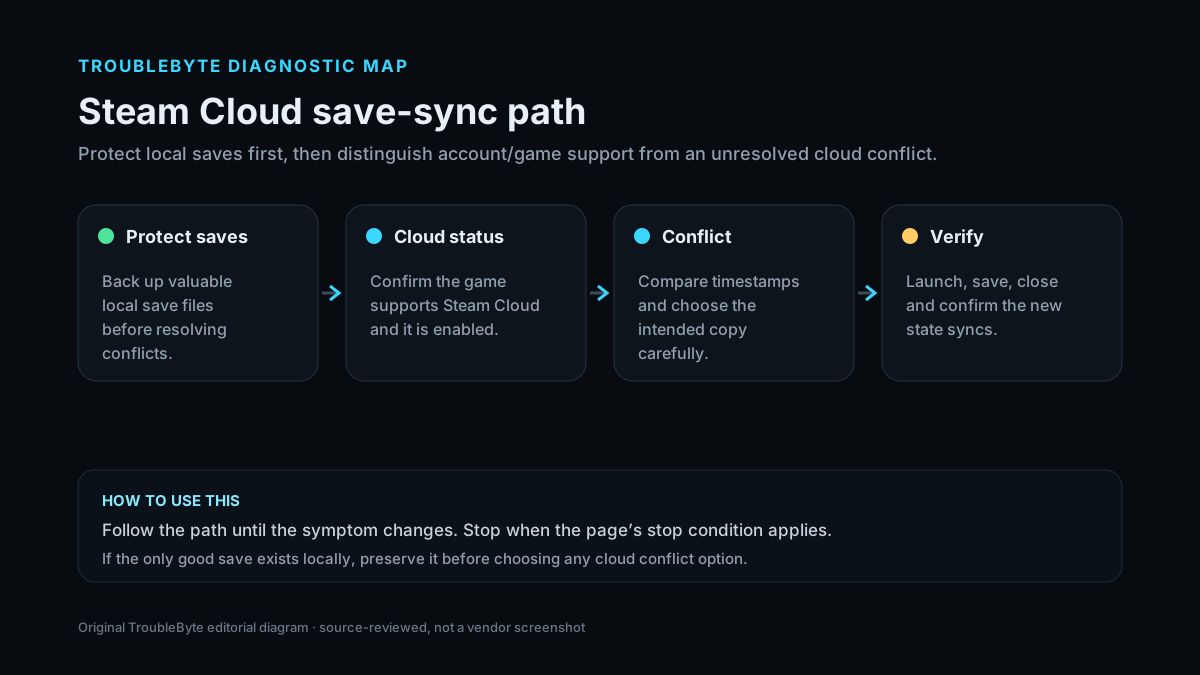
TroubleByte diagnostic path
Confirm the game uses Steam Cloud.
Check global and per-game settings.
Preserve saves and compare timestamps.
Escalate one-title configuration issues to its developer.
Original TroubleByte diagnostic map. It summarizes the cited troubleshooting order; it is not a vendor screenshot.
Use the symptom to choose the next branch
Does the game officially support Steam Cloud and is it enabled?
Proceed to sync/conflict diagnosis.
Enable supported Cloud or accept that the game/save may be local-only.
Do other Cloud-enabled games sync normally?
Keep the issue scoped to this game and its configured files.
Check client/network/account-wide Cloud state before game-specific changes.
Original TroubleByte decision aid derived from the cited troubleshooting scope. It does not replace vendor documentation.
What this usually means
Steam Cloud synchronization happens around game sessions and depends on the game’s configured Cloud file set. If the game is not Cloud-enabled or Cloud is disabled, there is no sync failure to repair. If Steam shows a conflict, choosing the wrong copy can overwrite newer progress, so file timestamps and a local backup matter more than repeated relaunches.
What we verified from the source material
Valve documents both global and per-game Steam Cloud controls and explains that configured files synchronize before/after sessions. Steam Support also warns that lost saves often cannot be restored, making conflict handling and local backup important.
Prerequisites and checks
Prepare first
- Do not delete local save folders before identifying the newest copy.
- Know whether the game officially supports Steam Cloud.
- Let Steam finish any active sync before shutting down the client.
Checks that prevent the wrong fix
- Confirm the Steam store/library indicates the game supports Steam Cloud.
- Check Steam Settings > Cloud and the game Properties > General Cloud setting.
- If there is a conflict, compare local/remote timestamps before choosing a copy.
Applies to
Solutions, in order
Verify Steam Cloud is enabled and supported
- Confirm the game supports Steam Cloud.
- Enable Steam Cloud in Steam Settings > Cloud.
- Open the game Properties and confirm per-game Cloud synchronization is enabled.
- Exit the game normally and allow Steam time to finish syncing before closing the client.
Why this can work: Valve documents global and per-game Cloud controls and notes that the Steam client syncs configured files around game sessions.
Resolve conflicts without losing the newest save
- Back up the local save folder before resolving a Cloud conflict if progress matters.
- Compare timestamps and identify the version that contains the newest valid progress.
- Choose the correct copy only when you understand which version will overwrite the other.
- If the problem is specific to one title, inspect the developer’s save path/support because Steam only syncs files configured for that game.
Why this can work: Valve warns that Steam Support often cannot restore lost Cloud saves, so preserving and identifying the correct copy is a required safety step.
How to know the fix actually worked
- Steam no longer reports a Cloud sync error for the game.
- A known test save appears on the second device after a clean game exit and completed sync.
Do not count a temporary disappearance of the symptom as a confirmed fix if the problem normally returns after a restart, reconnect or several minutes of use.
When not to keep changing things
- If you cannot tell which local/remote save is newer, stop before selecting a conflict option and make a backup first.
Escalation: If one game repeatedly fails while other Cloud-enabled games sync, contact the game developer because the game’s Steam Cloud configuration controls which files are synchronized.
Sources used for this record
Primary · checked Sep 8, 2026Valve — Steam Support: Steam CloudFirst-party documentation used as the primary evidence source for this troubleshooting record.Corroborating · checked Sep 8, 2026Valve — Steamworks Documentation: Steam CloudFirst-party documentation used as corroborating evidence for this troubleshooting record.Need private help with this guide?
If the guide did not resolve the problem, send a private case to TroubleByte. It is separate from the public discussion below.
Discuss this exact problem
Share what happened on your system, ask a focused follow-up question, or add evidence that may help someone with the same symptom. Community posts are separate from TroubleByte editorial verification.
Start a discussion
Revision history
Show 2 recorded revisions
2026-09-26 — Source review refreshed against cited current first-party documentation; diagnostic scope confirmed. No hands-on test claimed.
2026-09-08 — Created for the v1.1 content-scale pass from current first-party documentation; public indexing is controlled by the launch allowlist.