
Steam game won’t launch after Preparing to Launch
Steam notes that a game which appears not to launch may actually crash immediately. Verify the game files, update the operating system and relevant drivers, check requirements and test without nonessential conflicting software before a full reinstall.
Repair files and runtime prerequisites
Restart the PC, verify the game’s files in Steam, install current OS/GPU updates, and temporarily close nonessential overlays/security/tuning software before reinstalling the whole game.
- Restart the PC and Steam.
- Use Steam Properties > Installed Files > Verify integrity of game files.
- Install current operating-system and graphics-driver updates appropriate for the game.
- Confirm the machine meets the game’s supported requirements, then launch again.
Why this branch first: Steam explicitly recommends OS/driver updates, file verification and system-requirement checks for games that do not run after Preparing to Launch.
Choose a local-first diagnostic tool
Use a TroubleByte tool to inspect an error, DNS record or local system context before changing settings.
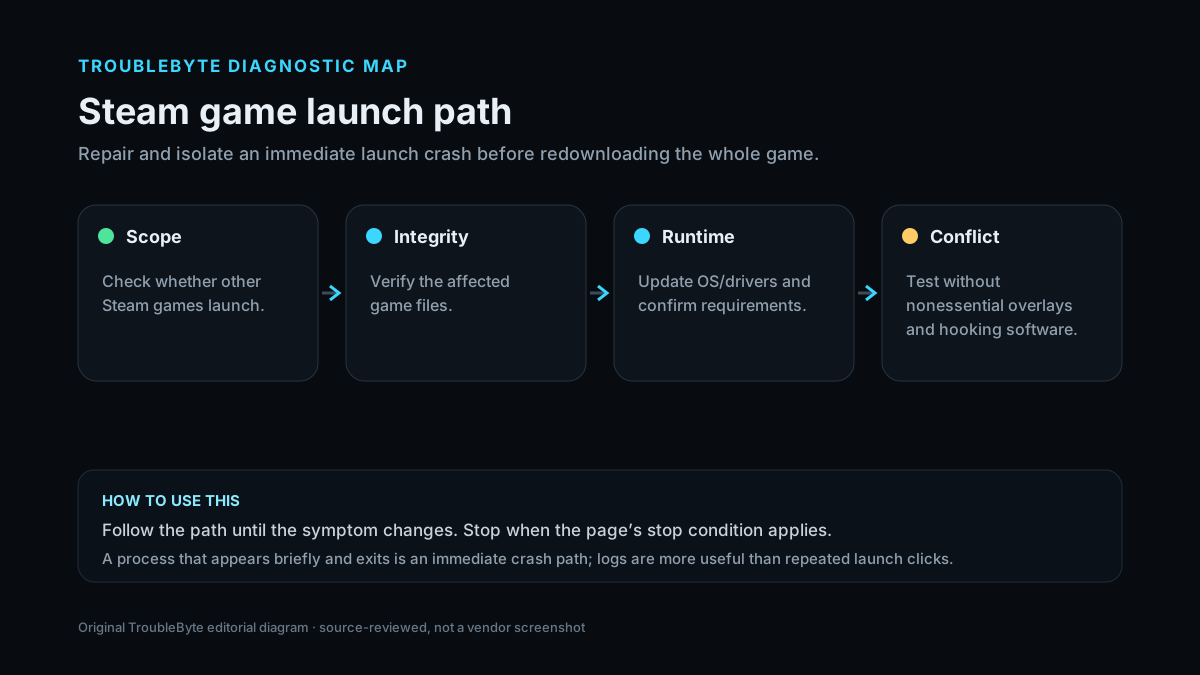
TroubleByte diagnostic path
Check whether only one game is affected.
Verify game files.
Update OS/drivers and confirm requirements.
Test without nonessential hooking/overlay software.
Original TroubleByte diagnostic map. It summarizes the cited troubleshooting order; it is not a vendor screenshot.
Use the symptom to choose the next branch
Do other Steam games launch normally?
Treat this as title-specific first: verify files, requirements, dependencies and game-specific logs.
Broaden to Steam client, OS/driver or system-wide security/overlay conflicts.
Does the game process appear briefly and then exit?
This is an immediate crash path; logs, runtime dependencies and conflicts are more useful than repeated launch clicks.
Check whether Steam/launcher permissions or prerequisites prevent the process from starting at all.
Original TroubleByte decision aid derived from the cited troubleshooting scope. It does not replace vendor documentation.
What this usually means
Steam’s own guidance emphasizes that “won’t launch” often means an immediate crash, which has many possible causes. The efficient branch is to repair the install and runtime environment first: file integrity, OS/driver currency, system requirements and software conflicts. A full download is usually a poor first diagnostic because it destroys evidence without isolating the cause.
What we verified from the source material
Steam Support lists operating-system updates, driver updates, game-file verification, disabling nonessential software and checking system requirements for games that fail after Preparing to Launch. That supports a repair-and-isolate flow before a full reinstall.
Prerequisites and checks
Prepare first
- Restart Steam and the PC before deeper changes.
- Preserve game saves/configuration before deleting folders manually.
- Close overclocking, overlay and injection tools during a clean test.
Checks that prevent the wrong fix
- Try one other Steam game to determine whether the issue is title-specific.
- Note whether the game briefly appears in Task Manager before exiting.
- Check the game’s published system requirements and current OS support.
Applies to
Solutions, in order
Repair files and runtime prerequisites
- Restart the PC and Steam.
- Use Steam Properties > Installed Files > Verify integrity of game files.
- Install current operating-system and graphics-driver updates appropriate for the game.
- Confirm the machine meets the game’s supported requirements, then launch again.
Why this can work: Steam explicitly recommends OS/driver updates, file verification and system-requirement checks for games that do not run after Preparing to Launch.
Test for conflicting background software
- Close nonessential overlays, monitoring, capture, tuning and security software for a controlled test.
- Launch the game directly from Steam without third-party mod loaders where practical.
- Check the game/launcher log or crash report if it still exits immediately.
- Only reinstall the game after file verification and clean-start testing fail.
Why this can work: Immediate launch crashes can be caused by software that hooks, filters or competes with the game.
How to know the fix actually worked
- The game reaches its main window/menu and remains running beyond the previous failure point.
- Steam no longer immediately returns the title from Running to Play.
Do not count a temporary disappearance of the symptom as a confirmed fix if the problem normally returns after a restart, reconnect or several minutes of use.
When not to keep changing things
- If the publisher reports a current outage, incompatible update or unsupported platform, stop local reinstalls and follow the game-specific support path.
Escalation: If the game still crashes immediately after verified files and a clean environment, collect its crash logs/system report and use the game publisher or Steam support channel.
Sources used for this record
Primary · checked Sep 7, 2026Valve / Steam Support — Games do not run after Preparing to LaunchFirst-party documentation used as the primary evidence source for this troubleshooting record.Corroborating · checked Sep 7, 2026Valve / Steam Support — Steam Client TroubleshootingFirst-party documentation used as the corroborating evidence source for this troubleshooting record.Need private help with this guide?
If the guide did not resolve the problem, send a private case to TroubleByte. It is separate from the public discussion below.
Discuss this exact problem
Share what happened on your system, ask a focused follow-up question, or add evidence that may help someone with the same symptom. Community posts are separate from TroubleByte editorial verification.
Start a discussion
Revision history
Show 2 recorded revisions
2026-09-26 — Source review refreshed against cited current first-party documentation; diagnostic scope confirmed. No hands-on test claimed.
2026-09-07 — Created for the v0.9 launch-acceleration content pass from current first-party documentation; indexing remains disabled pending final launch review.