
Steam games appear uninstalled but files are still on the drive
Do not immediately redownload or delete the folder. First verify the library drive and folder are available, then use Steam’s library and install-management paths to reconnect the client with the existing files. This source-reviewed guide keeps the next step tied to the evidence you can collect safely.
Capture the exact symptom and scope first
Do not immediately redownload or delete the folder. First verify the library drive and folder are available, then use Steam’s library and install-management paths to reconnect the client with the existing files.
- Record the exact visible message and timestamp.
- Check whether the symptom affects one target or several.
- Preserve the relevant log, response or configuration state.
- Choose the next step only after identifying the affected layer.
Why this branch first: The exact error, timestamp and scope determine the next branch more safely than broad resets or deletes.
Choose a local-first diagnostic tool
Use a TroubleByte tool to inspect an error, DNS record or local system context before changing settings.
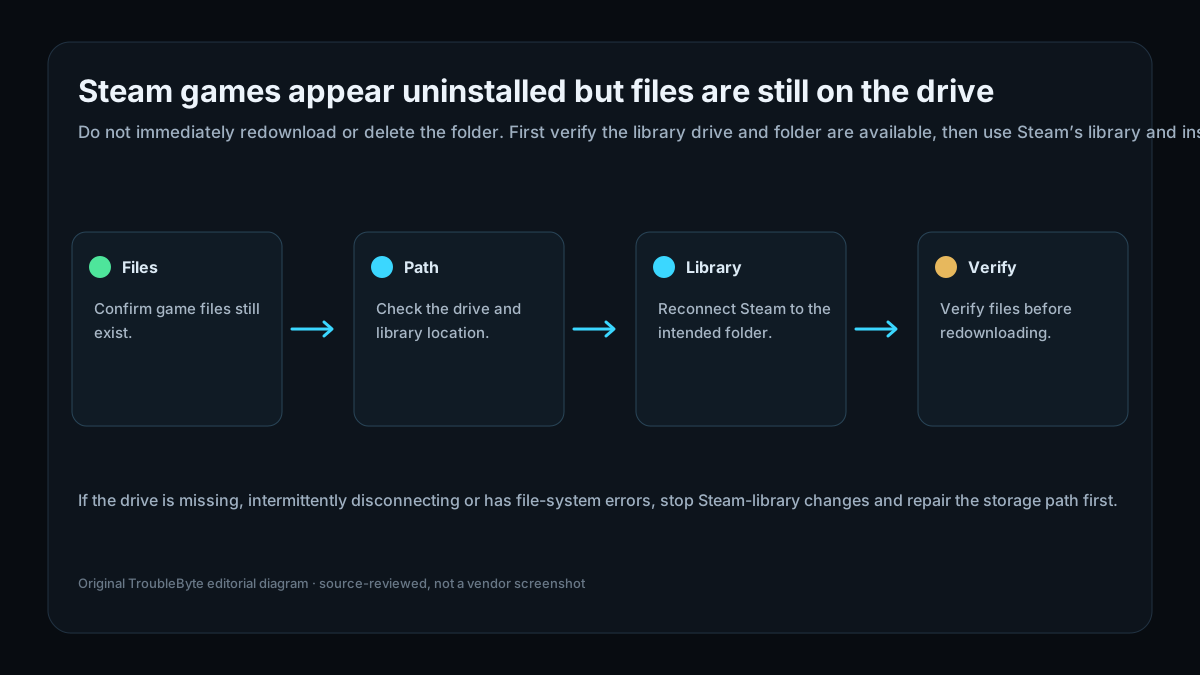
TroubleByte diagnostic path
Confirm game files still exist.
Check the drive and library location.
Reconnect Steam to the intended folder.
Verify files before redownloading.
Original TroubleByte diagnostic map. It summarizes the cited troubleshooting order; it is not a vendor screenshot.
Use the symptom to choose the next branch
Does the evidence point to one affected target rather than a wider platform or network failure?
Keep the investigation narrow and correct the affected target or configuration only.
Stop making isolated changes and investigate the shared host, network, storage or platform layer.
Do you have the exact message, timestamp and relevant log or response evidence?
Use that evidence to follow the scoped diagnostic flow and verify one targeted change.
Capture it first; broad resets, deletes and policy changes are premature.
Original TroubleByte decision aid derived from the cited troubleshooting scope. It does not replace vendor documentation.
What this usually means
Valve notes that forcing Steam closed while it writes to a drive can corrupt local library and installation information. That does not prove the game files are gone. The safe distinction is whether the library path itself is missing, the drive is unavailable, or Steam’s local installation record no longer matches files that remain on disk. Protecting the existing folder comes before broad cleanup.
What we verified from the source material
Valve notes that forcing Steam closed while it writes to a drive can corrupt local library and installation information. That does not prove the game files are gone. The safe distinction is whether the library path itself is missing, the drive is unavailable, or Steam’s local installation record no longer matches files that remain on disk. Protecting the existing folder comes before broad cleanup.
Prerequisites and checks
Prepare first
- Do not delete the existing game folder before Steam recognizes its state.
- Avoid forcing Steam closed while download or update activity is active.
- Back up valuable local saves before moving library folders.
Checks that prevent the wrong fix
- Confirm the game files and the Steam library folder are still present.
- Check that the drive letter or mount path did not change.
- Confirm the library folder is selected and accessible in Steam.
Applies to
Solutions, in order
Capture the exact symptom and scope first
- Record the exact visible message and timestamp.
- Check whether the symptom affects one target or several.
- Preserve the relevant log, response or configuration state.
- Choose the next step only after identifying the affected layer.
Why this can work: The exact error, timestamp and scope determine the next branch more safely than broad resets or deletes.
Restore the intended library path before downloading again
- Confirm the existing game folder and library path.
- Verify the drive letter or mount is stable and writable.
- Use Steam library management to select the intended folder.
- Let Steam verify the existing files before considering a new download.
Why this can work: Apply a narrow correction that follows the observed evidence, then verify the original symptom is gone.
How to know the fix actually worked
- Confirm Steam recognizes the game without a needless full redownload.
- Verify game files and launch once after the library state is restored.
Do not count a temporary disappearance of the symptom as a confirmed fix if the problem normally returns after a restart, reconnect or several minutes of use.
When not to keep changing things
- If the drive is missing, intermittently disconnecting or has file-system errors, stop Steam-library changes and repair the storage path first.
Escalation: Escalate with the library path, drive status, whether files remain present and whether other games in that same library are affected.
Sources used for this record
Primary · checked Sep 25, 2026Valve — Installed games are appearing as uninstalledOfficial documentation used to verify the scoped troubleshooting guidance.Corroborating · checked Sep 25, 2026Valve — Moving a Steam Installation and GamesOfficial documentation used to verify the scoped troubleshooting guidance.Discuss this exact problem
Share what happened on your system, ask a focused follow-up question, or add evidence that may help someone with the same symptom. Community posts are separate from TroubleByte editorial verification.
Start a discussion
Revision history
Show 1 recorded revision
2026-09-25 — Created from current official documentation with scoped decisions, explicit stop conditions and an original TroubleByte diagnostic diagram.