
No audio output device is installed in Windows 11
Windows can show “No audio output device is installed” when the audio device is disabled, hidden, missing a compatible driver or no longer being detected after an update or driver change.
Restore device detection in Device Manager
Open Device Manager first. If the audio device is present, enable it or update the driver. If it is absent, show hidden devices and scan for hardware changes, then install the current manufacturer driver and run the Windows audio troubleshooter.
- Open Device Manager and expand Sound, video and game controllers.
- Enable the device if it is disabled.
- If it is missing, choose View > Show hidden devices and Action > Scan for hardware changes.
- Restart and check Settings > System > Sound again.
Why this branch first: Microsoft recommends checking whether the audio device is enabled and detected before other sound troubleshooting.
Choose a local-first diagnostic tool
Use a TroubleByte tool to inspect an error, DNS record or local system context before changing settings.
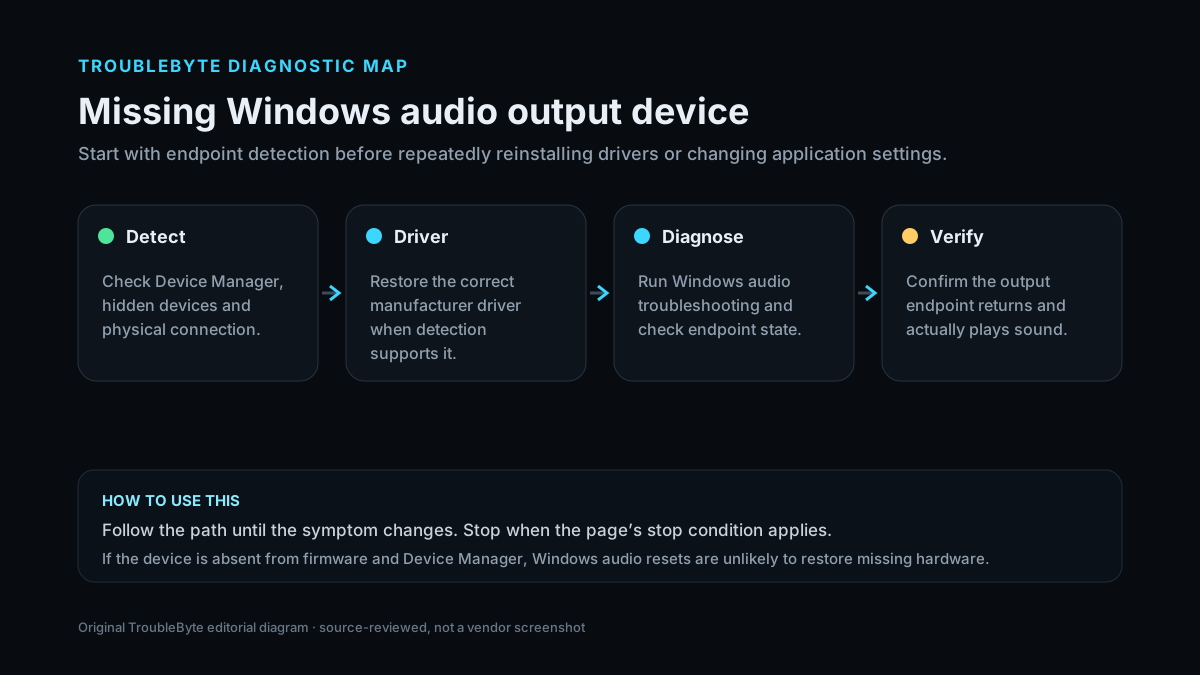
TroubleByte diagnostic path
Check Device Manager and hidden devices.
Restore the correct manufacturer driver.
Run Windows audio diagnostics.
Confirm the endpoint returns and plays audio.
Original TroubleByte diagnostic map. It summarizes the cited troubleshooting order; it is not a vendor screenshot.
Use the symptom to choose the next branch
Does the output device appear in Device Manager, including hidden devices?
Keep the next steps in driver/endpoint/service scope before assuming hardware disappeared.
Check physical connection, firmware/BIOS exposure and manufacturer driver availability before repeated Windows audio resets.
Does Windows audio troubleshooting restore the endpoint?
Verify playback and stop changing drivers once the endpoint is stable.
Use the hardware manufacturer driver path and inspect Windows Audio/device state rather than looping the troubleshooter.
Original TroubleByte decision aid derived from the cited troubleshooting scope. It does not replace vendor documentation.
What this usually means
This symptom is about device detection, not simply volume. If Windows does not list an output endpoint, changing application volume or audio format is unlikely to help until the device/driver path is restored.
What we verified from the source material
Microsoft states that an undetected output device commonly results from a missing, outdated, disabled or incorrectly loading driver and recommends Device Manager detection checks, current drivers, the Windows audio troubleshooter and restart.
Prerequisites and checks
Prepare first
- Check whether the issue affects every output device or only one USB/Bluetooth/HDMI device.
- Record the audio device or PC model before downloading drivers.
- Disconnect unnecessary docks or adapters when testing hardware detection.
Checks that prevent the wrong fix
- Check whether the audio device appears under Sound, video and game controllers.
- Show hidden devices before assuming the hardware is gone.
- Note whether the failure started after Windows Update, GPU driver installation or an audio-driver change.
Applies to
Solutions, in order
Restore device detection in Device Manager
- Open Device Manager and expand Sound, video and game controllers.
- Enable the device if it is disabled.
- If it is missing, choose View > Show hidden devices and Action > Scan for hardware changes.
- Restart and check Settings > System > Sound again.
Why this can work: Microsoft recommends checking whether the audio device is enabled and detected before other sound troubleshooting.
Install the current audio driver
- Use Windows Update for recommended drivers first.
- If Windows does not restore the device, download the correct audio driver from the PC or audio-device manufacturer.
- Install the driver and restart Windows.
- Run the automated audio troubleshooter if detection is still inconsistent.
Why this can work: Microsoft identifies missing, outdated or incompatible audio drivers as a primary cause of undetected output devices.
How to know the fix actually worked
- The intended output device appears in Settings > System > Sound.
- Audio plays through the restored device after restart.
Do not count a temporary disappearance of the symptom as a confirmed fix if the problem normally returns after a restart, reconnect or several minutes of use.
When not to keep changing things
- If the device remains absent from both Device Manager and firmware/hardware detection, stop changing app settings and investigate hardware, dock, cable or firmware state.
Escalation: If built-in audio remains absent after the correct OEM/chipset/audio drivers and a full restart, verify firmware settings and hardware detection. For USB audio, test a known-good port/cable before software repair loops.
Sources used for this record
Primary · checked Sep 7, 2026Microsoft — Fix missing or undetected audio output device in WindowsFirst-party documentation used to verify the troubleshooting scope and steps.Corroborating · checked Sep 7, 2026Microsoft — Fix sound or audio problems in WindowsFirst-party documentation used to verify the troubleshooting scope and steps.Need private help with this guide?
If the guide did not resolve the problem, send a private case to TroubleByte. It is separate from the public discussion below.
Discuss this exact problem
Share what happened on your system, ask a focused follow-up question, or add evidence that may help someone with the same symptom. Community posts are separate from TroubleByte editorial verification.
Start a discussion
Revision history
Show 3 recorded revisions
2026-09-26 — Source review refreshed against cited current first-party documentation; diagnostic scope confirmed. No hands-on test claimed.
2026-09-07 — Promoted to launch candidate with a two-branch diagnostic decision aid and original TroubleByte diagnostic media.
2026-09-07 — Created for the v0.8 content-scale pass from current first-party documentation; held noindex for editorial review.