
Black screen after login in Windows 11
A Windows 11 black or blank screen after login can be a display-output problem, a stalled Windows process, a graphics-driver issue or a recent update problem. Whether you still see the cursor or can open the security screen determines the safest next branch.
Recover display output or Explorer
Try Windows+Ctrl+Shift+B to reset the graphics driver, then Ctrl+Alt+Del. If Task Manager opens and a cursor is visible, restart Windows Explorer before moving to Safe Mode or driver rollback.
- Press Windows+Ctrl+Shift+B to reset the graphics driver.
- Use Windows+P to cycle display modes if output may be on another screen.
- Press Ctrl+Alt+Del; if Task Manager can open, restart Windows Explorer or run explorer.exe.
- Restart and verify whether the desktop returns.
Why this branch first: Microsoft recommends reversible display and process checks before recovery changes.
Choose a local-first diagnostic tool
Use a TroubleByte tool to inspect an error, DNS record or local system context before changing settings.
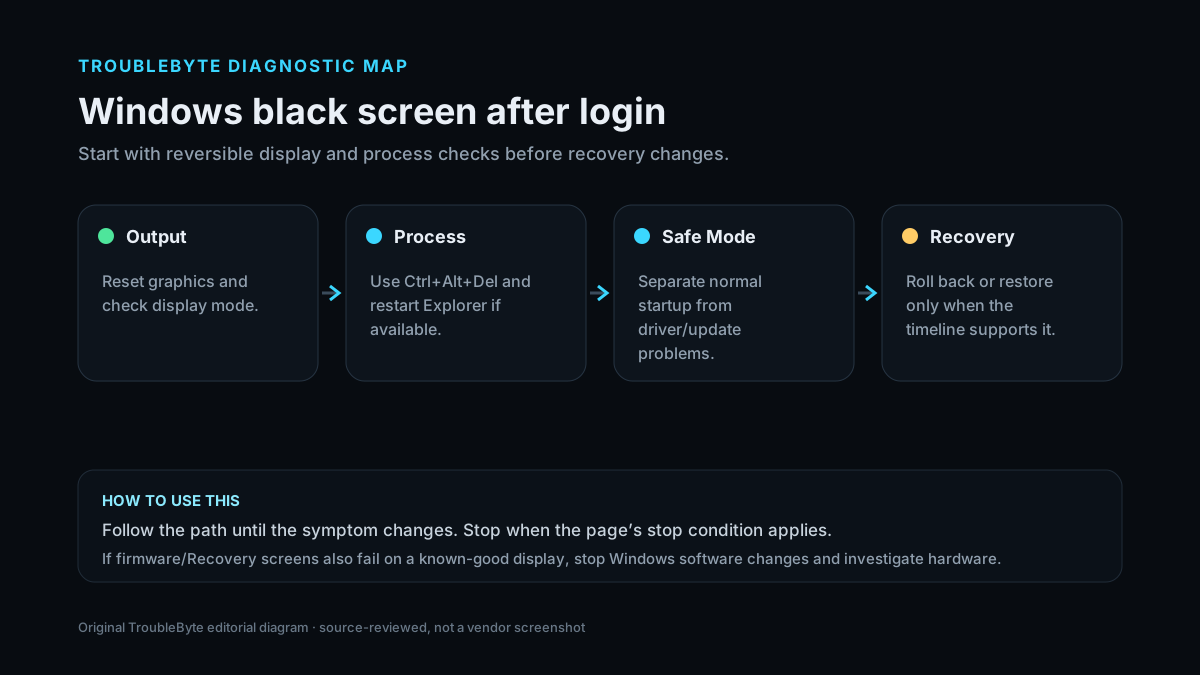
TroubleByte diagnostic path
Check monitor/output and reset the graphics driver.
Use Ctrl+Alt+Del and restart Explorer if possible.
Separate driver/update problems from normal startup.
Roll back driver or restore only when the timeline supports it.
Original TroubleByte diagnostic map. It summarizes the cited troubleshooting order; it is not a vendor screenshot.
Use the symptom to choose the next branch
Can Ctrl+Alt+Del or Task Manager appear over the black screen?
Windows is responsive enough to test Explorer/process recovery before deeper startup repair.
Focus on display output, graphics-driver reset and Recovery/Safe Mode.
Did the problem start immediately after a graphics driver or Windows update?
In Safe Mode, prioritize driver rollback/update recovery and a known-good restore point.
Do not assume the update is causal; keep checking display output, Explorer and profile/startup state.
Original TroubleByte decision aid derived from the cited troubleshooting scope. It does not replace vendor documentation.
What this usually means
A black screen after login is different from a PC that never reaches Windows. Microsoft notes that a blank screen with a cursor often points to a stalled Windows process or driver, while login-time blank screens can involve display output or profile state. Start with reversible display/process checks, then use Safe Mode and driver rollback when the timing implicates an update.
What we verified from the source material
Microsoft’s blank-screen guide distinguishes cursor, login and post-update states and recommends graphics reset, display-mode checks, Task Manager/Explorer recovery, Safe Mode and driver rollback. Recovery tools are appropriate only after simpler output and process checks fail.
Prerequisites and checks
Prepare first
- Confirm the display is powered and connected.
- If multiple displays are attached, temporarily reduce to one known-good display.
- Preserve BitLocker recovery information before advanced recovery work.
Checks that prevent the wrong fix
- Note whether the mouse cursor is visible.
- Try Ctrl+Alt+Del and determine whether the security screen appears.
- Disconnect unnecessary external displays and note if the issue followed an update.
Applies to
Solutions, in order
Recover display output or Explorer
- Press Windows+Ctrl+Shift+B to reset the graphics driver.
- Use Windows+P to cycle display modes if output may be on another screen.
- Press Ctrl+Alt+Del; if Task Manager can open, restart Windows Explorer or run explorer.exe.
- Restart and verify whether the desktop returns.
Why this can work: Microsoft recommends reversible display and process checks before recovery changes.
Use Safe Mode for driver/update recovery
- Enter Windows Recovery and boot Safe Mode.
- Inspect the display adapter driver; update it or roll back if the issue began after a driver/update change.
- If the issue began recently and driver recovery fails, consider System Restore to a known-good point.
- Return to normal boot and verify display output.
Why this can work: When the screen stays blank, Microsoft directs users to Safe Mode, graphics-driver update/rollback and restore paths.
How to know the fix actually worked
- The Windows desktop appears normally after sign-in.
- A restart completes without returning to the blank-screen state.
Do not count a temporary disappearance of the symptom as a confirmed fix if the problem normally returns after a restart, reconnect or several minutes of use.
When not to keep changing things
- If the system cannot show Windows Recovery or firmware screens on a known-good display, stop Windows software changes and investigate display/GPU hardware.
Escalation: If Safe Mode also stays blank after display-output checks, or the GPU shows repeated hardware errors, collect hardware evidence and escalate instead of repeatedly forcing shutdowns.
Sources used for this record
Primary · checked Sep 7, 2026Microsoft — Troubleshooting blank screens in WindowsFirst-party documentation used as the primary evidence source for this troubleshooting record.Corroborating · checked Sep 7, 2026Microsoft — Startup RepairFirst-party documentation used as the corroborating evidence source for this troubleshooting record.Need private help with this guide?
If the guide did not resolve the problem, send a private case to TroubleByte. It is separate from the public discussion below.
Discuss this exact problem
Share what happened on your system, ask a focused follow-up question, or add evidence that may help someone with the same symptom. Community posts are separate from TroubleByte editorial verification.
Start a discussion
Revision history
Show 2 recorded revisions
2026-09-26 — Source review refreshed against cited current first-party documentation; diagnostic scope confirmed. No hands-on test claimed.
2026-09-07 — Created for the v0.9 launch-acceleration content pass from current first-party documentation; indexing remains disabled pending final launch review.