
Bluetooth disappeared in Windows 11
When the Bluetooth toggle or icon disappears, Windows may not be detecting or enabling the adapter. Microsoft lists driver compatibility, stopped services, hardware problems, settings and recent updates among the common causes.
Run the Windows Bluetooth troubleshooter
Start with the Windows Bluetooth troubleshooter, then check Airplane mode and Windows Update. If Bluetooth is still absent, update, reinstall or roll back the Bluetooth adapter driver in Device Manager.
- Open Get Help in Windows 11 and run the Bluetooth troubleshooter.
- Let the diagnostic complete and apply any offered fix.
- Restart the PC if the troubleshooter requests it.
- Check Settings > Bluetooth & devices again.
Why this branch first: Microsoft recommends the automated Bluetooth troubleshooter as the first troubleshooting step on Windows 11.
Choose a local-first diagnostic tool
Use a TroubleByte tool to inspect an error, DNS record or local system context before changing settings.
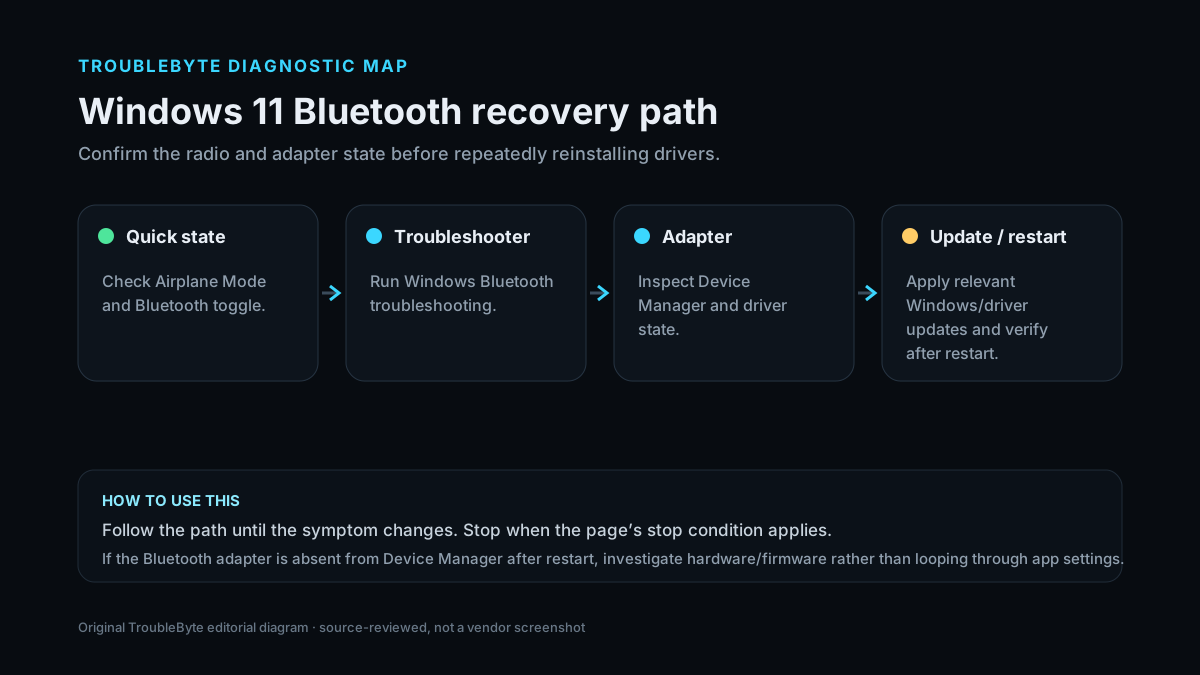
TroubleByte diagnostic path
Run the Bluetooth troubleshooter and confirm Airplane mode is off.
Install relevant Windows and optional driver updates.
Check whether the Bluetooth adapter appears in Device Manager.
Update, reinstall or roll back the adapter driver as appropriate.
Original TroubleByte diagnostic map. It summarizes the cited troubleshooting order; it is not a vendor screenshot.
Use the symptom to choose the next branch
Is the Bluetooth toggle or Bluetooth category completely missing?
Focus on adapter detection, driver state, Windows Update/troubleshooter and hardware/service visibility.
The adapter is present; troubleshoot pairing, the specific device and connection state instead of reinstalling everything.
Does Device Manager still show the Bluetooth adapter?
Check driver status/update/rollback and Windows troubleshooting before assuming hardware failure.
Check hidden devices, hardware detection and OEM support; stop repeated pairing attempts until the adapter is detected.
Original TroubleByte decision aid derived from the cited troubleshooting scope. It does not replace vendor documentation.
What this usually means
The important distinction is whether Windows still sees the Bluetooth adapter. If the adapter is present in Device Manager, driver and service recovery is the most likely branch. If the adapter is absent entirely, hardware detection, firmware or OEM driver issues become more likely.
What we verified from the source material
Microsoft’s current Bluetooth guidance says a missing toggle can result from detection, driver, service, hardware, settings or recent-update problems. Microsoft recommends the automated troubleshooter, Airplane mode and Windows Update checks, while its driver guidance specifically covers update, reinstall, rollback and OEM-driver recovery.
Prerequisites and checks
Prepare first
- Confirm the PC actually has Bluetooth hardware and note whether it is integrated or USB.
- Check Airplane mode and any physical wireless switch before changing drivers.
- Record the adapter model if it is still visible in Device Manager.
Checks that prevent the wrong fix
- Check whether Bluetooth appears in Device Manager before deleting anything.
- If the problem started immediately after a driver or Windows update, note that timing before changing the driver.
- For laptops, use the manufacturer support page for the exact model when Microsoft cannot find a newer adapter driver.
Applies to
Solutions, in order
Run the Windows Bluetooth troubleshooter
- Open Get Help in Windows 11 and run the Bluetooth troubleshooter.
- Let the diagnostic complete and apply any offered fix.
- Restart the PC if the troubleshooter requests it.
- Check Settings > Bluetooth & devices again.
Why this can work: Microsoft recommends the automated Bluetooth troubleshooter as the first troubleshooting step on Windows 11.
Update or reinstall the Bluetooth adapter driver
- Open Device Manager and expand Bluetooth.
- Right-click the Bluetooth adapter and try Update driver first.
- If updating does not help, uninstall the Bluetooth adapter device.
- Restart Windows so the driver can be detected and installed again.
Why this can work: Microsoft documents driver update and reinstall as primary recovery paths when Bluetooth disappears or becomes incompatible after updates.
Roll back a recently changed Bluetooth driver
- Open Device Manager > Bluetooth and open the adapter Properties.
- Open the Driver tab.
- If Roll Back Driver is available and the problem began after an update, use it.
- Restart and verify whether Bluetooth returns.
Why this can work: Microsoft specifically recommends driver rollback when Bluetooth worked before a recent driver or Windows update.
How to know the fix actually worked
- Confirm the Bluetooth toggle is visible again in Settings.
- Open Device Manager and verify the adapter appears without a warning icon.
- Pair or reconnect one known-good Bluetooth device and confirm it remains connected.
Do not count a temporary disappearance of the symptom as a confirmed fix if the problem normally returns after a restart, reconnect or several minutes of use.
When not to keep changing things
- If the adapter is absent from firmware/Device Manager after restart and driver checks, investigate hardware/USB/firmware rather than repeatedly reinstalling Windows Bluetooth software.
- If the problem began immediately after a firmware or Windows update and rollback is being considered, preserve recovery options first.
Escalation: If the Bluetooth adapter does not appear in Device Manager even after a full restart and OEM driver check, investigate BIOS/UEFI wireless settings or hardware failure rather than repeatedly reinstalling Windows Bluetooth components.
Sources used for this record
Primary · checked Sep 6, 2026Microsoft — Fix Bluetooth disappeared in WindowsOfficial documentation used to verify the troubleshooting steps.Corroborating · checked Sep 6, 2026Microsoft — Update Bluetooth drivers in WindowsOfficial Microsoft driver update, reinstall and rollback guidance.Need private help with this guide?
If the guide did not resolve the problem, send a private case to TroubleByte. It is separate from the public discussion below.
Discuss this exact problem
Share what happened on your system, ask a focused follow-up question, or add evidence that may help someone with the same symptom. Community posts are separate from TroubleByte editorial verification.
Start a discussion
Revision history
Show 7 recorded revisions
2026-09-26 — Source review refreshed against cited current first-party documentation; diagnostic scope confirmed. No hands-on test claimed.
2026-09-06 — v0.6 media/performance pass: added a dedicated social preview card and an original diagnostic diagram; indexing remains disabled.
2026-09-06 — v0.5 UX/discovery pass: added decision-oriented diagnostic guidance and kept indexing disabled.
2026-09-06 — v0.4 depth pass: added symptom framing, prerequisites, verification checks and explicit stop conditions; indexing remains disabled.
2026-09-06 — v0.3 trust pass: assigned a named human author/source reviewer, added section taxonomy and an original diagnostic flow; indexing remains disabled.
2026-09-06 — Clarified source-review semantics and evidence scope; no hands-on hardware test is claimed.
2026-09-06 — Created from current Microsoft Bluetooth troubleshooting and driver guidance; held noindex for editorial review.