
External monitor not detected in Windows 11
An external display can disappear because of projection mode, a bad cable or adapter, dock conflicts, the monitor input, or display-driver state. The efficient path proves the physical connection first, then checks Windows display detection and only later changes drivers.
Prove the cable, input and projection path
Press Win+P and confirm Extend or the intended projection mode, then reseat or swap the cable/port. In Settings > System > Display, use Detect before moving to driver rollback or reinstall.
- Press Win+P and select Extend or the mode you actually want.
- Check the monitor input and reseat both cable ends.
- Bypass a dock or adapter if possible and try another compatible cable/port.
- Use Windows Display settings to run Detect.
Why this branch first: Microsoft begins external-monitor troubleshooting with projection and physical connection checks before driver changes.
Choose a local-first diagnostic tool
Use a TroubleByte tool to inspect an error, DNS record or local system context before changing settings.
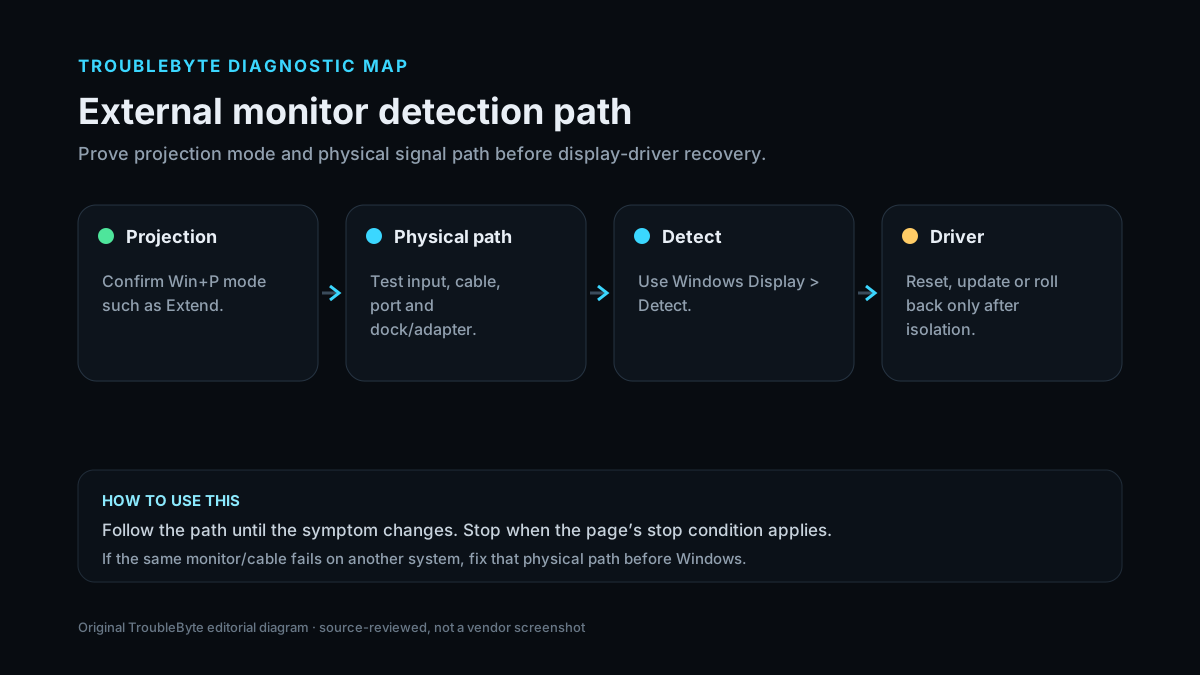
TroubleByte diagnostic path
Confirm the intended Win+P mode.
Test cable, input, dock and port.
Use Windows Display Detect.
Reset, update or roll back only after isolation.
Original TroubleByte diagnostic map. It summarizes the cited troubleshooting order; it is not a vendor screenshot.
Use the symptom to choose the next branch
Does the monitor work with another system using the same cable?
Keep the investigation on this Windows PC, dock, adapter, or driver path.
Fix the monitor, cable, input, or adapter path before Windows changes.
Did the monitor stop working immediately after a display-driver update?
A supported driver rollback is a reasonable controlled test.
Keep hardware/path isolation ahead of driver replacement.
Original TroubleByte decision aid derived from the cited troubleshooting scope. It does not replace vendor documentation.
What this usually means
External-display failures should be split between the physical path and Windows detection. If the same monitor and cable fail on another system, the PC driver is not the best first target. If the monitor works elsewhere and Windows cannot detect it, projection, dock/adapter, and display-driver state become stronger suspects.
What we verified from the source material
Microsoft places projection mode, direct cable/port tests and display detection before driver recovery. Its driver guidance supports using Windows Update, supported vendor packages and rollback when timing points at a recent driver change.
Prerequisites and checks
Prepare first
- Know which physical port and adapter chain the monitor uses.
- Confirm the monitor is set to the correct input.
- If possible, have another cable or system available for isolation.
Checks that prevent the wrong fix
- Press Win+P and confirm the intended projection mode.
- Reseat the display cable and bypass docks/adapters where possible.
- Use Settings > System > Display > Multiple displays > Detect.
Applies to
Solutions, in order
Prove the cable, input and projection path
- Press Win+P and select Extend or the mode you actually want.
- Check the monitor input and reseat both cable ends.
- Bypass a dock or adapter if possible and try another compatible cable/port.
- Use Windows Display settings to run Detect.
Why this can work: Microsoft begins external-monitor troubleshooting with projection and physical connection checks before driver changes.
Recover the display driver only after isolation
- Try Win+Ctrl+Shift+B once to reset the graphics driver.
- Install supported display-driver updates from Windows Update or the device vendor.
- If the problem began after an update and rollback is available, test the previous driver.
- Restart and verify detection before another change.
Why this can work: Microsoft recommends driver reset, rollback or reinstall when an existing monitor setup stops working after simpler checks.
How to know the fix actually worked
- Windows detects the monitor and the expected desktop mode survives restart.
- The monitor remains stable after reconnecting the cable or waking the PC.
Do not count a temporary disappearance of the symptom as a confirmed fix if the problem normally returns after a restart, reconnect or several minutes of use.
When not to keep changing things
- If the display fails on multiple known-good computers with a known-good cable, stop Windows driver changes and troubleshoot the monitor or adapter hardware.
Escalation: If Windows never detects a monitor that works elsewhere after direct-cable and supported driver checks, escalate to the PC, GPU, dock, or adapter vendor with the exact connection chain.
Sources used for this record
Primary · checked Sep 8, 2026Microsoft — Troubleshoot external monitor connections in WindowsFirst-party documentation used as evidence for this troubleshooting record.Corroborating · checked Sep 8, 2026Microsoft — Update drivers through Device Manager in WindowsFirst-party documentation used as evidence for this troubleshooting record.Need private help with this guide?
If the guide did not resolve the problem, send a private case to TroubleByte. It is separate from the public discussion below.
Discuss this exact problem
Share what happened on your system, ask a focused follow-up question, or add evidence that may help someone with the same symptom. Community posts are separate from TroubleByte editorial verification.
Start a discussion
Revision history
Show 1 recorded revision
2026-09-08 — Created for the v1.2 search-quality and content-scale pass from current first-party documentation; public indexing is controlled by the launch allowlist.