
File Explorer won’t open in Windows 11
When File Explorer refuses to open or start, Microsoft recommends beginning with Windows Update and a normal restart before escalating to broader system repair. The failure can be transient, update-related, or tied to damaged system components rather than one folder or drive.
Apply the low-risk Windows recovery steps first
Restart Windows and install pending updates first. If File Explorer still will not start, use supported Windows system-file repair rather than downloading replacement Explorer files from third-party sites.
- Install pending Windows updates.
- Restart the PC even if Windows does not explicitly require it.
- Retest File Explorer with Win+E and the taskbar shortcut.
Why this branch first: Microsoft puts update and restart steps first for File Explorer launch failures.
Choose a local-first diagnostic tool
Use a TroubleByte tool to inspect an error, DNS record or local system context before changing settings.
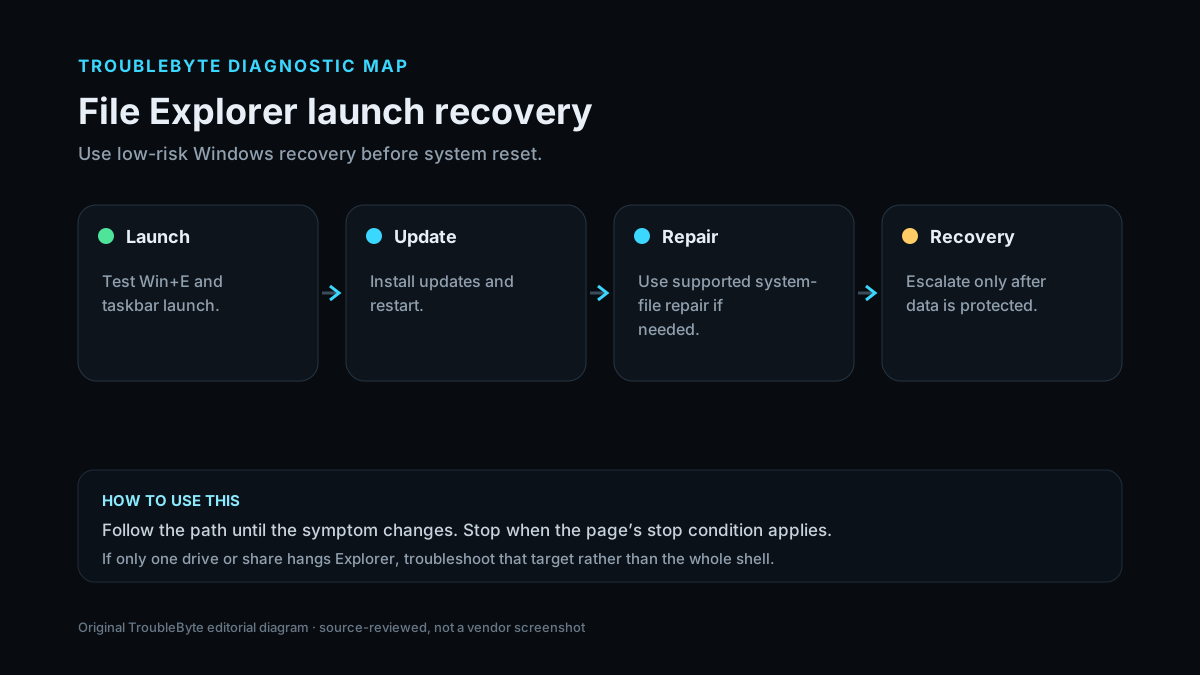
TroubleByte diagnostic path
Test Win+E and taskbar launch.
Install Windows updates and restart.
Use supported system-file repair if needed.
Escalate to Windows recovery only after data is protected.
Original TroubleByte diagnostic map. It summarizes the cited troubleshooting order; it is not a vendor screenshot.
Use the symptom to choose the next branch
Does File Explorer fail everywhere or only on one drive/folder?
A global shell/system repair path is more appropriate.
Troubleshoot the specific drive, share, or folder path instead.
Does Explorer work after a normal restart and Windows update?
Stop; do not escalate to reset or system-file repair.
Proceed to supported system-file repair before any reset.
Original TroubleByte decision aid derived from the cited troubleshooting scope. It does not replace vendor documentation.
What this usually means
File Explorer is part of the Windows shell, so a failure to start is broader than a single folder problem. Microsoft starts with update and restart checks and then moves toward system maintenance or repair. If only one path hangs while Explorer otherwise opens, storage or that path is a different fault domain.
What we verified from the source material
Microsoft recommends Windows updates and restart as the first File Explorer launch checks, with broader Windows repair only after those fail. Its System File Checker guidance provides the supported path for damaged Windows components without downloading replacement binaries from third-party sites.
Prerequisites and checks
Prepare first
- Save work before restarting.
- If one external drive triggers the hang, disconnect it for a controlled test.
- Avoid deleting system files or replacing explorer.exe manually.
Checks that prevent the wrong fix
- Try Win+E and the taskbar File Explorer shortcut.
- Install pending Windows updates and restart.
- Check whether Explorer fails globally or only when opening one drive/folder.
Applies to
Solutions, in order
Apply the low-risk Windows recovery steps first
- Install pending Windows updates.
- Restart the PC even if Windows does not explicitly require it.
- Retest File Explorer with Win+E and the taskbar shortcut.
Why this can work: Microsoft puts update and restart steps first for File Explorer launch failures.
Repair Windows system files before reset
- Open an elevated Terminal or Command Prompt.
- Use Microsoft-supported DISM/SFC system-file repair guidance.
- Restart and retest File Explorer.
- Consider Windows recovery/reset only after preserving data and exhausting lower-risk repair.
Why this can work: If the shell remains broken, supported system-file repair is safer than downloading replacement Windows binaries.
How to know the fix actually worked
- File Explorer opens normally after restart and remains usable across several folders.
- The symptom does not return after the next sign-in.
Do not count a temporary disappearance of the symptom as a confirmed fix if the problem normally returns after a restart, reconnect or several minutes of use.
When not to keep changing things
- If Explorer works until one specific drive or network path is opened, stop global Windows repair and troubleshoot that storage/network target instead.
Escalation: If File Explorer still will not start after supported update and system-file repair steps, use Windows recovery guidance or vendor support rather than third-party shell replacements.
Sources used for this record
Primary · checked Sep 8, 2026Microsoft — Fix File Explorer if it won’t open or startFirst-party documentation used as evidence for this troubleshooting record.Corroborating · checked Sep 8, 2026Microsoft — Using System File Checker in WindowsFirst-party documentation used as evidence for this troubleshooting record.Need private help with this guide?
If the guide did not resolve the problem, send a private case to TroubleByte. It is separate from the public discussion below.
Discuss this exact problem
Share what happened on your system, ask a focused follow-up question, or add evidence that may help someone with the same symptom. Community posts are separate from TroubleByte editorial verification.
Start a discussion
Revision history
Show 1 recorded revision
2026-09-08 — Created for the v1.2 search-quality and content-scale pass from current first-party documentation; public indexing is controlled by the launch allowlist.