
Microphone not working in Windows 11
When a microphone fails in Windows 11, first determine whether Windows can record it at all. Privacy access, the selected input device, mute state, Bluetooth pairing and driver detection should be checked before changing settings inside Discord, Teams or another app.
Restore the Windows input path
Use Settings > System > Sound to select and test the microphone, then verify Microphone privacy access. If Windows does not detect the device, move to connection and driver checks instead of app-specific settings.
- Open Settings > System > Sound and select the intended Input device.
- Use the microphone test and listen to the recorded sample.
- Open Settings > Privacy & security > Microphone and enable required access, including desktop apps where appropriate.
- Retest before changing the application.
Why this branch first: Microsoft places device selection, microphone testing and privacy access at the center of microphone troubleshooting.
Choose a local-first diagnostic tool
Use a TroubleByte tool to inspect an error, DNS record or local system context before changing settings.
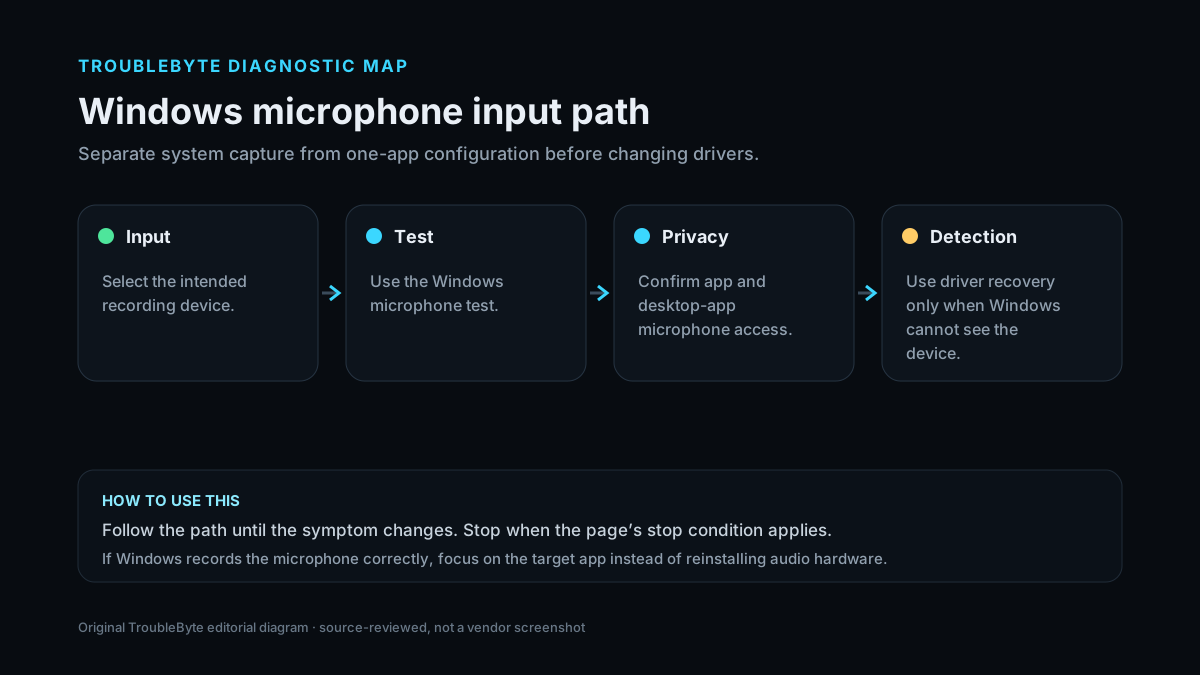
TroubleByte diagnostic path
Select the intended microphone.
Record with the Windows microphone test.
Confirm app and desktop-app access.
Use Device Manager/driver recovery only if Windows cannot see it.
Original TroubleByte diagnostic map. It summarizes the cited troubleshooting order; it is not a vendor screenshot.
Use the symptom to choose the next branch
Does the Windows microphone test record your voice?
The core capture path works; focus on the target app’s input selection and permissions.
Stay at the Windows/device layer and check mute, privacy, connection and detection.
Is the microphone visible under Windows Input devices?
Test level/permissions and driver state before replacing hardware.
Check USB/Bluetooth connection and Device Manager; app settings cannot fix a device Windows does not detect.
Original TroubleByte decision aid derived from the cited troubleshooting scope. It does not replace vendor documentation.
What this usually means
The most useful distinction is system-level capture versus app-level capture. A microphone that records successfully in the Windows microphone test has a functioning core input path, so the remaining work belongs in application selection or permissions. If Windows cannot detect or record it, check mute/connection, privacy access, Bluetooth state and the audio device/driver first.
What we verified from the source material
Microsoft’s current microphone guidance verifies the privacy-access, selected-input, system test and driver branches. It also separates a detected microphone with low/no capture from a device Windows is not detecting at all.
Prerequisites and checks
Prepare first
- Check any hardware mute button or inline headset mute.
- Connect USB audio devices directly while testing.
- For Bluetooth headsets, confirm they are paired and connected.
Checks that prevent the wrong fix
- Select the intended microphone under Settings > System > Sound > Input.
- Run the Windows microphone test before opening app-specific settings.
- Check Microphone privacy access for apps and desktop apps.
Applies to
Solutions, in order
Restore the Windows input path
- Open Settings > System > Sound and select the intended Input device.
- Use the microphone test and listen to the recorded sample.
- Open Settings > Privacy & security > Microphone and enable required access, including desktop apps where appropriate.
- Retest before changing the application.
Why this can work: Microsoft places device selection, microphone testing and privacy access at the center of microphone troubleshooting.
Recover an undetected microphone
- Check the physical connection, mute state and Bluetooth pairing if applicable.
- Open Device Manager and inspect audio devices for errors.
- Uninstall/reinstall or update the relevant audio device only if detection remains broken.
- Restart Windows and repeat the system microphone test.
Why this can work: When Windows does not detect the microphone, Microsoft recommends connection and audio-driver recovery instead of app-level changes.
How to know the fix actually worked
- The Windows microphone test records a clear sample from the intended device.
- The target application receives input after selecting the same working device.
Do not count a temporary disappearance of the symptom as a confirmed fix if the problem normally returns after a restart, reconnect or several minutes of use.
When not to keep changing things
- If the microphone fails on another known-good device or port, stop changing Windows permissions and test/replace the hardware or interface.
Escalation: If an integrated microphone remains absent after OEM audio-driver recovery, or a known-good external microphone is never detected, escalate to the PC/audio-device vendor.
Sources used for this record
Primary · checked Sep 7, 2026Microsoft — Fix microphone problemsFirst-party documentation used as the primary evidence source for this troubleshooting record.Corroborating · checked Sep 7, 2026Microsoft — Windows camera, microphone, and privacyFirst-party documentation used as the corroborating evidence source for this troubleshooting record.Need private help with this guide?
If the guide did not resolve the problem, send a private case to TroubleByte. It is separate from the public discussion below.
Discuss this exact problem
Share what happened on your system, ask a focused follow-up question, or add evidence that may help someone with the same symptom. Community posts are separate from TroubleByte editorial verification.
Start a discussion
Revision history
Show 1 recorded revision
2026-09-07 — Created for the v0.9 launch-acceleration content pass from current first-party documentation; indexing remains disabled pending final launch review.