
Microsoft Store not opening in Windows 11
When Microsoft Store will not launch, a damaged Store cache, pending Windows update, incorrect time or region, or a broken app package can be involved. Microsoft documents a low-risk sequence that starts with wsreset and system state before moving to app repair or reset.
Reset the Store cache and system prerequisites
Run wsreset.exe first, then confirm Windows is updated and time/region settings are correct. If the Store still fails, use the Windows app Repair option before Reset or reinstall-style actions.
- Press Win+R, run wsreset.exe and wait for the Store to reopen.
- Install pending Windows updates and restart if required.
- Verify date, time, time zone and region are correct.
- Try launching Microsoft Store again from Start.
Why this branch first: Microsoft lists wsreset, Windows updates and time/location checks as primary Store launch troubleshooting.
Choose a local-first diagnostic tool
Use a TroubleByte tool to inspect an error, DNS record or local system context before changing settings.
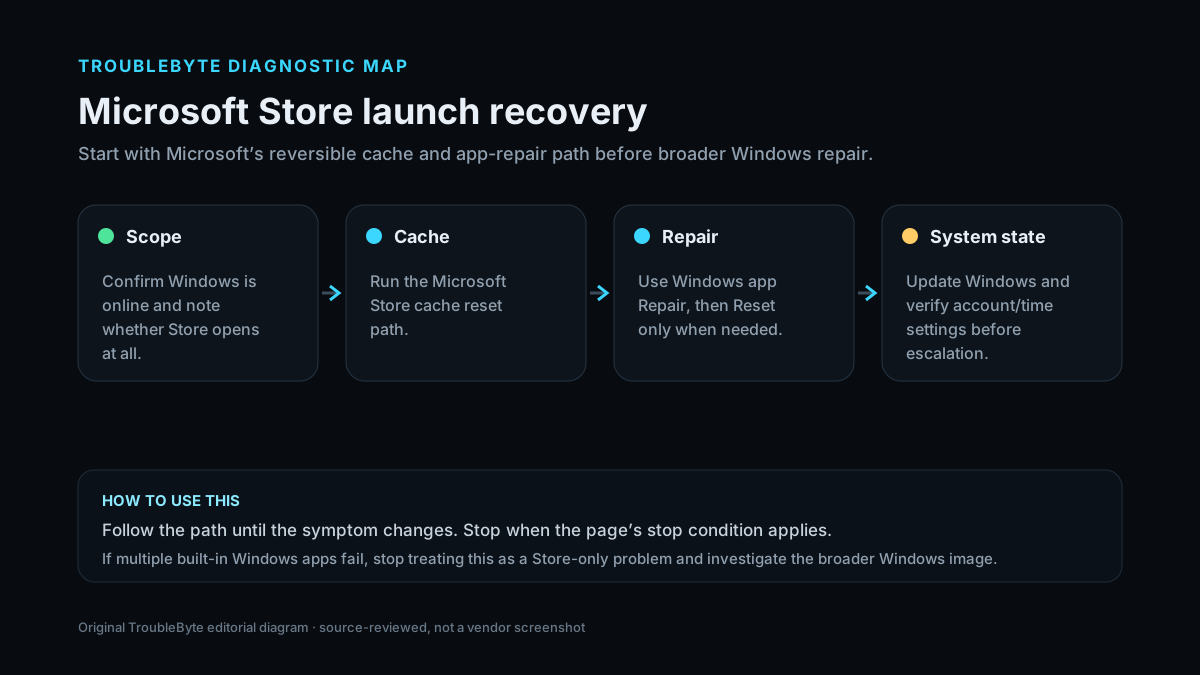
TroubleByte diagnostic path
Run wsreset.exe.
Check updates, time and region.
Use Repair before Reset.
Avoid unsupported package hacks if Store remains broken.
Original TroubleByte diagnostic map. It summarizes the cited troubleshooting order; it is not a vendor screenshot.
Use the symptom to choose the next branch
Does wsreset.exe cause Microsoft Store to open?
Retest Store sign-in/download behavior before doing anything else.
Check Windows updates, time/region and then Repair/Reset.
Do other Windows apps open normally?
Keep the repair focused on Store state.
Broader Windows component or profile corruption may need system-level repair.
Original TroubleByte decision aid derived from the cited troubleshooting scope. It does not replace vendor documentation.
What this usually means
A Store launch failure is usually an application/system-state problem rather than a general internet failure. If the Store window never opens, start with Microsoft’s cache reset and Windows/time checks. If it opens but one app fails, keep troubleshooting that app instead of resetting the entire Store.
What we verified from the source material
Microsoft specifically recommends wsreset.exe, current Windows updates and correct time/location for Store launch failures. Windows also provides Repair and Reset controls for supported applications before more invasive reinstall work.
Prerequisites and checks
Prepare first
- Use an administrator-capable account if Windows asks for elevation.
- Save work before installing pending Windows updates or restarting.
- Confirm the failure affects Microsoft Store itself, not only one downloaded app.
Checks that prevent the wrong fix
- Run wsreset.exe and watch whether Store opens afterward.
- Check Windows Update plus date, time and region settings.
- Determine whether the Store itself fails or only one installed app fails.
Applies to
Solutions, in order
Reset the Store cache and system prerequisites
- Press Win+R, run wsreset.exe and wait for the Store to reopen.
- Install pending Windows updates and restart if required.
- Verify date, time, time zone and region are correct.
- Try launching Microsoft Store again from Start.
Why this can work: Microsoft lists wsreset, Windows updates and time/location checks as primary Store launch troubleshooting.
Repair or reset the Store app
- Open Settings > Apps > Installed apps and locate Microsoft Store if repair options are available.
- Use Repair first because it is less destructive to app state.
- If Repair is unavailable or ineffective, use Reset and then reopen the Store.
- Avoid third-party Store installers or package scripts unless Microsoft support specifically directs them.
Why this can work: Windows app Repair/Reset is the supported escalation path for apps that do not run correctly.
How to know the fix actually worked
- Microsoft Store opens normally from Start and can browse content.
- The Store still launches after a Windows restart.
Do not count a temporary disappearance of the symptom as a confirmed fix if the problem normally returns after a restart, reconnect or several minutes of use.
When not to keep changing things
- If Store is missing from the system or Windows component repair reports corruption, stop repeating cache resets and move to supported Windows repair or Microsoft support.
Escalation: If Microsoft Store remains missing or broken after cache reset, Windows updates and Repair/Reset, use Microsoft support or repair the Windows component state rather than downloading unofficial Store packages.
Sources used for this record
Primary · checked Sep 8, 2026Microsoft — Microsoft Store doesn't openFirst-party documentation used as the primary evidence source for this troubleshooting record.Corroborating · checked Sep 8, 2026Microsoft — Repair apps and programs in WindowsFirst-party documentation used as corroborating evidence for this troubleshooting record.Need private help with this guide?
If the guide did not resolve the problem, send a private case to TroubleByte. It is separate from the public discussion below.
Discuss this exact problem
Share what happened on your system, ask a focused follow-up question, or add evidence that may help someone with the same symptom. Community posts are separate from TroubleByte editorial verification.
Start a discussion
Revision history
Show 1 recorded revision
2026-09-08 — Created for the v1.1 content-scale pass from current first-party documentation; public indexing is controlled by the launch allowlist.