
Windows PC charging slowly while plugged in
A Windows laptop can charge slowly or even discharge while plugged in when the charger, cable or selected USB-C port cannot provide the power the device requires. Microsoft recommends using the charger/cable designed for the PC and confirming the correct charging port.
Prove charger, cable and port capability
Use the charger and cable designed for the PC or a verified equivalent with sufficient power, and connect it to the actual charging-capable port. Test while the PC is asleep or off before assuming the battery is defective.
- Use the charger and cable designed for the PC or a verified equivalent.
- Connect to the port intended for charging.
- Test charging while the PC is asleep or turned off.
Why this branch first: Microsoft identifies incompatible or underpowered chargers, cables and wrong ports as common causes.
Choose a local-first diagnostic tool
Use a TroubleByte tool to inspect an error, DNS record or local system context before changing settings.
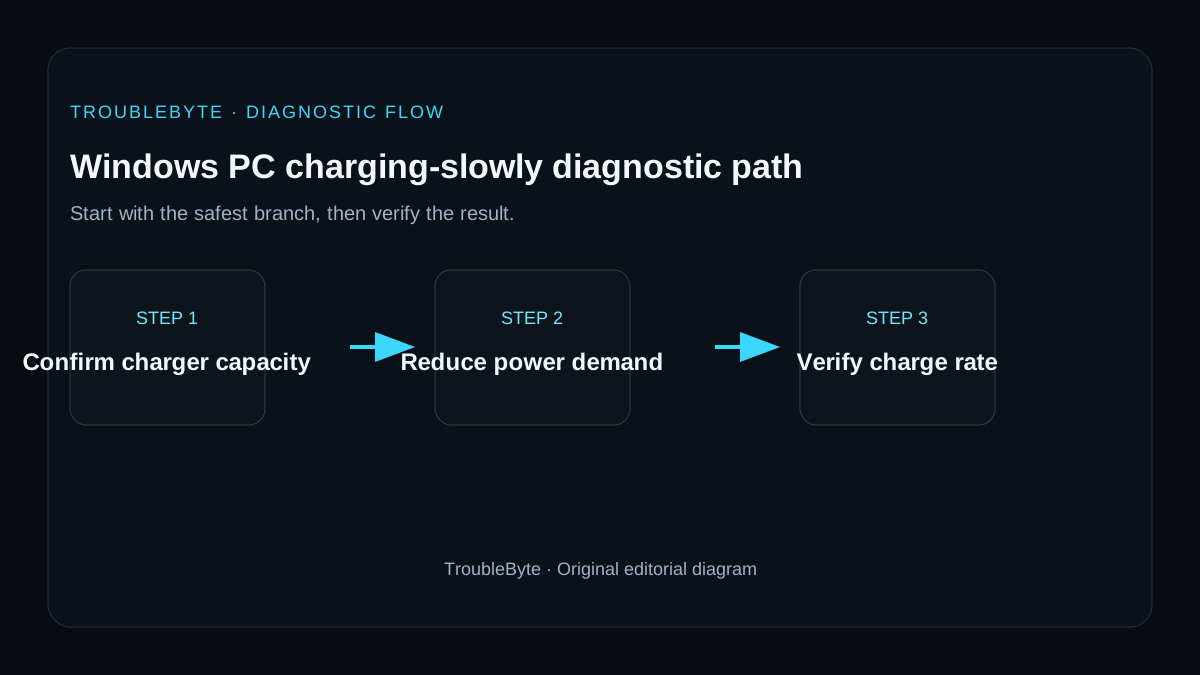
TroubleByte diagnostic path
Check charger rating.
Verify cable capability.
Use the actual charging port.
Escalate only after known-good power delivery.
Original TroubleByte diagnostic map. It summarizes the cited troubleshooting order; it is not a vendor screenshot.
Use the symptom to choose the next branch
Is the charger rated for the PC and connected directly rather than through a low-power hub or monitor port?
Continue by checking power demand, battery health and charging behavior at idle.
Use the manufacturer-approved charger or a verified USB-C Power Delivery source with sufficient wattage.
Does the battery percentage increase normally when the PC is asleep or under light load?
The adapter may be adequate but overwhelmed during heavy work; reduce load or use higher-wattage power.
Inspect the charging port, cable, battery report and manufacturer diagnostics before replacing hardware.
Original TroubleByte decision aid derived from the cited troubleshooting scope. It does not replace vendor documentation.
What this usually means
Slow charging is primarily a power-delivery diagnosis, not a Windows performance diagnosis. Charger wattage, cable capability, USB-C Power Delivery support and the physical port can all limit input power. A battery problem becomes more plausible only after known-good power delivery is proven.
What we verified from the source material
Microsoft attributes slow/discharging-while-plugged-in states to charger compatibility, insufficient power, incorrect charging ports and cable capability. Battery-use guidance is corroborating context, not proof that battery health is the cause.
Prerequisites and checks
Prepare first
- Have the manufacturer charger or a verified compatible replacement if possible.
- Inspect the cable and connector for damage.
- Stop using swollen or physically damaged batteries.
Checks that prevent the wrong fix
- Check the charger power rating against the PC requirement.
- Confirm the cable supports the required charging power.
- Use the PC charging port rather than an arbitrary USB-C port.
Applies to
Solutions, in order
Prove charger, cable and port capability
- Use the charger and cable designed for the PC or a verified equivalent.
- Connect to the port intended for charging.
- Test charging while the PC is asleep or turned off.
Why this can work: Microsoft identifies incompatible or underpowered chargers, cables and wrong ports as common causes.
Check battery and device-specific diagnostics
- Install relevant Windows and OEM firmware updates.
- Run the manufacturer battery/charging diagnostic if available.
- Escalate persistent failure to the device manufacturer.
Why this can work: Battery or firmware investigation is appropriate only after power delivery is known-good.
How to know the fix actually worked
- The battery percentage increases steadily using a known-good charger/cable.
- The slow-charging warning no longer appears under the same workload.
Do not count a temporary disappearance of the symptom as a confirmed fix if the problem normally returns after a restart, reconnect or several minutes of use.
When not to keep changing things
- If the battery is swollen, leaking, or abnormally hot, stop charging and seek qualified service.
Escalation: If a known-good correctly rated charger and cable still cannot charge the PC, use the PC manufacturer battery/charging diagnostics or service rather than increasing charger power beyond specifications.
Sources used for this record
Primary · checked Sep 8, 2026Microsoft — PC is charging slowly or discharging while it’s plugged inFirst-party documentation used as evidence for this troubleshooting record.Corroborating · checked Sep 8, 2026Microsoft — Battery saving tips for WindowsFirst-party documentation used as evidence for this troubleshooting record.Need private help with this guide?
If the guide did not resolve the problem, send a private case to TroubleByte. It is separate from the public discussion below.
Discuss this exact problem
Share what happened on your system, ask a focused follow-up question, or add evidence that may help someone with the same symptom. Community posts are separate from TroubleByte editorial verification.
Start a discussion
Revision history
Show 1 recorded revision
2026-09-08 — Created for the v1.2 search-quality and content-scale pass from current first-party documentation; public indexing is controlled by the launch allowlist.