
Printer shows Offline in Windows 11
A printer marked Offline may simply be unreachable, paused, on another Wi-Fi network, stuck behind queued jobs or using the wrong Windows printer state. Start with power and connectivity, then queue/default status, before removing and reinstalling the printer.
Restore reachability and queue state
Power-cycle the printer, confirm it is on the same network or cable, run the Windows printer troubleshooter, then clear stuck jobs and verify the correct printer is selected before reinstalling it.
- Run the Windows printer troubleshooter.
- Power off/unplug the printer briefly, then restart it.
- Verify the USB/network/Wi-Fi path and choose the correct printer in Printers & scanners.
- Open the queue and cancel clearly stuck jobs, then retry one test page.
Why this branch first: Microsoft recommends power, same-network, default-printer and queue checks before reinstalling.
Choose a local-first diagnostic tool
Use a TroubleByte tool to inspect an error, DNS record or local system context before changing settings.
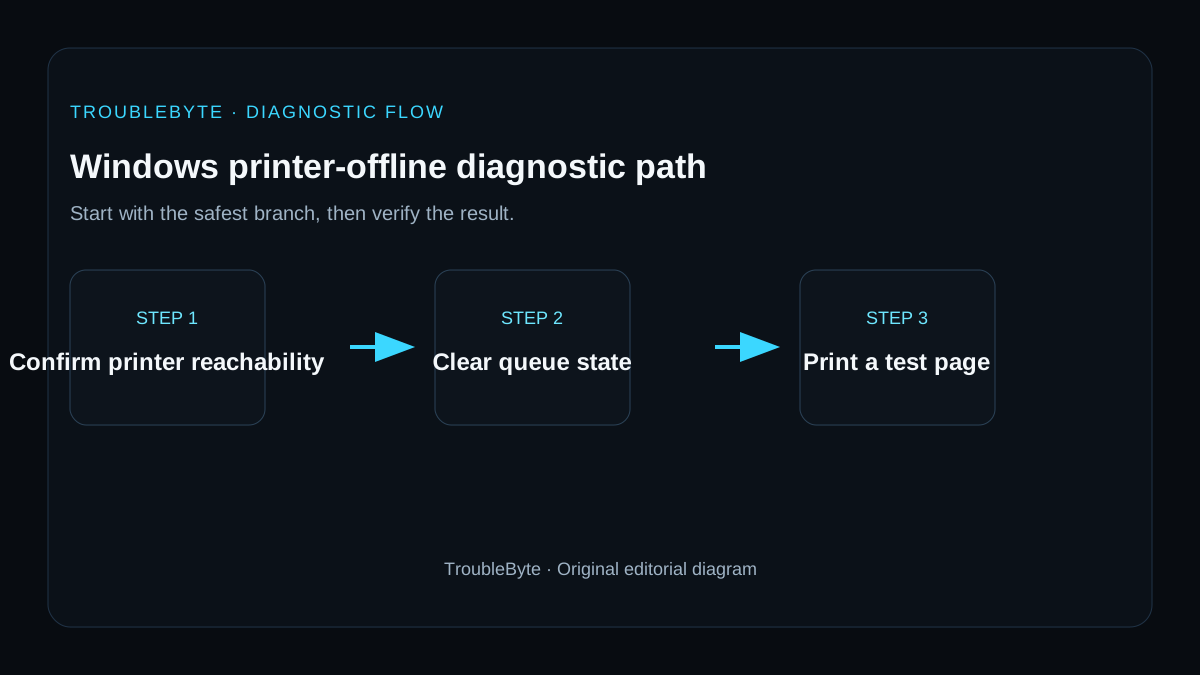
TroubleByte diagnostic path
Confirm printer is ready locally.
Verify USB or same-network connectivity.
Clear paused/stuck jobs and select the correct printer.
Repair driver/device entry only when needed.
Original TroubleByte diagnostic map. It summarizes the cited troubleshooting order; it is not a vendor screenshot.
Use the symptom to choose the next branch
Can the printer print its own status page or print from another device on the same network?
Focus on the Windows queue, selected printer and configured port rather than the printer hardware.
Check power, paper, network connection and the printer's own error display before changing Windows settings.
Does clearing stuck jobs and disabling Use Printer Offline restore the Ready state?
Print a Windows test page and confirm the correct default printer remains selected.
Verify the printer IP or WSD port and restart the Print Spooler only after recording queued jobs.
Original TroubleByte decision aid derived from the cited troubleshooting scope. It does not replace vendor documentation.
What this usually means
“Offline” is a reachability/state symptom rather than proof of a driver fault. Microsoft’s current printer flow begins with the troubleshooter, printer power and the actual wired/Wi-Fi path, then checks default-printer and queue state. Driver or reinstall work is more appropriate only after Windows still cannot communicate with an otherwise reachable printer.
What we verified from the source material
Microsoft’s printer documentation verifies the power-cycle, same-network, default-printer, queue, reinstall and spooler branches. The current guidance treats Offline as a state/connectivity problem first rather than assuming that the printer driver must be replaced.
Prerequisites and checks
Prepare first
- Know whether the printer is USB, Wi-Fi or network-addressed.
- Do not remove a managed office printer without IT instructions.
- Record any static IP or special driver package before reinstalling.
Checks that prevent the wrong fix
- Confirm the printer is powered on without a local error.
- For Wi-Fi printing, confirm printer and PC are on the intended network.
- Open the Windows print queue and note stuck jobs or paused/offline state.
Applies to
Solutions, in order
Restore reachability and queue state
- Run the Windows printer troubleshooter.
- Power off/unplug the printer briefly, then restart it.
- Verify the USB/network/Wi-Fi path and choose the correct printer in Printers & scanners.
- Open the queue and cancel clearly stuck jobs, then retry one test page.
Why this can work: Microsoft recommends power, same-network, default-printer and queue checks before reinstalling.
Re-add or repair the printer only after reachability checks
- Restart the PC and printer once after clearing the queue.
- Install a current Windows-compatible printer driver if required.
- Remove and re-add the printer if Windows still has a stale device entry.
- If the spooler is failing, use the Windows print-spooler recovery guidance before repeated reinstalls.
Why this can work: If the printer is reachable but Windows keeps it offline, Microsoft documents removal/reinstall, current drivers and spooler recovery as later steps.
How to know the fix actually worked
- The printer status changes to Ready/Online and a test page completes.
- The queue drains normally without immediately returning to Offline.
Do not count a temporary disappearance of the symptom as a confirmed fix if the problem normally returns after a restart, reconnect or several minutes of use.
When not to keep changing things
- If the printer itself shows a hardware, paper, ink/toner or network error, stop Windows reinstallation and resolve the printer-side condition first.
Escalation: For managed network printers or repeated spooler/driver failures after a known-good network test, collect the printer model, connection type and Windows error details for IT/vendor support.
Sources used for this record
Primary · checked Sep 7, 2026Microsoft — Troubleshooting offline printer problems in WindowsFirst-party documentation used as the primary evidence source for this troubleshooting record.Corroborating · checked Sep 7, 2026Microsoft — Fix printer connection and printing problems in WindowsFirst-party documentation used as the corroborating evidence source for this troubleshooting record.Need private help with this guide?
If the guide did not resolve the problem, send a private case to TroubleByte. It is separate from the public discussion below.
Discuss this exact problem
Share what happened on your system, ask a focused follow-up question, or add evidence that may help someone with the same symptom. Community posts are separate from TroubleByte editorial verification.
Start a discussion
Revision history
Show 1 recorded revision
2026-09-07 — Created for the v0.9 launch-acceleration content pass from current first-party documentation; indexing remains disabled pending final launch review.