
Screen flickering in Windows 11
Windows screen flicker is commonly associated with a display-driver problem or an incompatible application. Microsoft recommends using whether Task Manager flickers as a quick discriminator before choosing a driver or app-focused repair path.
Use Task Manager to identify the fault layer
Press Ctrl+Shift+Esc and watch Task Manager. If Task Manager flickers too, investigate the display driver; if Task Manager stays stable while the rest of the screen flickers, investigate an incompatible app first.
- Open Task Manager with Ctrl+Shift+Esc.
- Observe whether Task Manager itself flickers.
- If it flickers, keep the next steps focused on the display driver; if it does not, focus on recently installed or updated apps.
Why this branch first: Microsoft explicitly uses Task Manager behavior to separate driver-related flicker from incompatible-app flicker.
Choose a local-first diagnostic tool
Use a TroubleByte tool to inspect an error, DNS record or local system context before changing settings.
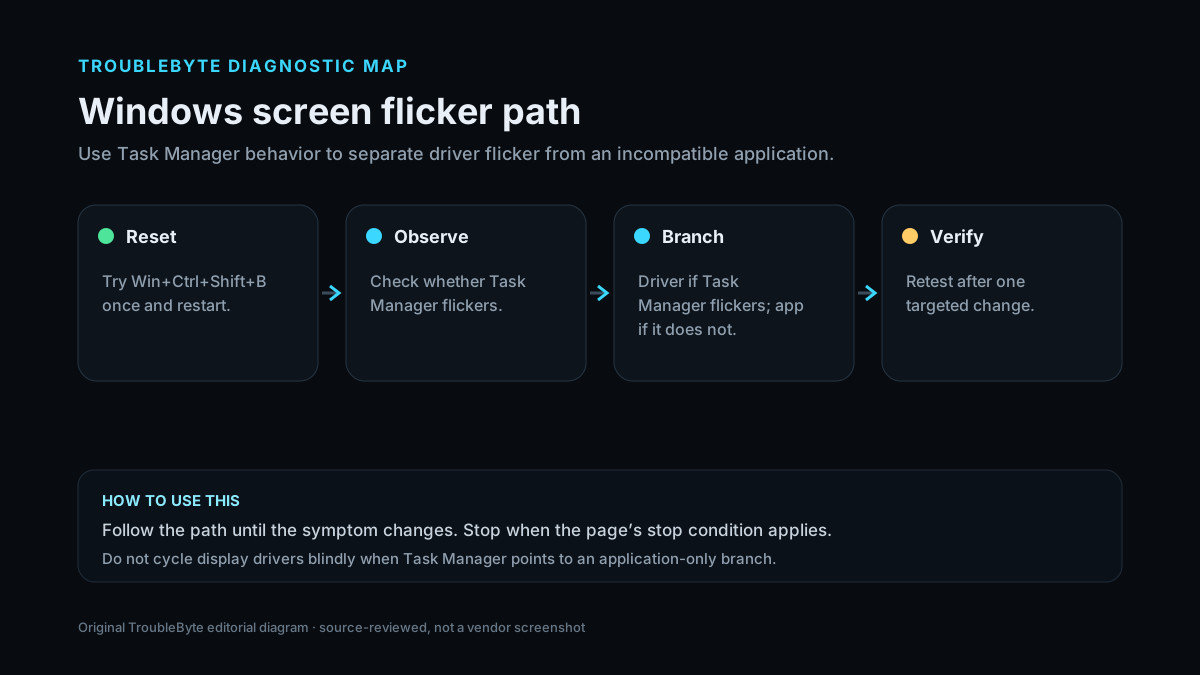
TroubleByte diagnostic path
Try one graphics-driver reset and restart.
Check whether Task Manager flickers.
Repair driver or incompatible app based on the result.
Retest the same workload after restart.
Original TroubleByte diagnostic map. It summarizes the cited troubleshooting order; it is not a vendor screenshot.
Use the symptom to choose the next branch
Does Task Manager flicker with the rest of the screen?
Treat the display driver as the stronger first suspect.
Treat an incompatible or misbehaving app as the stronger first suspect.
Did the issue begin immediately after a driver or app update?
A targeted rollback or update is more defensible than broad system changes.
Use the branch evidence and Safe Mode before assuming the newest component is at fault.
Original TroubleByte decision aid derived from the cited troubleshooting scope. It does not replace vendor documentation.
What this usually means
The highest-value first split is whether Task Manager flickers with the rest of the desktop. Microsoft uses that observation to distinguish a likely display-driver path from an incompatible-application path, avoiding broad driver removal when the evidence points at one app.
What we verified from the source material
Microsoft identifies display drivers and incompatible apps as the primary Windows flicker branches and recommends checking Task Manager behavior before deciding which branch to repair. The compatibility guidance supports the app-focused branch without implying every flicker is caused by legacy software.
Prerequisites and checks
Prepare first
- Save work before restarting or rolling back a driver.
- Know whether the flicker affects login, desktop, or only one app.
- If an external display is involved, note whether the internal display also flickers.
Checks that prevent the wrong fix
- Reset the graphics driver once with Win+Ctrl+Shift+B.
- Check whether Task Manager flickers with the rest of the screen.
- Note whether the problem started after a driver or app update.
Applies to
Solutions, in order
Use Task Manager to identify the fault layer
- Open Task Manager with Ctrl+Shift+Esc.
- Observe whether Task Manager itself flickers.
- If it flickers, keep the next steps focused on the display driver; if it does not, focus on recently installed or updated apps.
Why this can work: Microsoft explicitly uses Task Manager behavior to separate driver-related flicker from incompatible-app flicker.
Repair the implicated driver or app
- For a driver branch, use Windows Update or Device Manager and consider rollback if the issue began after a driver update.
- For an app branch, update or uninstall the incompatible app and retest.
- Restart and verify before making another change.
Why this can work: Once the branch is known, Microsoft recommends driver update/rollback/uninstall or app update/uninstall depending on the result.
How to know the fix actually worked
- The display remains stable through normal desktop use after restart.
- The symptom does not return when the previously affected app is opened.
Do not count a temporary disappearance of the symptom as a confirmed fix if the problem normally returns after a restart, reconnect or several minutes of use.
When not to keep changing things
- Stop software changes if the screen also flickers in firmware/UEFI or on a known-good OS environment; investigate hardware or the display path instead.
Escalation: If flickering persists across Safe Mode or firmware and a known-good monitor/cable path, escalate to the PC/display manufacturer rather than repeatedly cycling drivers.
Sources used for this record
Primary · checked Sep 8, 2026Microsoft — Troubleshoot screen flickering in WindowsFirst-party documentation used as evidence for this troubleshooting record.Corroborating · checked Sep 8, 2026Microsoft — Make older apps or programs compatible with the latest version of WindowsFirst-party documentation used as evidence for this troubleshooting record.Need private help with this guide?
If the guide did not resolve the problem, send a private case to TroubleByte. It is separate from the public discussion below.
Discuss this exact problem
Share what happened on your system, ask a focused follow-up question, or add evidence that may help someone with the same symptom. Community posts are separate from TroubleByte editorial verification.
Start a discussion
Revision history
Show 1 recorded revision
2026-09-08 — Created for the v1.2 search-quality and content-scale pass from current first-party documentation; public indexing is controlled by the launch allowlist.