
Windows 11 repair after System Restore: SFC, DISM and disk checks
An anonymized owner-reported Windows 11 recovery sequence: initial SFC repairs, a repairable DISM result, successful RestoreHealth, a clean final SFC result and later memory-stability checks.
Record the integrity result before changing more settings
This is an anonymized editorial case, not proof that System Restore caused corruption. Microsoft documents DISM health and repair actions followed by SFC; the observed case ended with a clean final SFC result after RestoreHealth.
- Record the SFC result and whether Windows can boot normally.
- Avoid changing unrelated drivers, registry settings or firmware options while the integrity state is still unclear.
- If symptoms include storage errors, repeated crashes or missing user data, back up and investigate those signals before repeated repair attempts.
Why this branch first: The first SFC result is useful evidence. It should not be treated as proof of one cause.
Choose a local-first diagnostic tool
Use a TroubleByte tool to inspect an error, DNS record or local system context before changing settings.
TroubleByte diagnostic path
Keep the initial SFC result and the Windows build as evidence.
Use DISM ScanHealth to distinguish a healthy, repairable or nonrepairable component-store state.
If repairable, complete RestoreHealth before the final SFC check.
Confirm the final SFC outcome and escalate recurring instability or storage symptoms.
Original TroubleByte diagnostic map. It summarizes the cited troubleshooting order; it is not a vendor screenshot.
Use the symptom to choose the next branch
Did the first SFC run report that it repaired files?
Record that result, then use the documented DISM health and repair path before a final SFC check.
Do not infer component-store damage from the absence of an SFC repair message alone; continue from the actual symptom.
Does DISM report a repairable component store?
Complete RestoreHealth, then run SFC again and record the final result.
Do not loop repair commands without new evidence; investigate the reported DISM state or other symptoms.
Are integrity findings recurring alongside instability or storage symptoms?
Back up important data and investigate the underlying stability or storage issue before further repair attempts.
Use normal workload over time as a practical observation point, without claiming a proven root cause.
Original TroubleByte decision aid derived from the cited troubleshooting scope. It does not replace vendor documentation.
What this usually means
A successful boot does not by itself establish component-store health. In this owner-reported case, the first SFC run reported repairs and DISM reported a repairable component store. The sequence documents observed outcomes only; it does not establish a single root cause.
What we verified from the source material
Microsoft documentation supports the general DISM and SFC repair sequence. It does not independently verify this owner-reported device history, and this page does not claim that System Restore or memory settings caused the findings.
Observed recovery sequence on an anonymous Windows 11 Insider device
This is one owner-reported sequence. It does not establish that System Restore caused the integrity findings or that memory settings were the root cause.
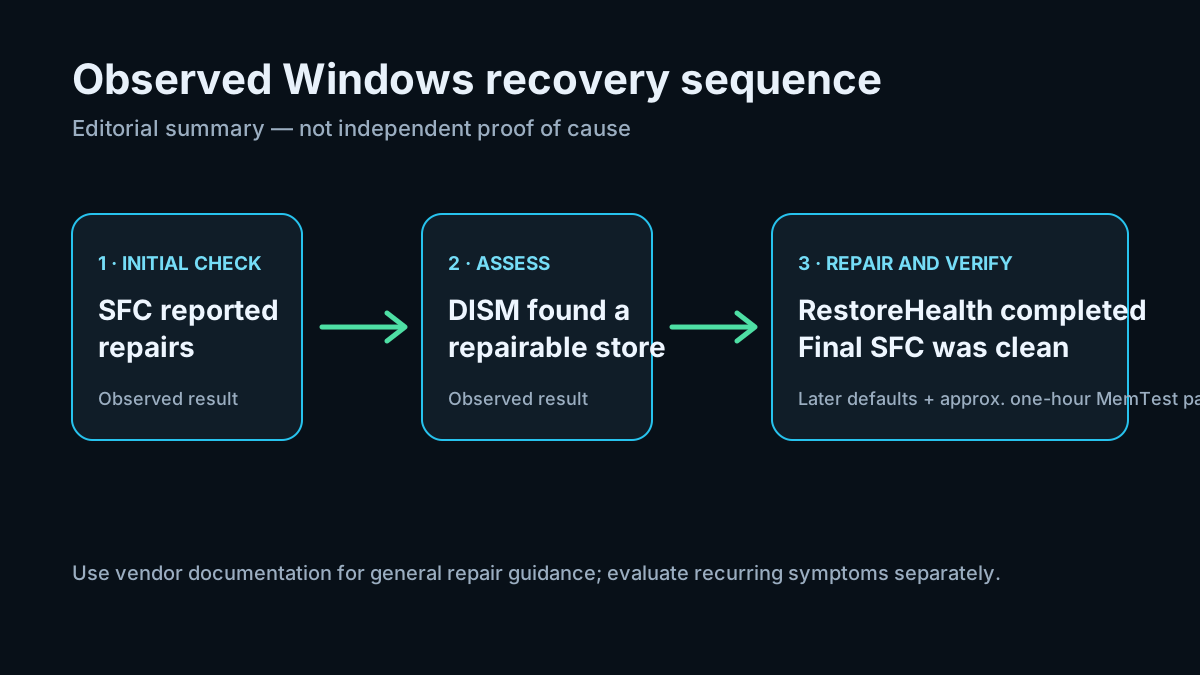
Observed recovery sequence
- System Restore was performed and Windows subsequently booted.
- The first SFC /scannow run reported that repairs were made.
- DISM /Online /Cleanup-Image /ScanHealth reported a repairable component store.
- DISM /Online /Cleanup-Image /RestoreHealth completed successfully.
- A final SFC /scannow run reported no integrity violations.
- CHKDSK reporting indicated a snapshot scan and the C: volume was not dirty.
- Manual RAM settings were restored to defaults.
- A subsequent MemTest run of approximately one hour passed.
Evidence, environment and limits of this case
Observed environment
- 0: Windows 11 Insider Canary, build 26200.9457
- 1: Custom desktop PC
- 2: Manual RAM settings had been applied before the incident
Evidence level
Owner-reported command outcomes; no screenshots or logs attached; not independently reproduced.
What this case does not establish
Prerequisites and checks
Prepare first
- An administrator Command Prompt or Windows Terminal session.
- A current backup before any storage repair or recovery action.
- A place to retain command output and the exact Windows build.
Checks that prevent the wrong fix
- Keep the initial SFC result rather than treating it as a final diagnosis.
- Distinguish DISM ScanHealth reporting from a completed RestoreHealth result.
- Confirm the final SFC result before describing the component-store check as complete.
Applies to
Solutions, in order
Record the integrity result before changing more settings
- Record the SFC result and whether Windows can boot normally.
- Avoid changing unrelated drivers, registry settings or firmware options while the integrity state is still unclear.
- If symptoms include storage errors, repeated crashes or missing user data, back up and investigate those signals before repeated repair attempts.
Why this can work: The first SFC result is useful evidence. It should not be treated as proof of one cause.
Use the documented DISM and SFC sequence
- Run: DISM.exe /Online /Cleanup-Image /ScanHealth
- If the component store is repairable, run: DISM.exe /Online /Cleanup-Image /RestoreHealth
- After RestoreHealth completes, run: sfc /scannow
- Treat a final result of no integrity violations as a checkpoint, not proof of the original cause.
Why this can work: Microsoft documents DISM image health and repair commands, followed by SFC to check protected system files again.
Remove known instability variables before judging recurrence
- If manual memory or overclocking settings were active, restore stable defaults before further diagnosis.
- Use an appropriate memory test if instability is suspected.
- Escalate recurring integrity findings instead of repeatedly applying repair commands without new evidence.
Why this can work: The owner later restored manual memory settings to defaults and completed an approximately one-hour MemTest without errors. That is contextual evidence, not a proven cause-and-effect result.
How to know the fix actually worked
- DISM RestoreHealth completed successfully in the observed case.
- The final SFC run reported no integrity violations.
Do not count a temporary disappearance of the symptom as a confirmed fix if the problem normally returns after a restart, reconnect or several minutes of use.
When not to keep changing things
- Stop repeated repair attempts and investigate further if integrity findings recur, Windows becomes unstable, or storage/file-system errors appear.
Escalation: If the stop code repeats after supported software recovery and updates, preserve crash dumps/logs and proceed to hardware diagnostics or professional service rather than repeatedly reinstalling drivers at random.
Sources used for this record
Primary · checked Sep 25, 2026Microsoft — Use the System File Checker tool to repair missing or corrupted system filesMicrosoft guidance for DISM and SFC repair checks.Primary · checked Sep 25, 2026Microsoft Learn — Repair a Windows ImageMicrosoft documentation for ScanHealth and RestoreHealth states.Discuss this exact problem
Share what happened on your system, ask a focused follow-up question, or add evidence that may help someone with the same symptom. Community posts are separate from TroubleByte editorial verification.
Start a discussion
Revision history
Show 2 recorded revisions
2026-09-25 — Added a clearly separated observed sequence, documented limits of the evidence and Microsoft source-review context.
2026-09-25 — Created as an anonymized editorial case candidate from owner-reported command outcomes; held noindex for review.