
Windows Update error 0x800F081F
In Windows Update, Microsoft groups 0x800F081F with missing or corrupted system files and incomplete update content. In DISM or optional-feature contexts the same code can also mean that required source files could not be found, so the failing subsystem matters.
Repair the Windows Update path
Identify whether 0x800F081F came from Windows Update, DISM, or an optional feature. For Windows Update, run the supported troubleshooter and system-file repair path; for DISM, verify the repair source matches the installed Windows build.
- Restart Windows and retry the update once.
- Run the Windows Update troubleshooter.
- Use Microsoft-supported DISM/SFC repair guidance if system-file corruption is suspected.
- Retry the same update and record the result.
Why this branch first: Microsoft groups this code with corrupted or missing system files in Windows Update troubleshooting.
Choose a local-first diagnostic tool
Use a TroubleByte tool to inspect an error, DNS record or local system context before changing settings.
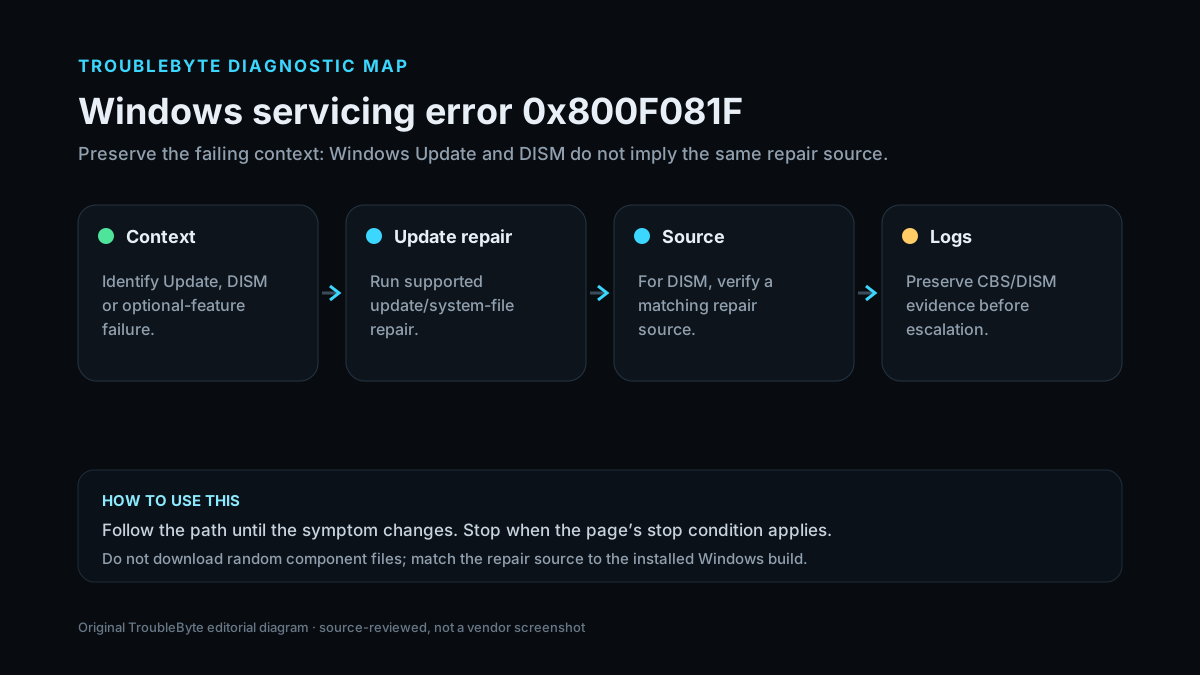
TroubleByte diagnostic path
Identify Update, DISM or optional-feature context.
Run supported Windows Update and system-file repair.
For DISM, verify a matching repair source.
Preserve CBS/DISM evidence before escalation.
Original TroubleByte diagnostic map. It summarizes the cited troubleshooting order; it is not a vendor screenshot.
Use the symptom to choose the next branch
Did the error occur in Windows Update rather than a manual DISM command?
Start with Windows Update troubleshooting and supported system-file repair.
Treat the repair-source context as important before changing update services.
Is the device managed by an organization or WSUS policy?
Escalate source/policy configuration to the administrator before local policy changes.
Continue with supported local repair and matching-source checks.
Original TroubleByte decision aid derived from the cited troubleshooting scope. It does not replace vendor documentation.
What this usually means
The hexadecimal code is shared across servicing contexts, so treating it as one universal fix is risky. Microsoft associates Windows Update cases with corrupted or missing system files, while DISM/feature installation can fail when the required source is unavailable or mismatched.
What we verified from the source material
Microsoft explicitly groups 0x800F081F with missing/corrupted system files in Windows Update troubleshooting and recommends supported repair tools. The broader servicing context matters because DISM can also return the code when a required repair source is unavailable.
Prerequisites and checks
Prepare first
- Do not download DLLs or component files from third-party sites.
- Preserve CBS/DISM logs if the error repeats.
- Know the installed Windows edition/build before using an external repair source.
Checks that prevent the wrong fix
- Record exactly where the code appears: Windows Update, DISM, or optional feature setup.
- Restart once and run the Windows Update troubleshooter for update failures.
- Check whether DISM was given a repair source and whether it matches the installed build.
Applies to
Solutions, in order
Repair the Windows Update path
- Restart Windows and retry the update once.
- Run the Windows Update troubleshooter.
- Use Microsoft-supported DISM/SFC repair guidance if system-file corruption is suspected.
- Retry the same update and record the result.
Why this can work: Microsoft groups this code with corrupted or missing system files in Windows Update troubleshooting.
Verify the DISM or feature repair source
- Confirm the installed Windows edition and build.
- Use a supported repair source that matches the installed Windows version when a source is required.
- Avoid mixing media from a different build or language.
- Retest and preserve DISM/CBS logs if the error persists.
Why this can work: In DISM and optional-feature contexts, 0x800F081F can mean the required source files were not found.
How to know the fix actually worked
- The previously failing update or servicing command completes successfully.
- A restart does not immediately reproduce the same servicing error.
Do not count a temporary disappearance of the symptom as a confirmed fix if the problem normally returns after a restart, reconnect or several minutes of use.
When not to keep changing things
- If a managed device uses WSUS or organization-controlled repair sources, stop changing local source policy and escalate to the administrator.
Escalation: If supported system repair and a correct servicing source still fail, preserve CBS/DISM logs and use Microsoft or enterprise servicing support rather than replacing component-store files manually.
Sources used for this record
Primary · checked Sep 8, 2026Microsoft — Troubleshoot problems updating WindowsFirst-party documentation used as evidence for this troubleshooting record.Corroborating · checked Sep 8, 2026Microsoft — Using System File Checker in WindowsFirst-party documentation used as evidence for this troubleshooting record.Need private help with this guide?
If the guide did not resolve the problem, send a private case to TroubleByte. It is separate from the public discussion below.
Discuss this exact problem
Share what happened on your system, ask a focused follow-up question, or add evidence that may help someone with the same symptom. Community posts are separate from TroubleByte editorial verification.
Start a discussion
Revision history
Show 1 recorded revision
2026-09-08 — Created for the v1.2 search-quality and content-scale pass from current first-party documentation; public indexing is controlled by the launch allowlist.