
Windows Update stuck downloading or installing
A Windows update can appear stuck because the device lacks storage, the connection is unstable, another process is blocking installation, or update components are incomplete. The safest path is to verify time, connectivity and free space, run the Windows Update troubleshooter, restart, and only then consider deeper repair.
Check the supported prerequisites
Restart once, verify internet access and free disk space, then run the Windows Update troubleshooter. Do not delete update folders or stop services blindly before the supported checks fail.
- Restart the PC once to clear blocked update work.
- Verify the PC has a working internet connection.
- Check free space on the Windows system drive and use Storage cleanup if needed.
- Run Settings > System > Troubleshoot > Other troubleshooters > Windows Update.
Why this branch first: Microsoft explicitly calls out restart, connectivity, storage and the Windows Update troubleshooter for updates stuck at 0%, 100% or during installation.
Choose a local-first diagnostic tool
Use a TroubleByte tool to inspect an error, DNS record or local system context before changing settings.
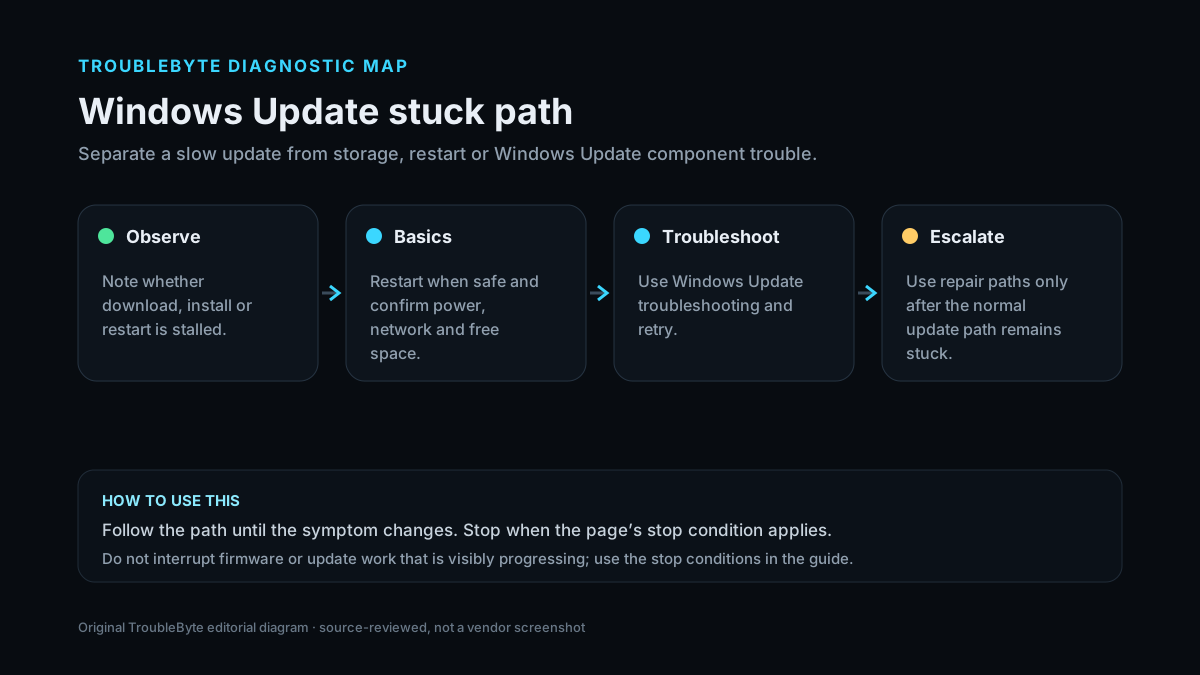
TroubleByte diagnostic path
Make sure the update is truly stalled.
Check network and system-drive space.
Run the supported Windows Update troubleshooter.
Capture the KB/error code before deeper repair.
Original TroubleByte diagnostic map. It summarizes the cited troubleshooting order; it is not a vendor screenshot.
Use the symptom to choose the next branch
Is there enough free space and a working internet connection?
Run the Windows Update troubleshooter and retry.
Fix the storage or connectivity prerequisite before update-component changes.
Does the same KB fail with a repeatable error code?
Use the code-specific Microsoft path rather than generic cache deletion.
If it only progresses slowly, allow reasonable time before assuming corruption.
Original TroubleByte decision aid derived from the cited troubleshooting scope. It does not replace vendor documentation.
What this usually means
The percentage alone does not identify the cause. Microsoft’s current guidance checks connection, free space, restart state and the Windows Update troubleshooter first. A machine that is genuinely progressing slowly should not be interrupted repeatedly; a machine that remains unchanged across restarts needs evidence before component resets.
What we verified from the source material
Microsoft documents stuck update percentages as a Windows Update troubleshooting case and recommends restart, connectivity, disk-space and troubleshooter checks. Its storage guidance notes that low disk space can prevent Windows updates from installing correctly.
Prerequisites and checks
Prepare first
- Keep the device on AC power during update troubleshooting.
- Back up important work before restart or repair actions.
- Note any exact Windows Update error code or KB identifier that appears.
Checks that prevent the wrong fix
- Confirm the percentage has remained unchanged long enough to be abnormal.
- Check internet connectivity and available system-drive space.
- Run the Windows Update troubleshooter and review any reported action.
Applies to
Solutions, in order
Check the supported prerequisites
- Restart the PC once to clear blocked update work.
- Verify the PC has a working internet connection.
- Check free space on the Windows system drive and use Storage cleanup if needed.
- Run Settings > System > Troubleshoot > Other troubleshooters > Windows Update.
Why this can work: Microsoft explicitly calls out restart, connectivity, storage and the Windows Update troubleshooter for updates stuck at 0%, 100% or during installation.
Retry and capture the exact failure
- Return to Windows Update and select Check for updates after the first fixes.
- If an error code appears, record the exact code and KB number.
- Apply the Microsoft guidance for that code instead of generic service-deletion scripts.
- If the update repeatedly stalls at the same stage, move to supported Windows repair or installation troubleshooting.
Why this can work: A reproducible update error code is more actionable than repeatedly clearing caches without knowing which update stage is failing.
How to know the fix actually worked
- Windows Update completes and reports the device up to date or the target KB as installed.
- The update remains installed after restart without returning to the same stuck state.
Do not count a temporary disappearance of the symptom as a confirmed fix if the problem normally returns after a restart, reconnect or several minutes of use.
When not to keep changing things
- If the PC is still visibly applying an update or showing active disk/installation progress, avoid forced power-off unless Microsoft recovery guidance or a true hang requires it.
Escalation: If the same update repeatedly fails after supported troubleshooting, record the KB/error code and use Microsoft’s update error guidance or repair installation path rather than repeatedly deleting SoftwareDistribution contents.
Sources used for this record
Primary · checked Sep 8, 2026Microsoft — Troubleshoot problems updating WindowsFirst-party documentation used as the primary evidence source for this troubleshooting record.Corroborating · checked Sep 8, 2026Microsoft — Free up drive space in WindowsFirst-party documentation used as corroborating evidence for this troubleshooting record.Need private help with this guide?
If the guide did not resolve the problem, send a private case to TroubleByte. It is separate from the public discussion below.
Discuss this exact problem
Share what happened on your system, ask a focused follow-up question, or add evidence that may help someone with the same symptom. Community posts are separate from TroubleByte editorial verification.
Start a discussion
Revision history
Show 1 recorded revision
2026-09-08 — Created for the v1.1 content-scale pass from current first-party documentation; public indexing is controlled by the launch allowlist.