
USB-C device not working in Windows 11
USB-C is a connector, not one guaranteed feature set: charging, display output, Thunderbolt/USB4 and data can depend on the PC port, cable, dock and device. Microsoft recommends matching capabilities and testing a direct connection before deeper driver or hardware conclusions.
Match port, cable and device capabilities
Confirm that the PC port, cable and accessory support the same USB-C feature, then connect the device directly instead of through a hub. Check Windows USB connection notifications before changing drivers.
- Identify the feature you need: data, charging, display, USB4 or Thunderbolt.
- Confirm the PC port and cable support that feature.
- Connect the device directly to the compatible USB-C port without a hub.
- Try another known-good compatible cable if available.
Why this branch first: Microsoft emphasizes that USB-C features must be supported by the PC, cable and connected device and recommends direct connection.
Choose a local-first diagnostic tool
Use a TroubleByte tool to inspect an error, DNS record or local system context before changing settings.
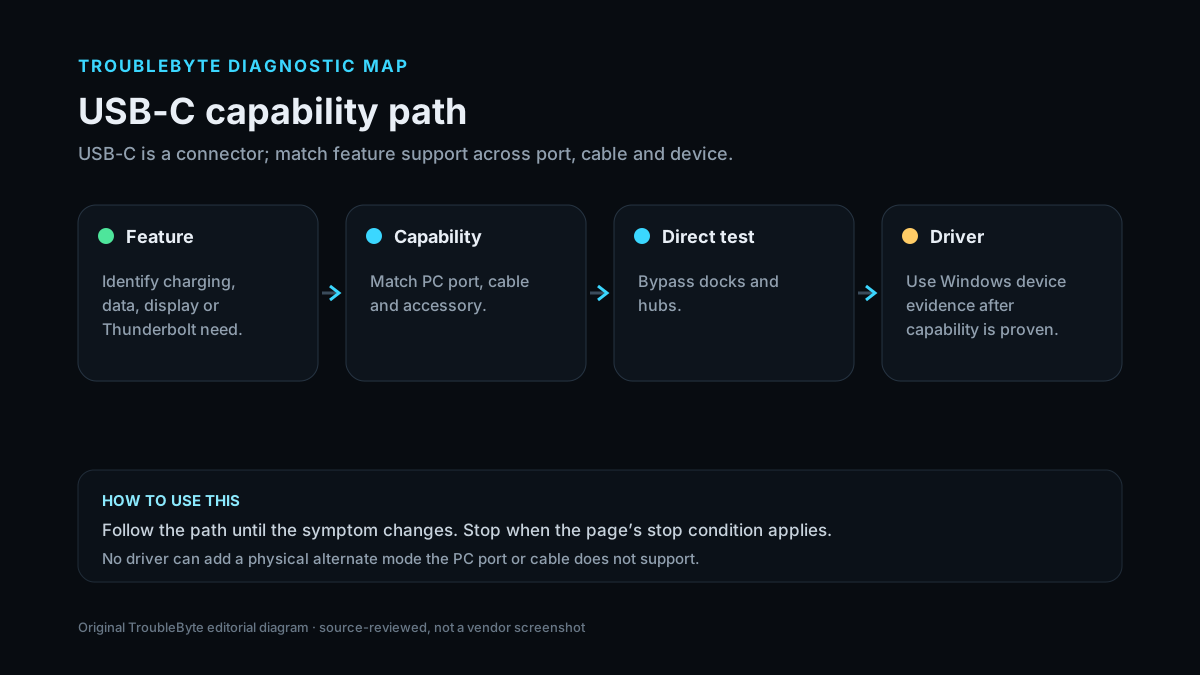
TroubleByte diagnostic path
Identify charging, data, display or Thunderbolt need.
Match PC port, cable and accessory support.
Bypass hubs and docks.
Use Windows error/driver evidence only after capability is proven.
Original TroubleByte diagnostic map. It summarizes the cited troubleshooting order; it is not a vendor screenshot.
Use the symptom to choose the next branch
Do the PC port, cable and accessory all support the required USB-C feature?
Continue with direct-connection and Windows device-state checks.
Fix the capability/cable mismatch instead of reinstalling drivers.
Does the device work when connected directly without the dock or hub?
Troubleshoot the dock/hub or its power/firmware path.
Inspect Windows device state and supported drivers next.
Original TroubleByte decision aid derived from the cited troubleshooting scope. It does not replace vendor documentation.
What this usually means
USB-C failures are often capability mismatches rather than a dead port. A cable that supports charging may not support the required display or high-speed mode, and a port may not support the alternate mode an accessory needs. Direct connection and capability matching should precede driver replacement.
What we verified from the source material
Microsoft documents USB-C feature mismatches, insufficient power, wrong ports, hubs and driver/device errors as distinct causes. The recommended path is to prove capability and direct connection before using Device Manager or vendor driver recovery.
Prerequisites and checks
Prepare first
- Know whether you need charging, data, video, USB4, or Thunderbolt.
- Disconnect unnecessary hubs/docks for the first test.
- Use the PC and accessory documentation to confirm supported USB-C modes.
Checks that prevent the wrong fix
- Connect the device directly to the intended USB-C port.
- Try a known-good cable that supports the required feature, not just charging.
- Check Windows USB connection notifications and Device Manager state.
Applies to
Solutions, in order
Match port, cable and device capabilities
- Identify the feature you need: data, charging, display, USB4 or Thunderbolt.
- Confirm the PC port and cable support that feature.
- Connect the device directly to the compatible USB-C port without a hub.
- Try another known-good compatible cable if available.
Why this can work: Microsoft emphasizes that USB-C features must be supported by the PC, cable and connected device and recommends direct connection.
Use Windows device and driver evidence
- Review the Windows USB connection notification if one appears.
- Inspect Device Manager for the affected device and error code.
- Install supported Windows and OEM driver/firmware updates.
- Restart and retest the same direct connection.
Why this can work: Windows USB notifications and Device Manager can show device-reported or driver problems once a capability mismatch is ruled out.
How to know the fix actually worked
- The accessory works directly on the intended port using a compatible cable.
- Windows no longer reports a USB connection warning after restart.
Do not count a temporary disappearance of the symptom as a confirmed fix if the problem normally returns after a restart, reconnect or several minutes of use.
When not to keep changing things
- If the accessory requires a mode the PC port does not support, stop driver changes; no software update can add missing physical port capability.
Escalation: If a supported device and known-good cable fail on every compatible port after driver and firmware checks, escalate to the PC or accessory vendor with the exact port/cable/device combination.
Sources used for this record
Primary · checked Sep 8, 2026Microsoft — Fix USB-C problems in WindowsFirst-party documentation used as evidence for this troubleshooting record.Corroborating · checked Sep 8, 2026Microsoft — Update drivers through Device Manager in WindowsFirst-party documentation used as evidence for this troubleshooting record.Need private help with this guide?
If the guide did not resolve the problem, send a private case to TroubleByte. It is separate from the public discussion below.
Discuss this exact problem
Share what happened on your system, ask a focused follow-up question, or add evidence that may help someone with the same symptom. Community posts are separate from TroubleByte editorial verification.
Start a discussion
Revision history
Show 1 recorded revision
2026-09-08 — Created for the v1.2 search-quality and content-scale pass from current first-party documentation; public indexing is controlled by the launch allowlist.