
Wi-Fi option missing in Windows 11
When the Wi-Fi option disappears from Windows 11, Microsoft recommends checking the physical wireless switch, adapter state, WLAN service and network adapter driver before broader network reset steps.
Check adapter and WLAN service
Confirm the Wi-Fi adapter is enabled in Device Manager, make sure any hardware wireless switch is on, then restart the WLAN AutoConfig service and check the adapter driver.
- Open Device Manager > Network adapters and enable the Wi-Fi adapter if it is disabled.
- Confirm any hardware wireless switch or radio hotkey is enabled.
- Open Services and restart WLAN AutoConfig if it is stopped.
- Reopen Settings > Network & internet and check whether Wi-Fi returns.
Why this branch first: Microsoft lists adapter enablement, hardware switches and WLAN service checks for a missing Wi-Fi option.
Choose a local-first diagnostic tool
Use a TroubleByte tool to inspect an error, DNS record or local system context before changing settings.
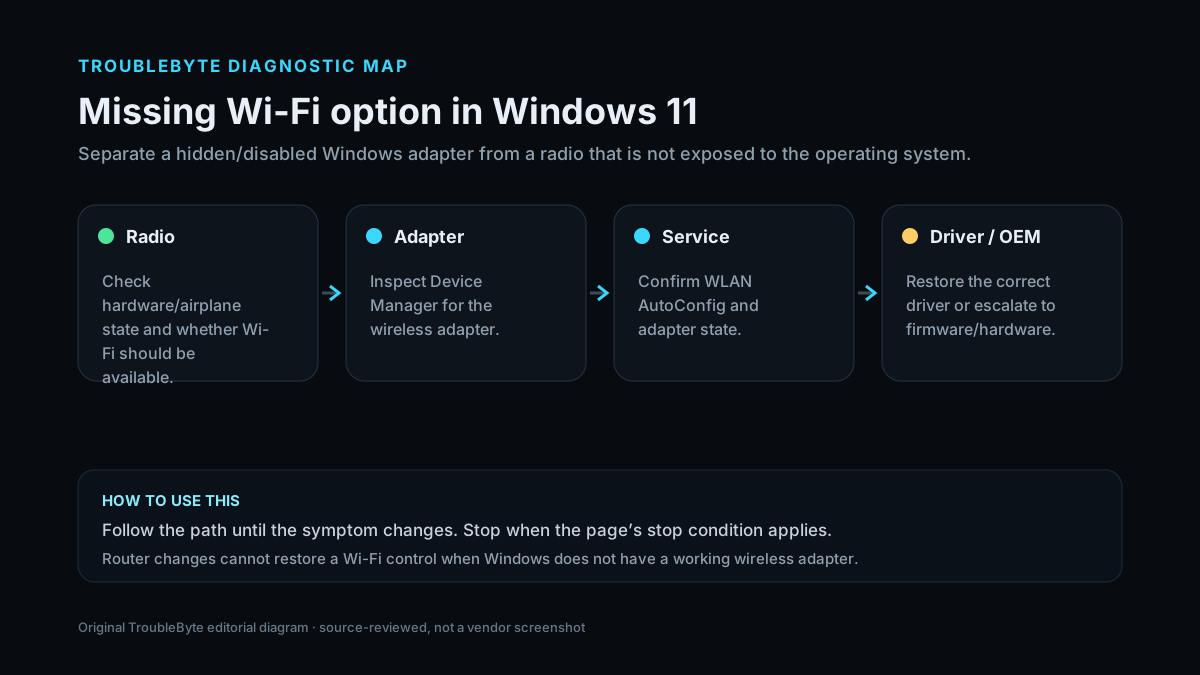
TroubleByte diagnostic path
Confirm the radio is physically enabled.
Check Device Manager visibility.
Confirm WLAN AutoConfig is running.
Update, reinstall or roll back as appropriate.
Original TroubleByte diagnostic map. It summarizes the cited troubleshooting order; it is not a vendor screenshot.
Use the symptom to choose the next branch
Is the wireless adapter visible in Device Manager?
Check WLAN AutoConfig, adapter state and the installed driver before changing router settings.
Investigate hardware/firmware exposure and the correct OEM driver; router changes cannot restore a missing Windows adapter.
Does the Wi-Fi control return after enabling the adapter/service or restoring the driver?
Reconnect and verify normal discovery before making further changes.
Escalate to OEM firmware/hardware diagnostics instead of repeatedly resetting Windows networking.
Original TroubleByte decision aid derived from the cited troubleshooting scope. It does not replace vendor documentation.
What this usually means
A missing Wi-Fi toggle is different from a weak or failed Wi-Fi connection: Windows may not be exposing the wireless adapter at all. The fastest branch is therefore adapter visibility and service state first, not router resets or DNS changes.
What we verified from the source material
Microsoft’s Windows Wi-Fi troubleshooting explicitly lists a missing Wi-Fi option as a distinct condition and directs users to check the hardware switch, enable the adapter, restart WLAN services and address adapter-driver state before broader network troubleshooting.
Prerequisites and checks
Prepare first
- Confirm the PC actually has a Wi-Fi adapter.
- If this is a laptop, check the hardware wireless switch or function key.
- Record the adapter model if it is visible in Device Manager.
Checks that prevent the wrong fix
- Check whether the Wi-Fi adapter appears in Device Manager.
- Check for a laptop hardware wireless switch or function-key radio toggle.
- Note whether the option disappeared immediately after a Windows or driver update.
Applies to
Solutions, in order
Check adapter and WLAN service
- Open Device Manager > Network adapters and enable the Wi-Fi adapter if it is disabled.
- Confirm any hardware wireless switch or radio hotkey is enabled.
- Open Services and restart WLAN AutoConfig if it is stopped.
- Reopen Settings > Network & internet and check whether Wi-Fi returns.
Why this can work: Microsoft lists adapter enablement, hardware switches and WLAN service checks for a missing Wi-Fi option.
Update or reinstall the Wi-Fi driver
- Use Windows Update and optional driver updates first.
- If the adapter is present but malfunctioning, update its driver in Device Manager or from the PC manufacturer.
- If a recent driver change caused the problem, consider rollback where available.
- Restart and verify adapter visibility before applying a full network reset.
Why this can work: A missing or incompatible network adapter driver can prevent Windows from exposing Wi-Fi controls.
How to know the fix actually worked
- The Wi-Fi option returns in Settings and available networks can be scanned.
- Device Manager shows the wireless adapter without a warning icon.
Do not count a temporary disappearance of the symptom as a confirmed fix if the problem normally returns after a restart, reconnect or several minutes of use.
When not to keep changing things
- If the adapter is not detected at all after restart and OEM driver checks, stop changing router/DNS settings and investigate hardware or firmware detection.
Escalation: If the wireless adapter is absent from Device Manager after restart and OEM driver installation, check firmware/BIOS wireless settings or hardware detection before repeatedly resetting Windows networking.
Sources used for this record
Primary · checked Sep 7, 2026Microsoft — Fix Wi-Fi connection issues in WindowsFirst-party documentation used to verify the troubleshooting scope and steps.Corroborating · checked Sep 7, 2026Microsoft — Update drivers through Device Manager in WindowsFirst-party documentation used to verify the troubleshooting scope and steps.Need private help with this guide?
If the guide did not resolve the problem, send a private case to TroubleByte. It is separate from the public discussion below.
Discuss this exact problem
Share what happened on your system, ask a focused follow-up question, or add evidence that may help someone with the same symptom. Community posts are separate from TroubleByte editorial verification.
Start a discussion
Revision history
Show 2 recorded revisions
2026-09-07 — Promoted to launch candidate with a two-branch diagnostic decision aid and original TroubleByte diagnostic media.
2026-09-07 — Created for the v0.8 content-scale pass from current first-party documentation; held noindex for editorial review.