
Cannot connect to the Docker daemon
Docker documents two primary causes for “Cannot connect to the Docker daemon”: the daemon is not running, or the client is pointed at another unreachable daemon. On Linux, local Unix-socket permissions can also prevent a non-root user from connecting even when dockerd is healthy.
Confirm the daemon and target context
Run docker info and check the Docker service state. Then inspect DOCKER_HOST/current context. If sudo works but your normal user does not, diagnose Unix-socket/group permissions instead of restarting containers.
- Run docker info to test the control connection.
- Check the Docker daemon/service status and start it using the platform-supported service manager if stopped.
- Inspect DOCKER_HOST and docker context ls/use to confirm the CLI targets the intended daemon.
- Retest before changing socket permissions.
Why this branch first: Docker explicitly says the daemon may be stopped or the client may be targeting an unreachable host.
Choose a local-first diagnostic tool
Use a TroubleByte tool to inspect an error, DNS record or local system context before changing settings.
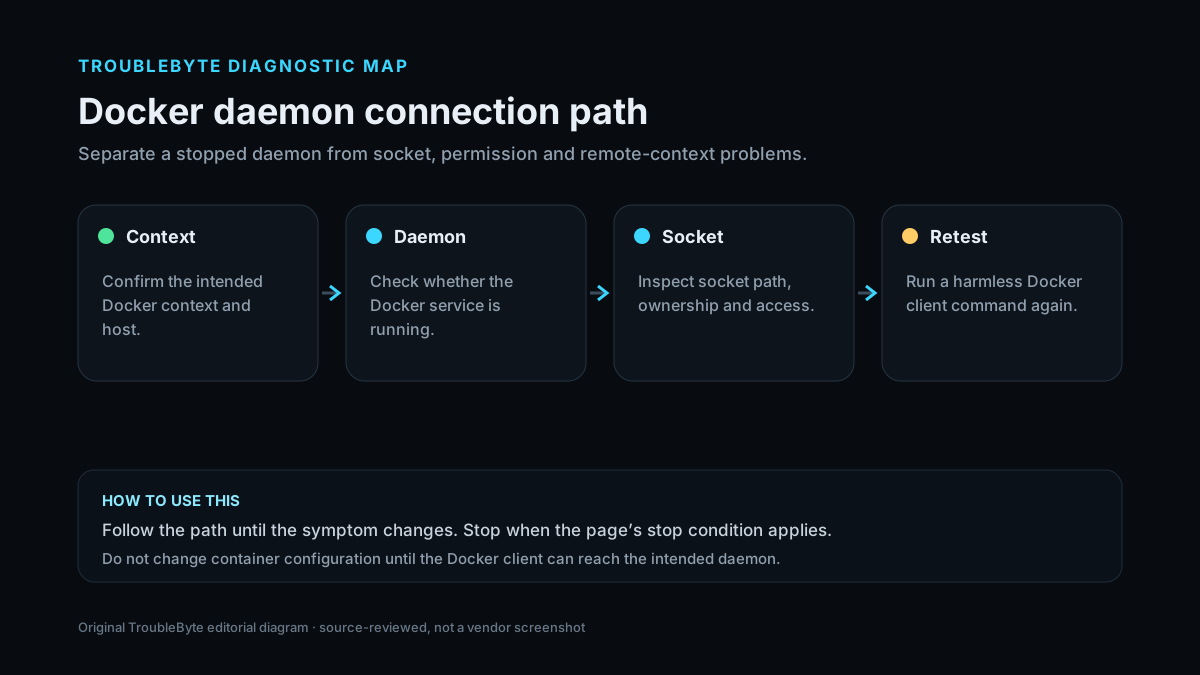
TroubleByte diagnostic path
Run docker info and capture the exact failure.
Check dockerd/service state.
Inspect DOCKER_HOST and Docker context.
If local Linux only, fix socket/group access without unsafe chmod.
Original TroubleByte diagnostic map. It summarizes the cited troubleshooting order; it is not a vendor screenshot.
What this usually means
This error is about the control-plane connection between the Docker CLI and daemon, not an individual container. Docker’s daemon troubleshooting says the service may be stopped or the client may target a different host. On Linux, the default Unix socket is root-owned and access through the docker group carries root-level privilege, so permission fixes must be made deliberately rather than chmod 777 on the socket.
What we verified from the source material
Docker’s daemon troubleshooting identifies a stopped daemon or wrong/unreachable Docker host as primary connection causes. Docker’s Linux post-installation docs explain default root ownership of the Unix socket and warn that docker-group membership grants root-level privileges.
Prerequisites and checks
Prepare first
- Know whether Docker Engine is local, Docker Desktop or a remote context.
- Do not chmod the Docker socket world-writable.
- Understand that membership in the docker group grants root-level privileges.
Checks that prevent the wrong fix
- Run docker info and capture the exact error.
- Check systemctl status docker or the platform-specific daemon status.
- Inspect DOCKER_HOST and the active Docker context before changing permissions.
Applies to
Solutions, in order
Confirm the daemon and target context
- Run docker info to test the control connection.
- Check the Docker daemon/service status and start it using the platform-supported service manager if stopped.
- Inspect DOCKER_HOST and docker context ls/use to confirm the CLI targets the intended daemon.
- Retest before changing socket permissions.
Why this can work: Docker explicitly says the daemon may be stopped or the client may be targeting an unreachable host.
Fix Linux socket access safely
- If sudo docker works but normal docker does not, inspect /var/run/docker.sock ownership and your group membership.
- Use Docker’s supported docker-group procedure only when the security implications are acceptable.
- Log out/in so new group membership is applied.
- Prefer rootless Docker when that security model better fits the host; never solve this with chmod 777.
Why this can work: Docker documents the root-owned Unix socket and docker-group access, with an explicit warning that the group grants root-level privileges.
How to know the fix actually worked
- docker info returns server information from the intended daemon.
- The normal intended user can run a harmless command such as docker ps without permission errors.
Do not count a temporary disappearance of the symptom as a confirmed fix if the problem normally returns after a restart, reconnect or several minutes of use.
When not to keep changing things
- Do not make /var/run/docker.sock world-writable; if access policy is unclear on a shared server, stop and choose an approved privilege model.
Escalation: If dockerd is active and the client targets the correct local socket but connection still fails, inspect daemon logs/socket state; for managed Docker hosts, involve the platform administrator.
Sources used for this record
Primary · checked Sep 7, 2026Docker — Troubleshooting the Docker daemonFirst-party documentation used as the primary evidence source for this troubleshooting record.Corroborating · checked Sep 7, 2026Docker — Linux post-installation steps for Docker EngineFirst-party documentation used as the corroborating evidence source for this troubleshooting record.Need private help with this guide?
If the guide did not resolve the problem, send a private case to TroubleByte. It is separate from the public discussion below.
Discuss this exact problem
Share what happened on your system, ask a focused follow-up question, or add evidence that may help someone with the same symptom. Community posts are separate from TroubleByte editorial verification.
Start a discussion
Revision history
Show 2 recorded revisions
2026-09-26 — Source review refreshed against cited current first-party documentation; diagnostic scope confirmed. No hands-on test claimed.
2026-09-07 — Created for the v0.9 launch-acceleration content pass from current first-party documentation; indexing remains disabled pending final launch review.