
Windows asks for a BitLocker recovery key
BitLocker can request recovery after firmware, boot, hardware or security changes that it cannot distinguish from unauthorized access. The useful first split is whether the correct recovery key is available for this exact device.
Capture the exact symptom and scope first
Do not guess or bypass the recovery key. Identify the device and account that owns the key, retrieve the matching 48-digit key through Microsoft’s documented recovery-key path, and stop before resetting the PC if the data matters.
- Record the exact visible message, time and affected target.
- Confirm whether the problem affects one target or several.
- Preserve relevant logs, settings or state before changing it.
- Choose the next step only after identifying the affected layer.
Why this branch first: The documented recovery path depends on the exact failure state; broad resets or deletes can hide useful evidence.
Choose a local-first diagnostic tool
Use a TroubleByte tool to inspect an error, DNS record or local system context before changing settings.
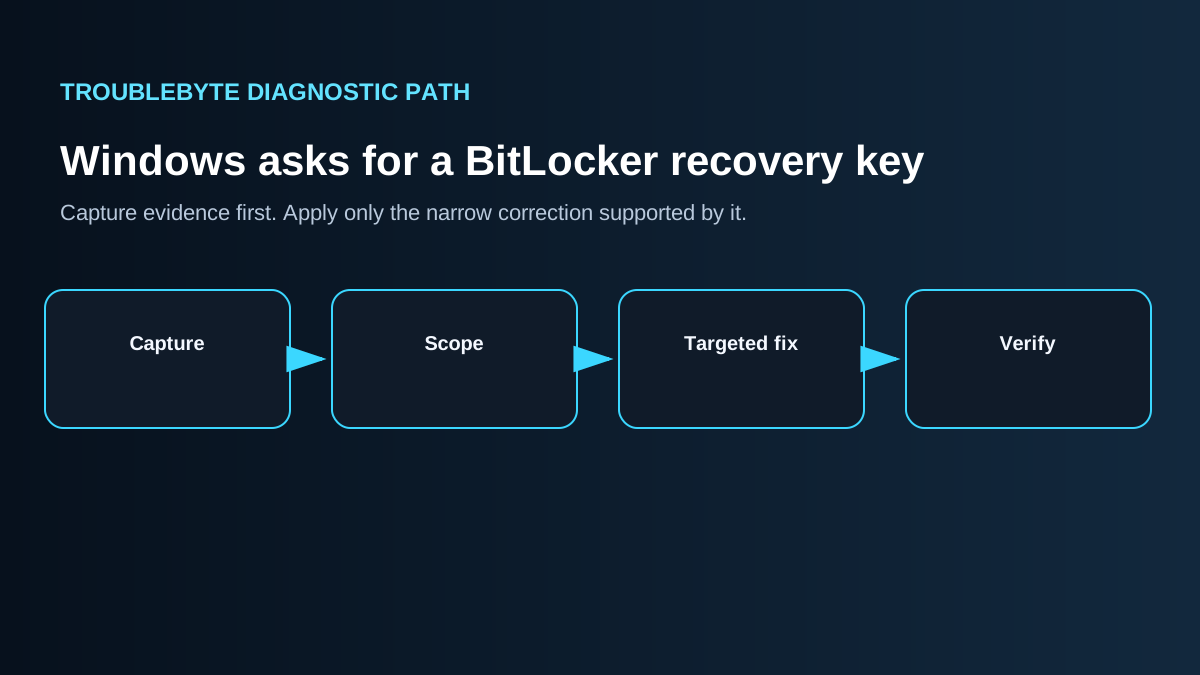
TroubleByte diagnostic path
Save the exact symptom and time.
Separate one target from a wider failure.
Follow the documented narrow path.
Retest the original symptom once.
Original TroubleByte diagnostic map. It summarizes the cited troubleshooting order; it is not a vendor screenshot.
Use the symptom to choose the next branch
Does the evidence point to one affected target rather than a wider device, host, network or platform failure?
Keep the correction narrow and verify it once.
Stop isolated changes and investigate the shared layer first.
Do you have the exact message, timestamp and relevant log, setting or response evidence?
Follow the scoped documented path.
Capture it before resets, deletes or broad configuration changes.
Original TroubleByte decision aid derived from the cited troubleshooting scope. It does not replace vendor documentation.
What this usually means
BitLocker can request recovery after firmware, boot, hardware or security changes that it cannot distinguish from unauthorized access. The useful first split is whether the correct recovery key is available for this exact device.
What we verified from the source material
BitLocker can request recovery after firmware, boot, hardware or security changes that it cannot distinguish from unauthorized access. The useful first split is whether the correct recovery key is available for this exact device.
Prerequisites and checks
Prepare first
- Confirm the current symptom and preserve any exact error text before changing settings.
- Use an account and device context that permits the relevant diagnostic check.
- Avoid deleting data, resetting the device, or changing unrelated settings before the evidence is clear.
Checks that prevent the wrong fix
- Capture the exact message, timing and affected scope.
- Confirm whether the symptom affects one target or the wider device, host or service.
- Apply one narrow documented change, then retest the original symptom.
Applies to
Solutions, in order
Capture the exact symptom and scope first
- Record the exact visible message, time and affected target.
- Confirm whether the problem affects one target or several.
- Preserve relevant logs, settings or state before changing it.
- Choose the next step only after identifying the affected layer.
Why this can work: The documented recovery path depends on the exact failure state; broad resets or deletes can hide useful evidence.
Follow the documented targeted recovery path
- Do not guess or bypass the recovery key. Identify the device and account that owns the key, retrieve the matching 48-digit key through Microsoft’s documented recovery-key path, and stop before resetting the PC if the data matters.
- Avoid unrelated network, reset or deletion actions while testing.
- Retest the original symptom after the targeted change.
- Collect the precise error and scope if the documented path does not resolve it.
Why this can work: Use the official guidance to make the smallest change supported by the observed evidence, then verify it once.
How to know the fix actually worked
- Retest the same original symptom after the targeted change.
- Confirm that the intended function works without creating an unrelated regression.
Do not count a temporary disappearance of the symptom as a confirmed fix if the problem normally returns after a restart, reconnect or several minutes of use.
When not to keep changing things
- If the symptom points to possible data loss, encryption recovery, security access or cluster-wide impact, stop broad changes and preserve evidence before escalation.
Escalation: Escalate with the exact symptom, timestamp, affected scope, relevant version details and the checks already completed.
Sources used for this record
Primary · checked Oct 2, 2026Microsoft — Find your BitLocker recovery keyOfficial documentation used as primary evidence for this scoped troubleshooting record.Corroborating · checked Oct 2, 2026Microsoft — BitLocker overviewOfficial documentation used as corroborating evidence for this scoped troubleshooting record.Need private help with this guide?
If the guide did not resolve the problem, send a private case to TroubleByte. It is separate from the public discussion below.
Discuss this exact problem
Share what happened on your system, ask a focused follow-up question, or add evidence that may help someone with the same symptom. Community posts are separate from TroubleByte editorial verification.
Start a discussion
Revision history
Show 1 recorded revision
2026-10-02 — Created from current first-party documentation with scoped decisions, explicit stop conditions and an original TroubleByte diagnostic diagram. No hands-on test claimed.